Expo
Expo Codex
Codex Claude
The app
Build setup
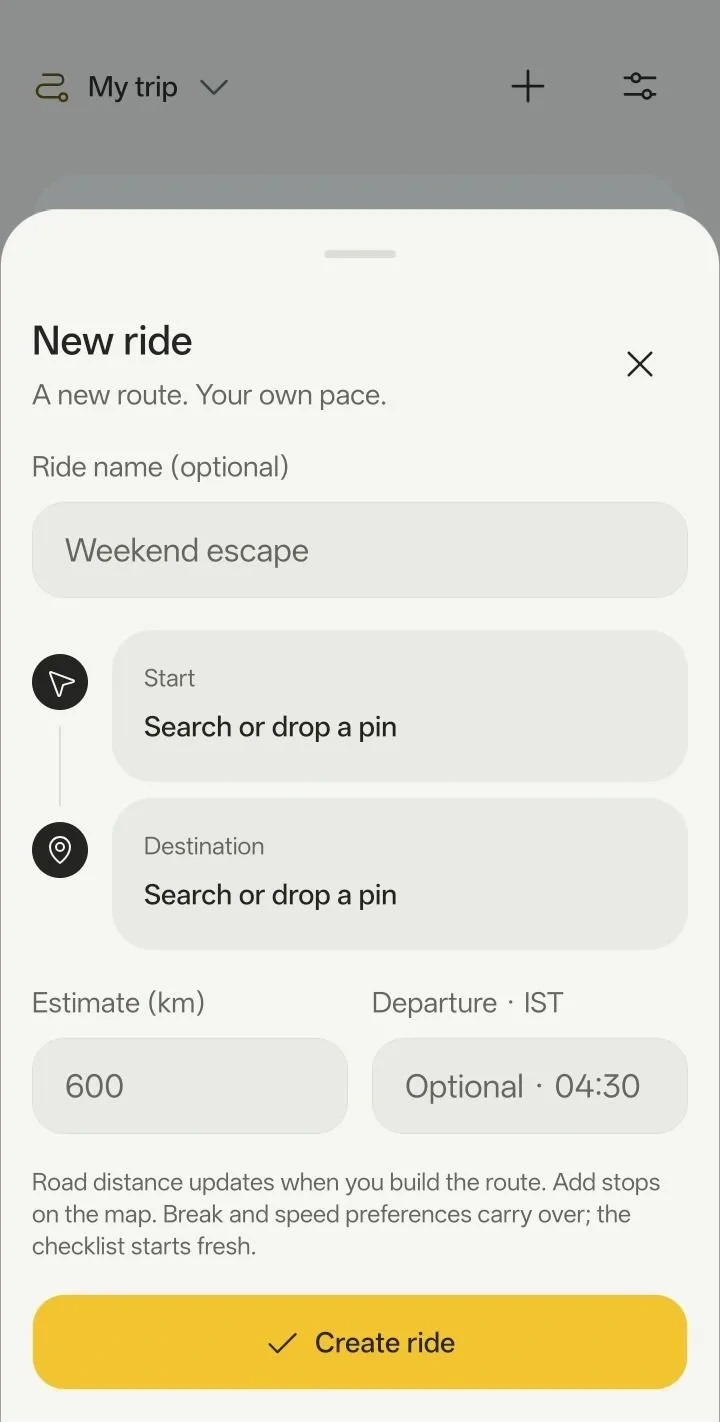
New ride
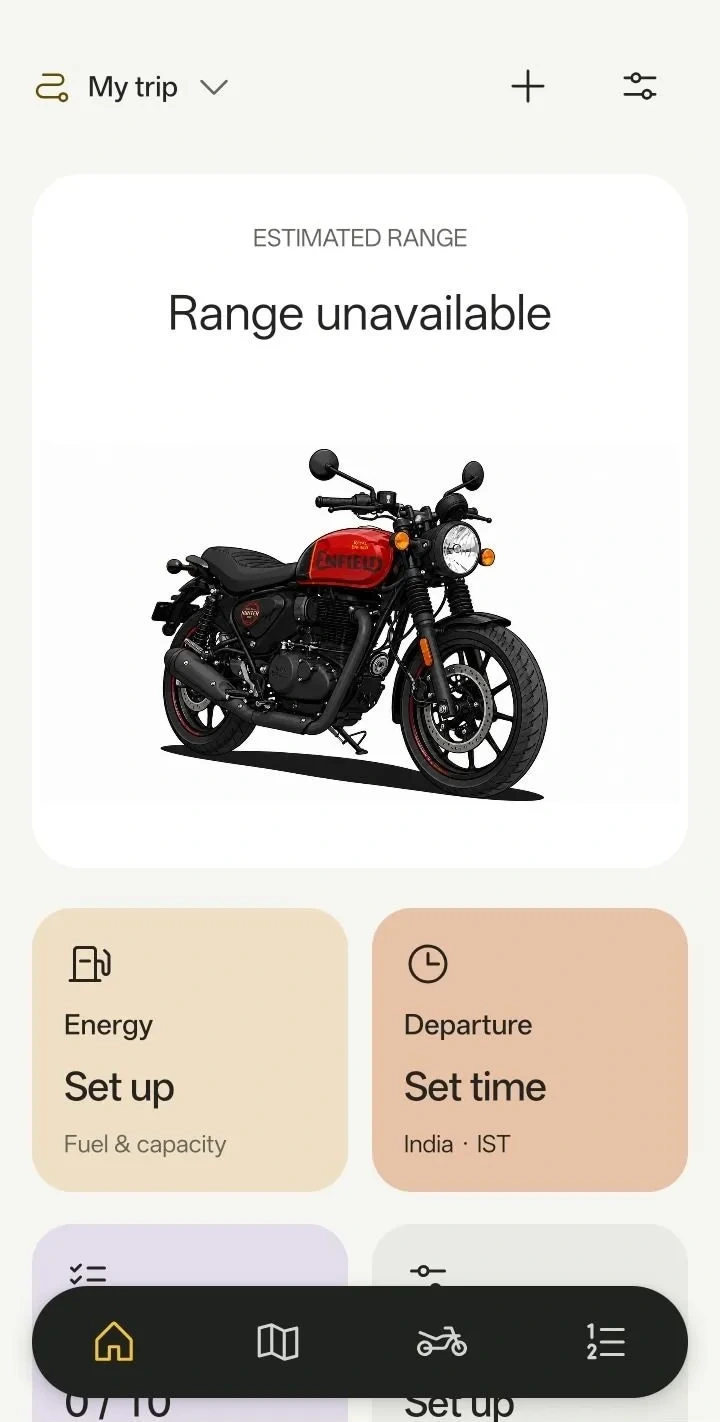
My trip
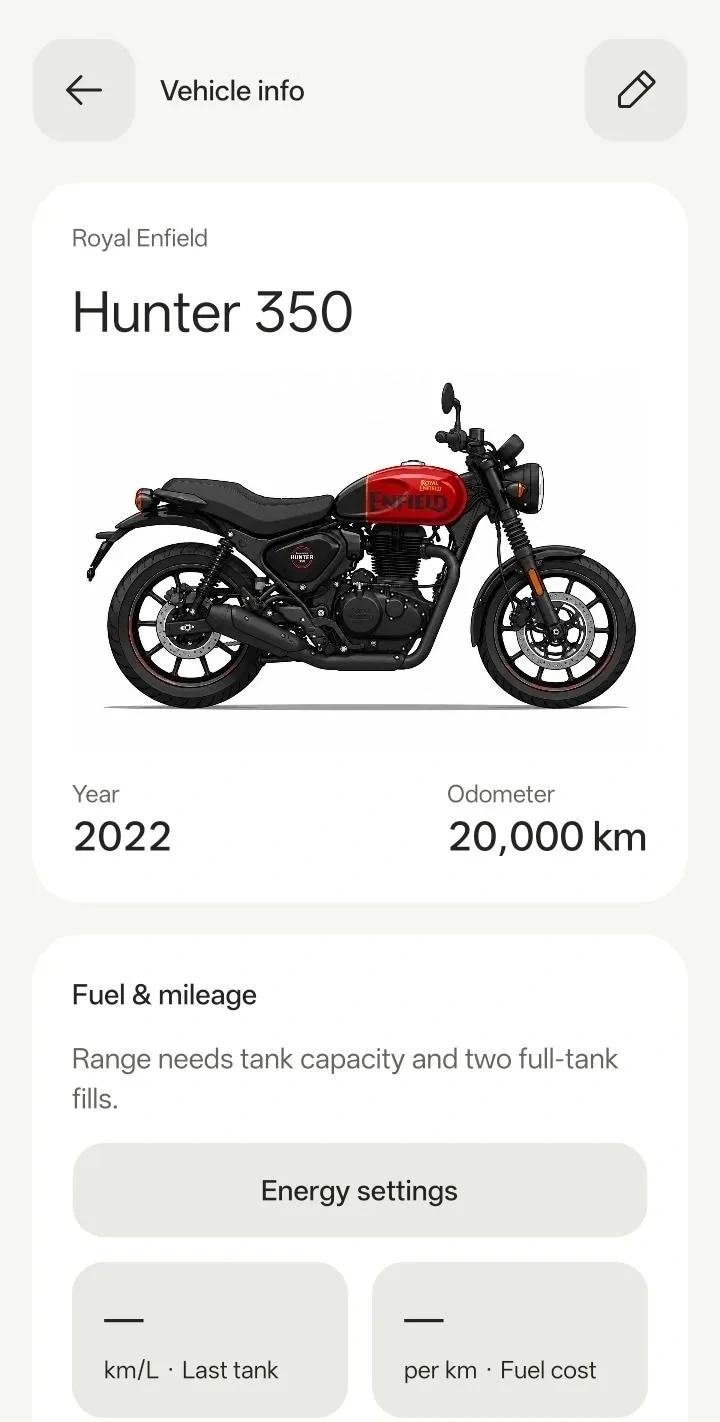
Vehicle info
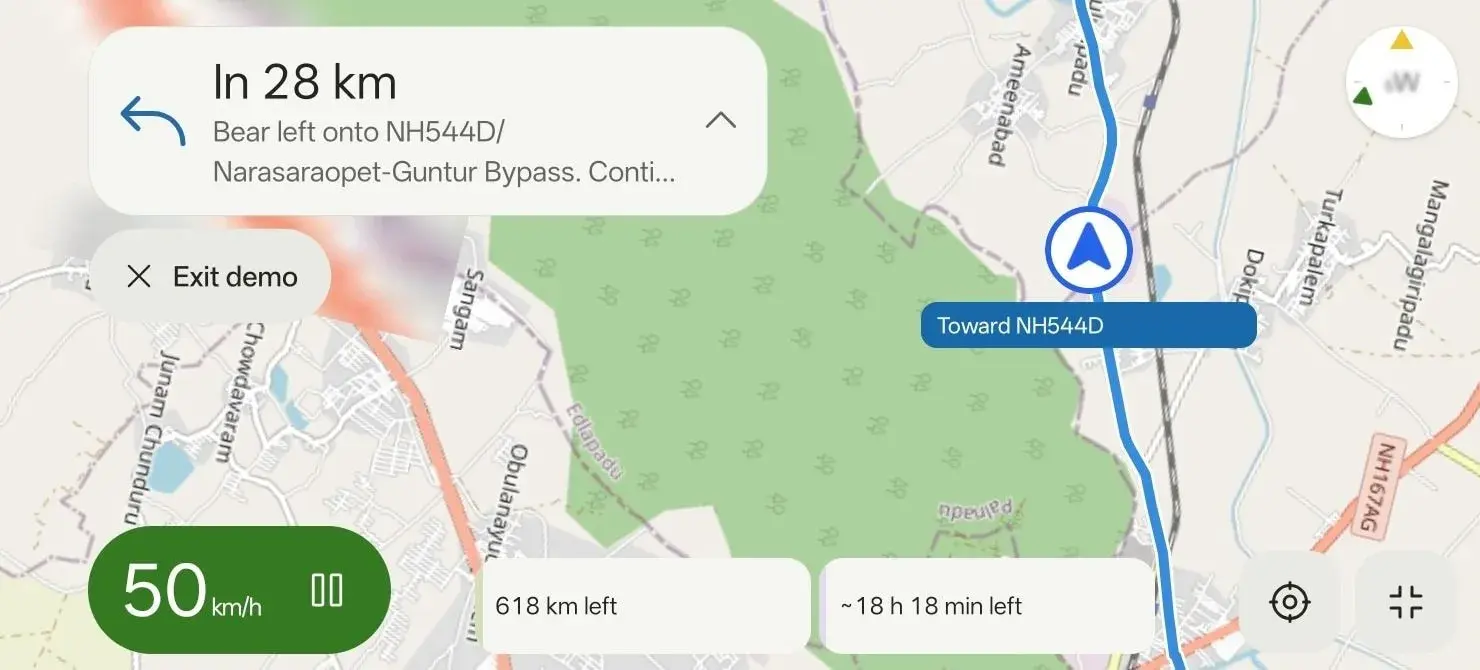
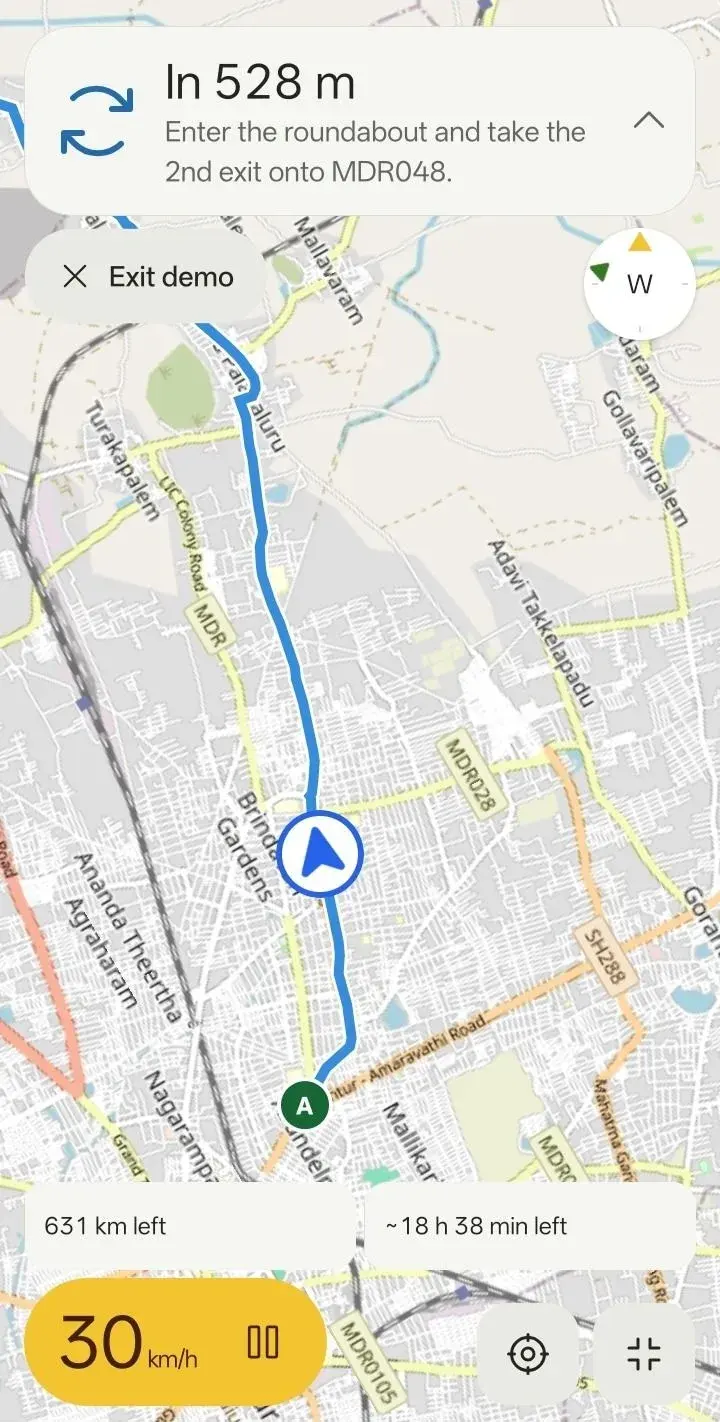
On the road
Ride test
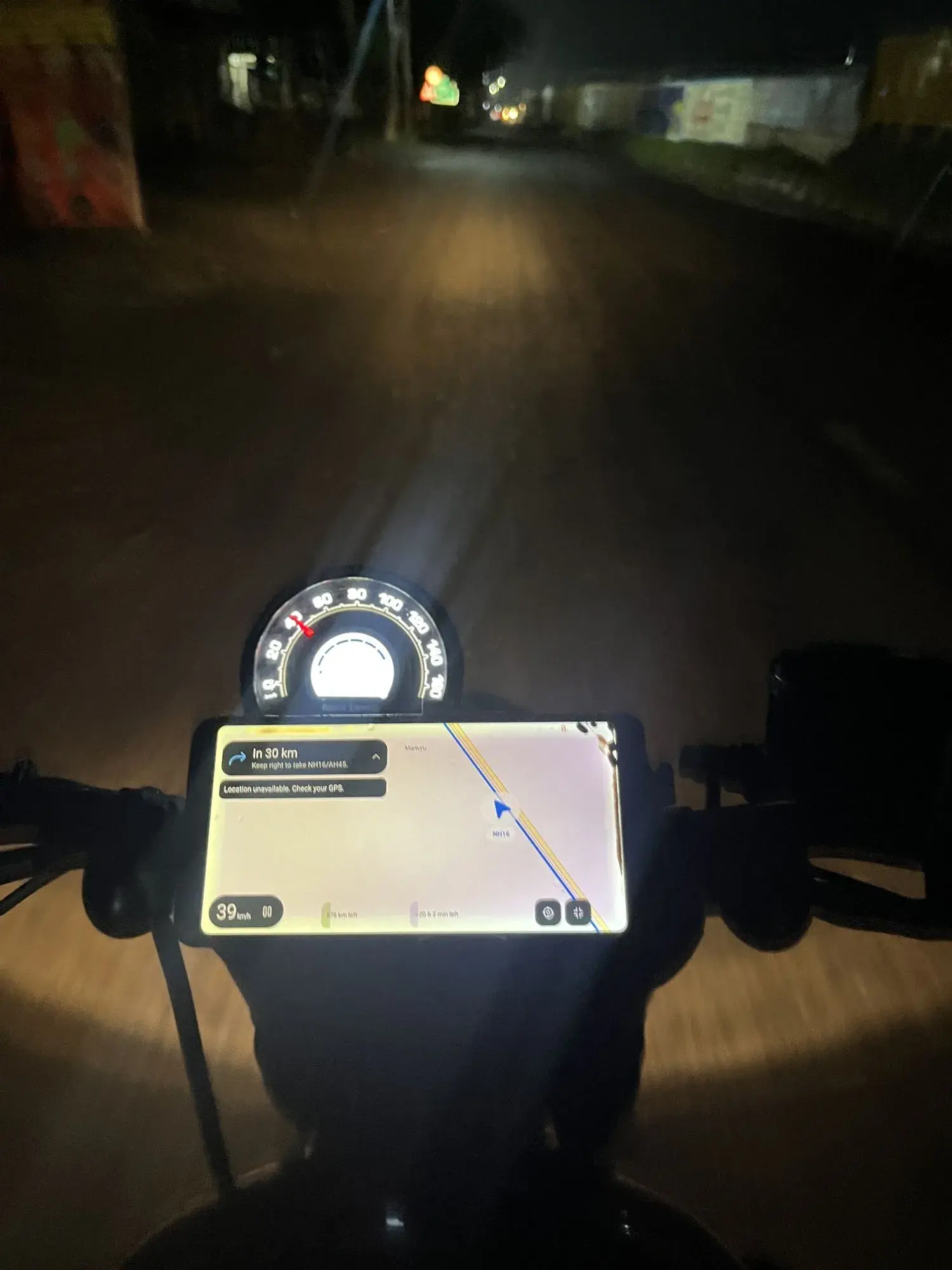
Night ride
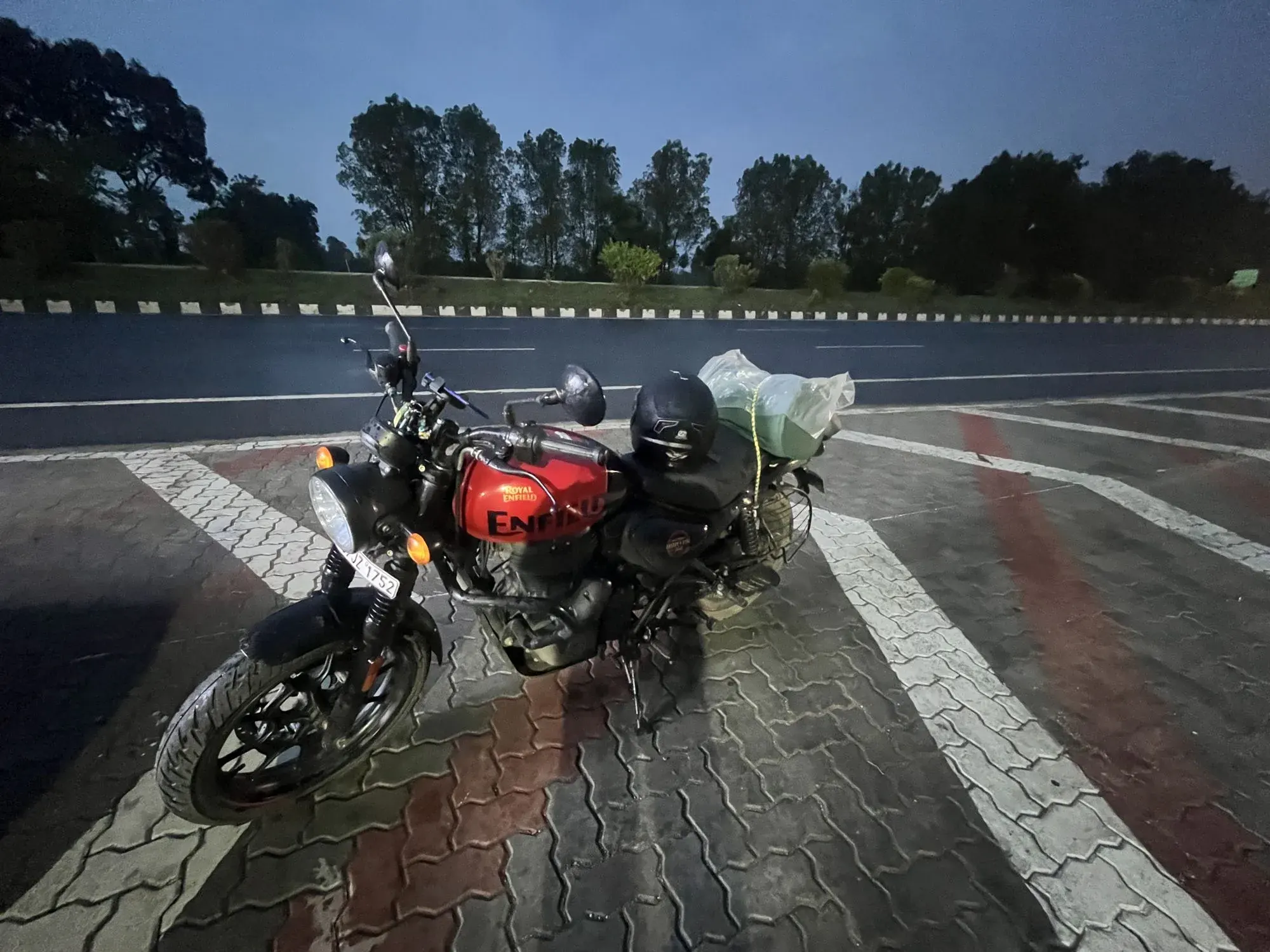
The Hunter 350
Mobile references
Screens from the Polestar, Tesla and Box Box Club apps, collected in AgentUX.
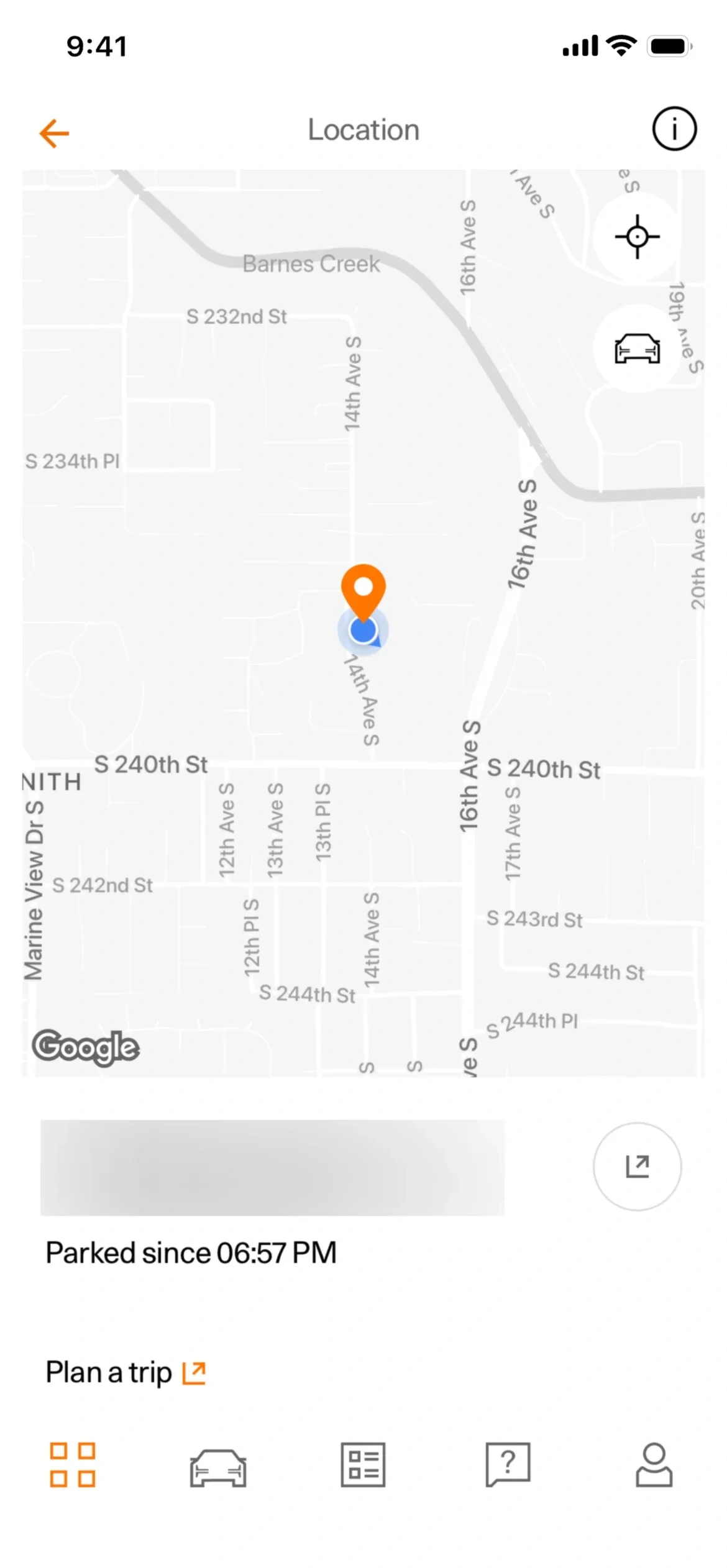
Where you left it
PolestarA map pinned on the car, with how long it has been parked.
For YamDrive: After a ride, a pin where you parked and the time since.
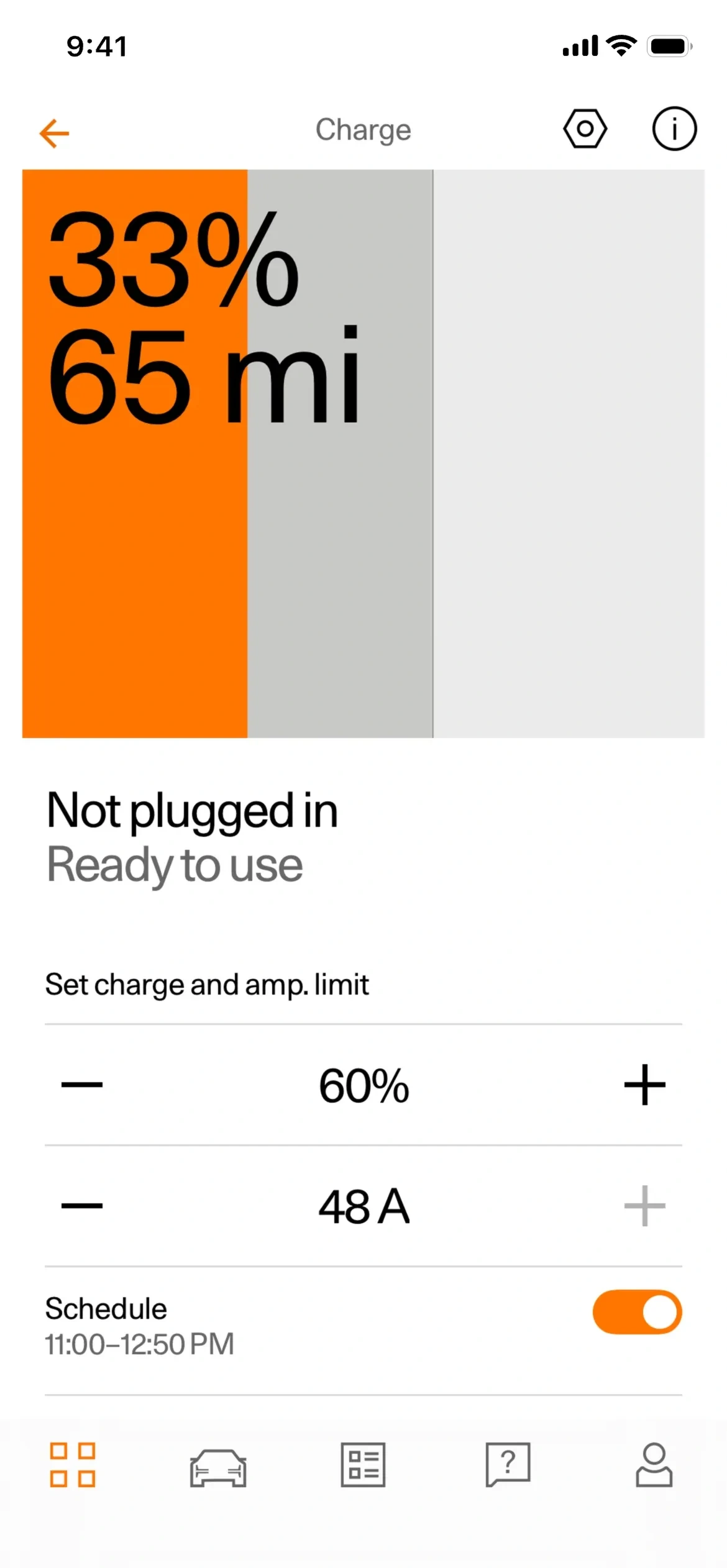
Charge as a filled block
Polestar33% and 65 mi set huge over an orange fill that is the battery level.
For YamDrive: Fuel as a block that fills the card, the range in km set large over it.
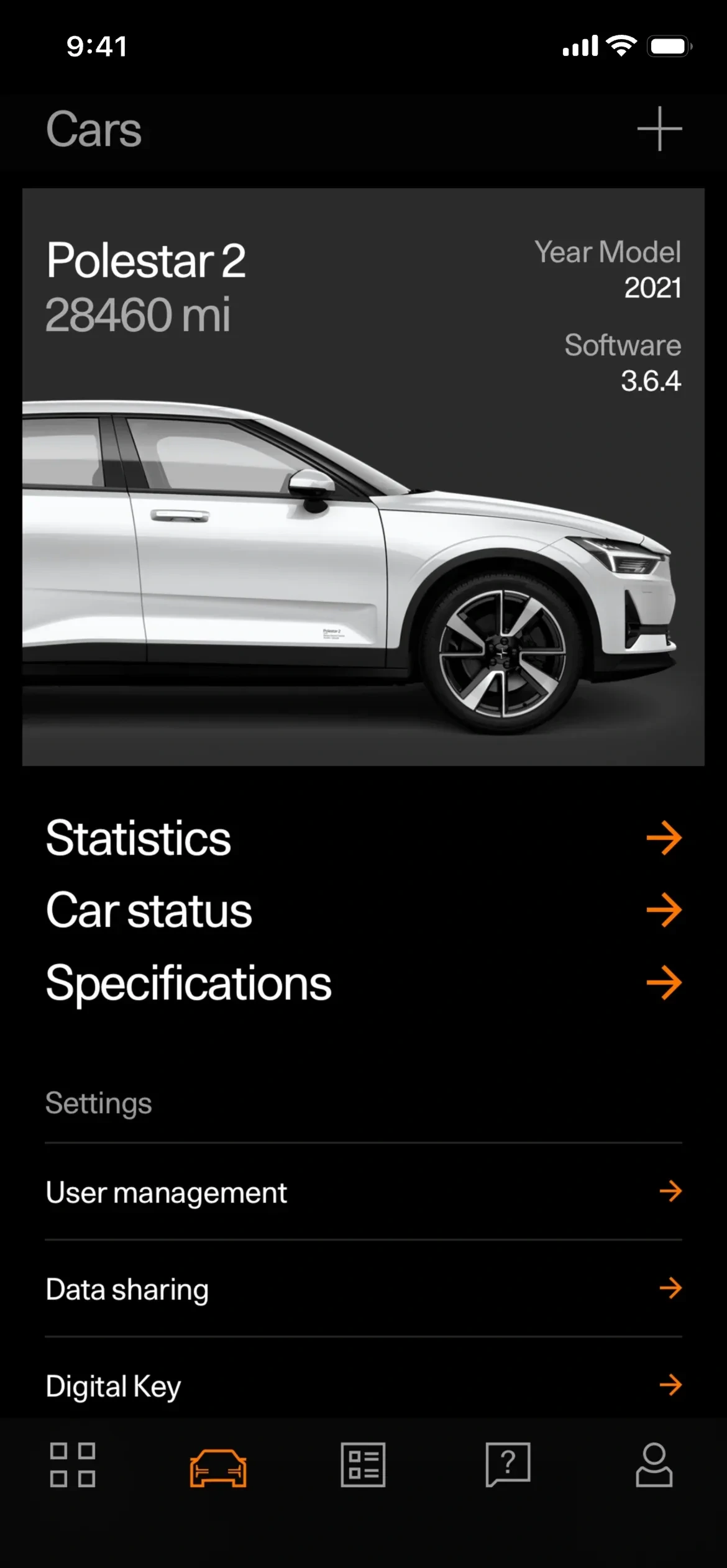
The car first
PolestarA big photo of the car with its odometer, then Statistics, Car status and Specifications.
For YamDrive: The Hunter 350 up top with its odometer, then Statistics, Bike health and Specs.
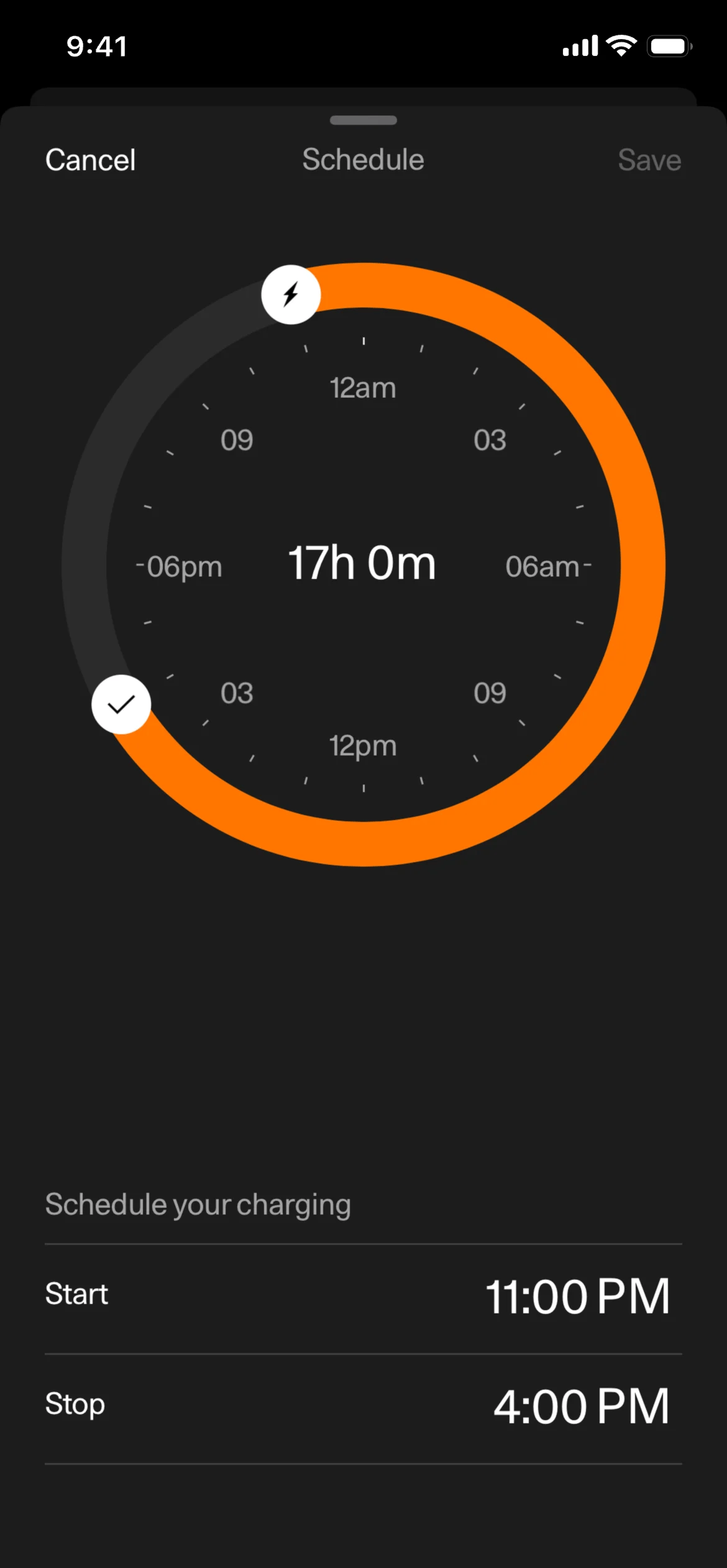
A day as a ring
PolestarA 24-hour dial with an orange arc for the charging window.
For YamDrive: A 24-hour ring to set when you leave and when you plan to arrive.
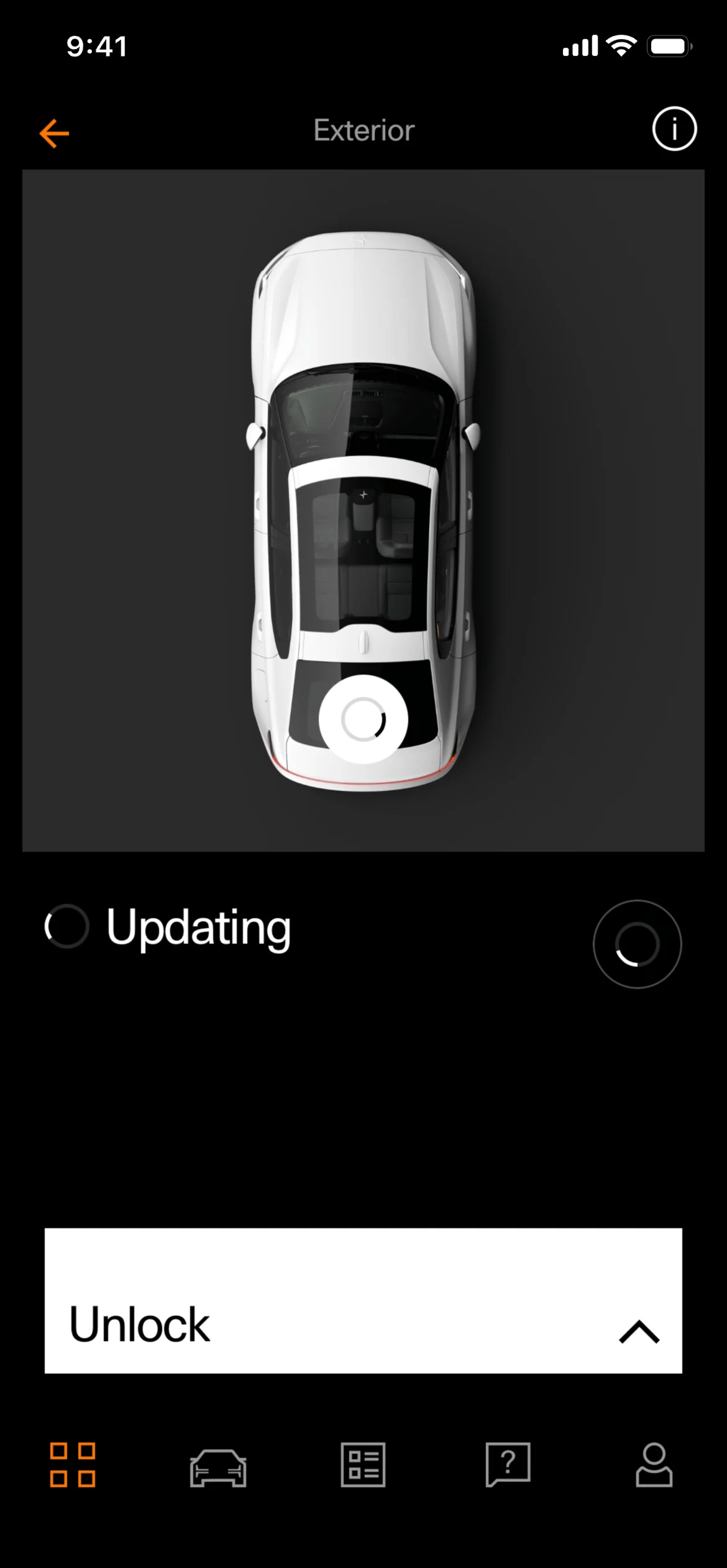
The car as the control
PolestarA top-down car you act on directly, with an unlock slider under it.
For YamDrive: The bike from above, where tapping the tyres, chain or lights opens their health.
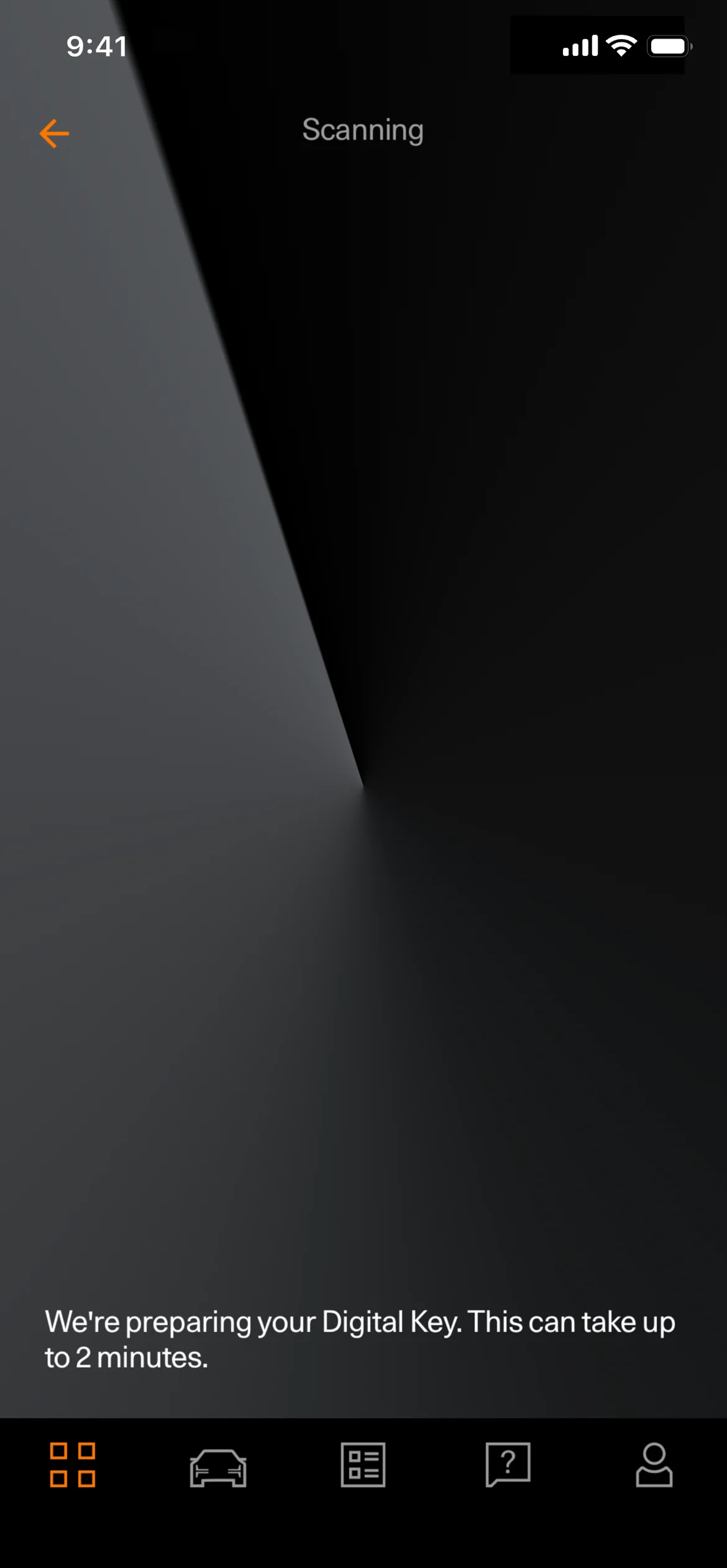
A wait with a reason
PolestarA dark loading screen that says what it is doing and how long it takes.
For YamDrive: When GPS is locking or a ride is syncing, say so and say how long.
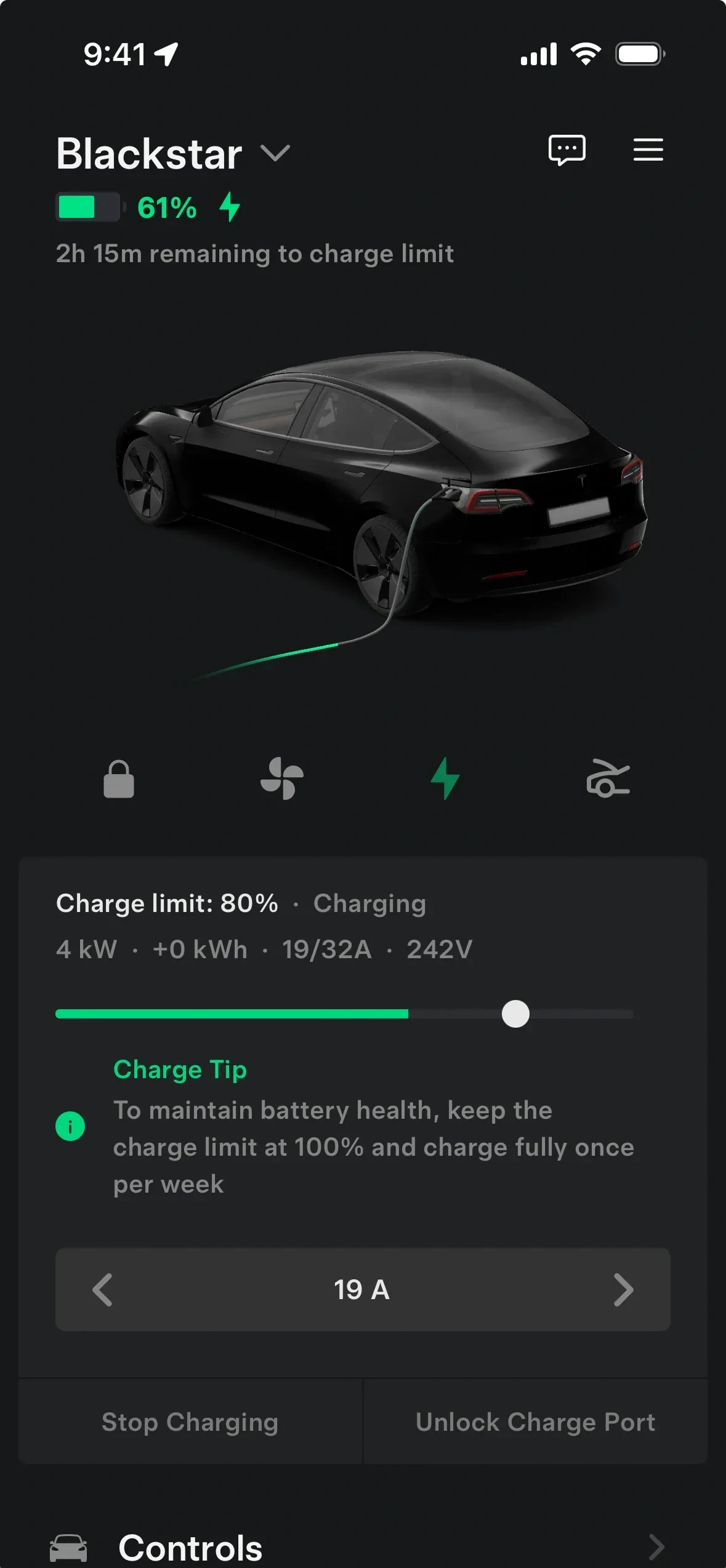
Status under the name
TeslaThe car's name, battery and time left on one line, then the car and its controls.
For YamDrive: The bike's name with fuel and range on one line under it.
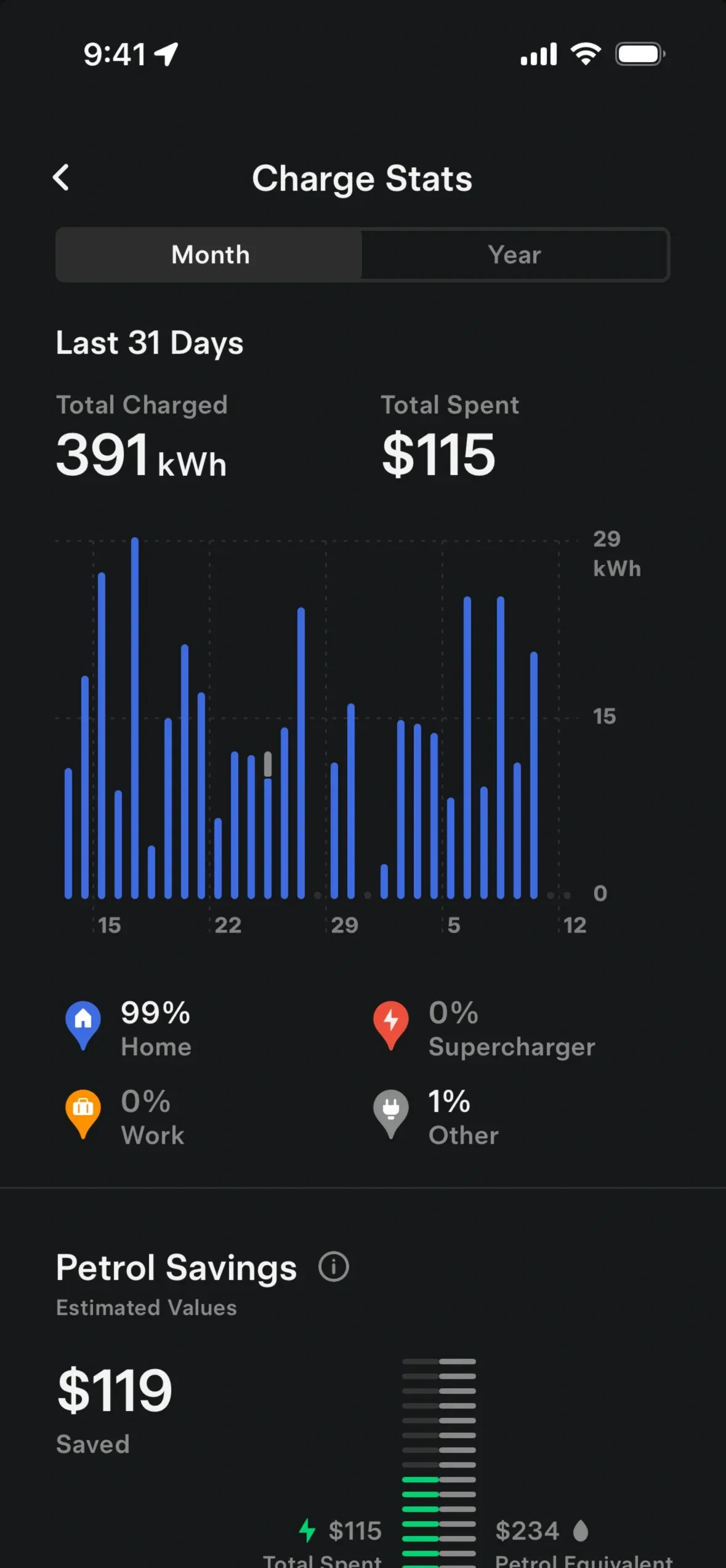
Totals over the chart
TeslaA month's energy and spend as two big totals above a daily bar chart.
For YamDrive: A month's fuel in litres and rupees above a bar per ride day.
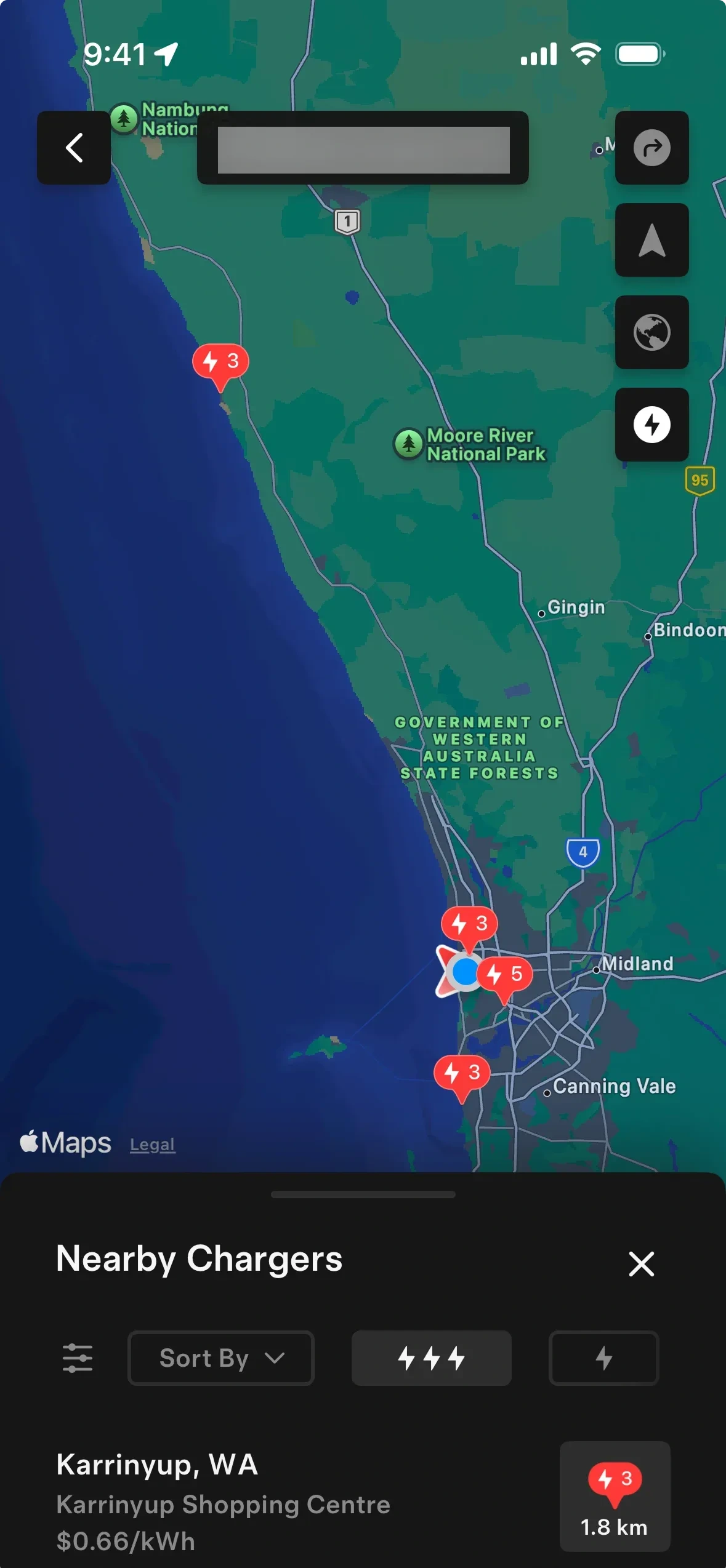
Pins and a sheet
TeslaChargers as pins on the map, with the nearest in a sheet that slides up.
For YamDrive: Fuel stations along the route as pins, the nearest few in a sheet below.
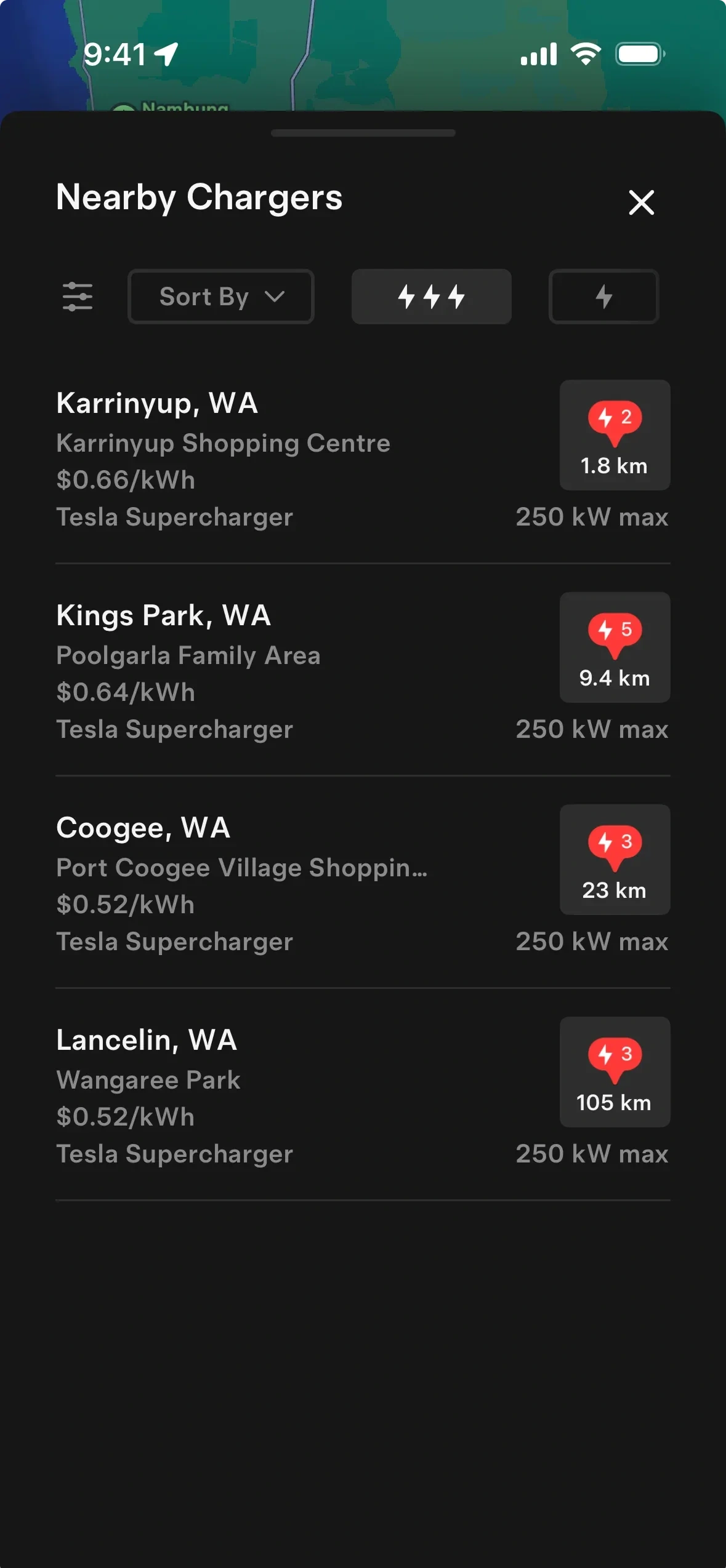
A list with distance chips
TeslaEach charger a row with its price and a distance chip on the right.
For YamDrive: Nearby fuel stations sorted by distance, the price per litre in each row.
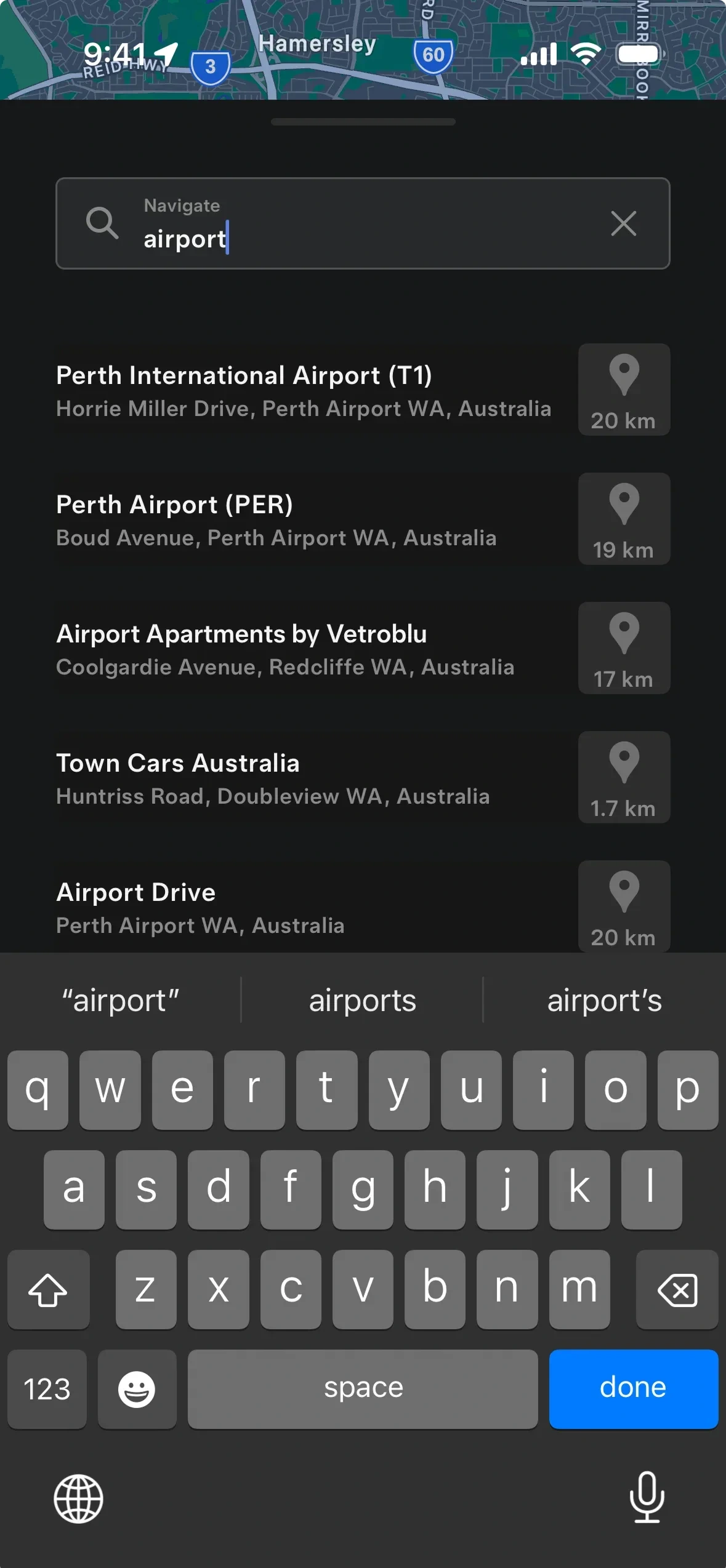
Search with distances
TeslaDestination results that each show how far away they are.
For YamDrive: Destination search where every result shows its distance from you.
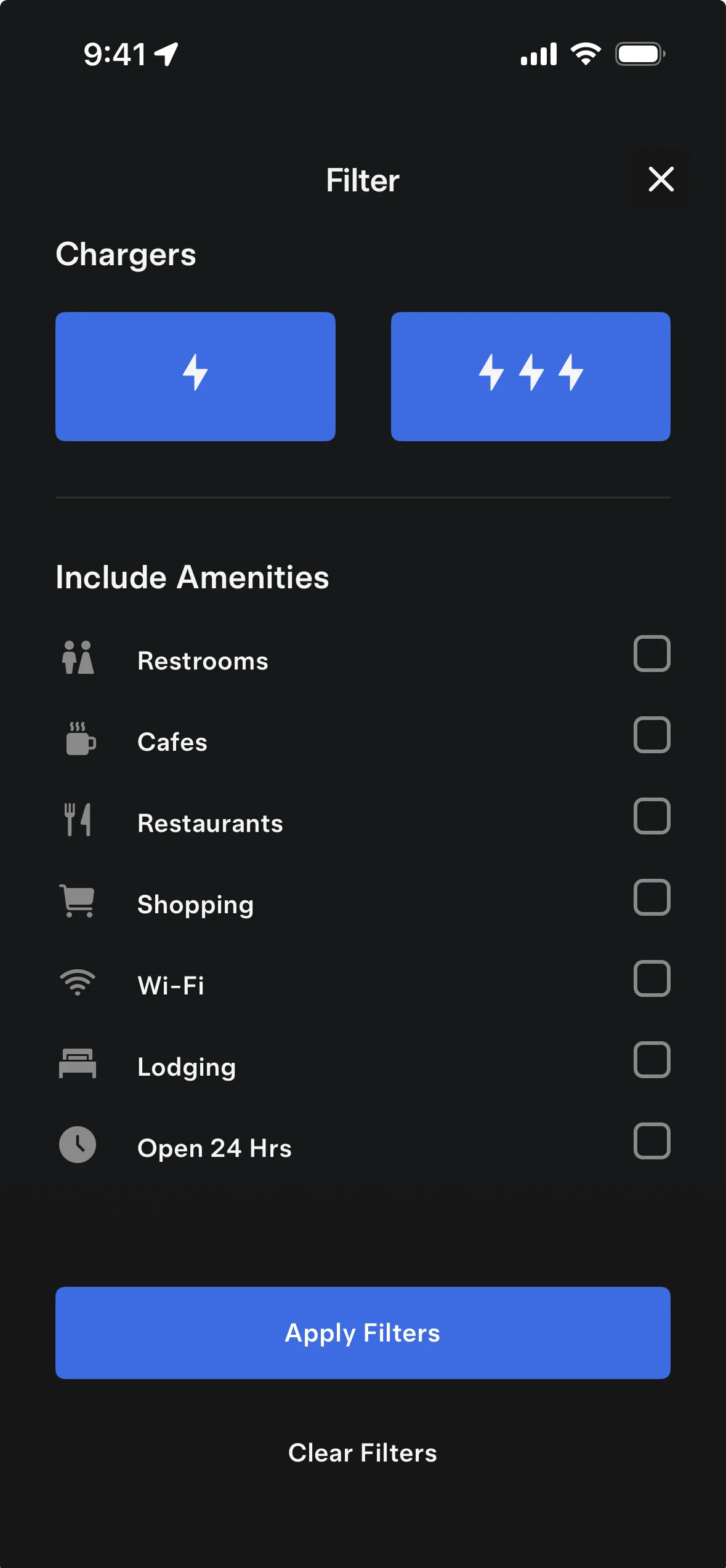
Filter by what is there
TeslaCharger speed as two big toggles, then amenities as a checklist.
For YamDrive: Stop filters for long rides: restrooms, food, open 24 hours.
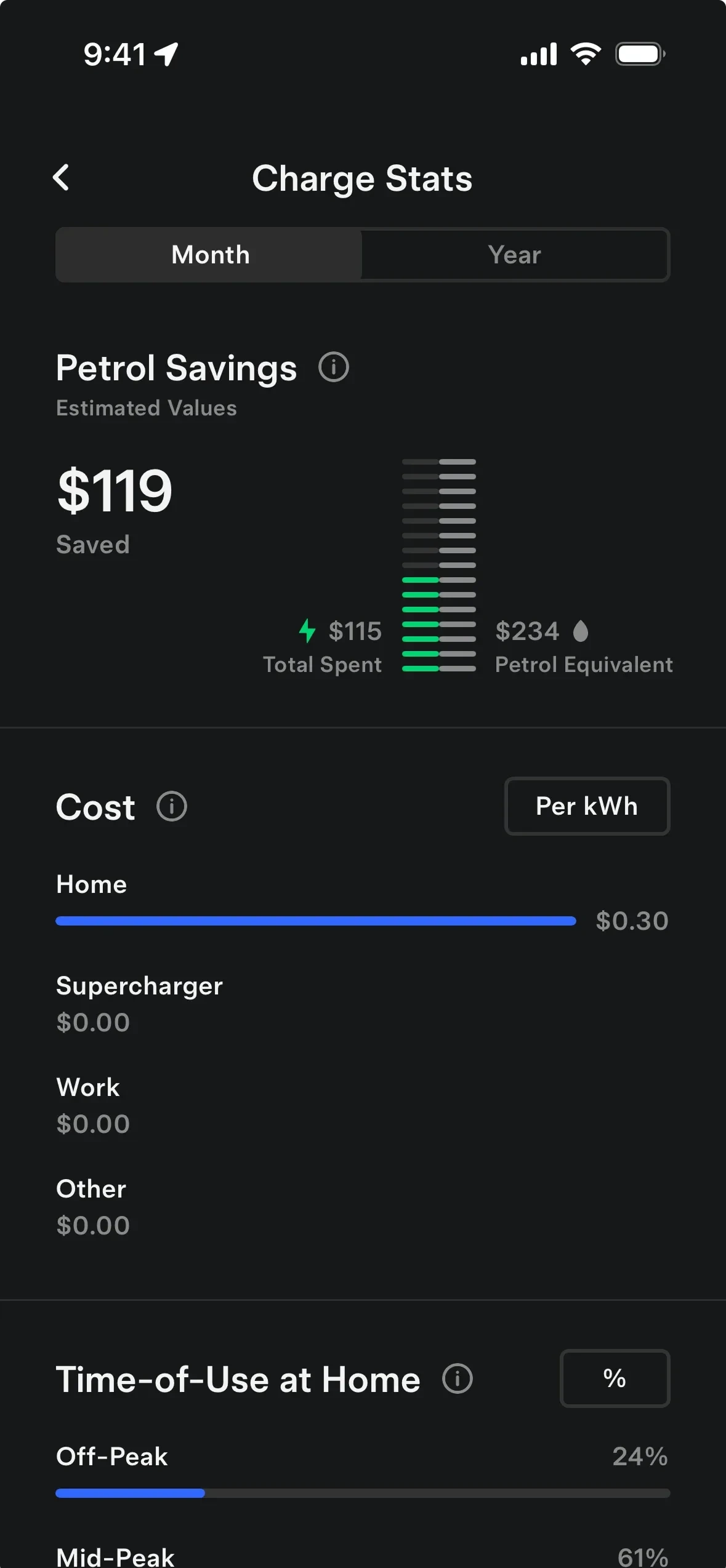
Savings as one number
TeslaWhat charging saved against petrol, as one figure, with the cost split below.
For YamDrive: Cost per km for the month, so a month of riding comes down to one number.
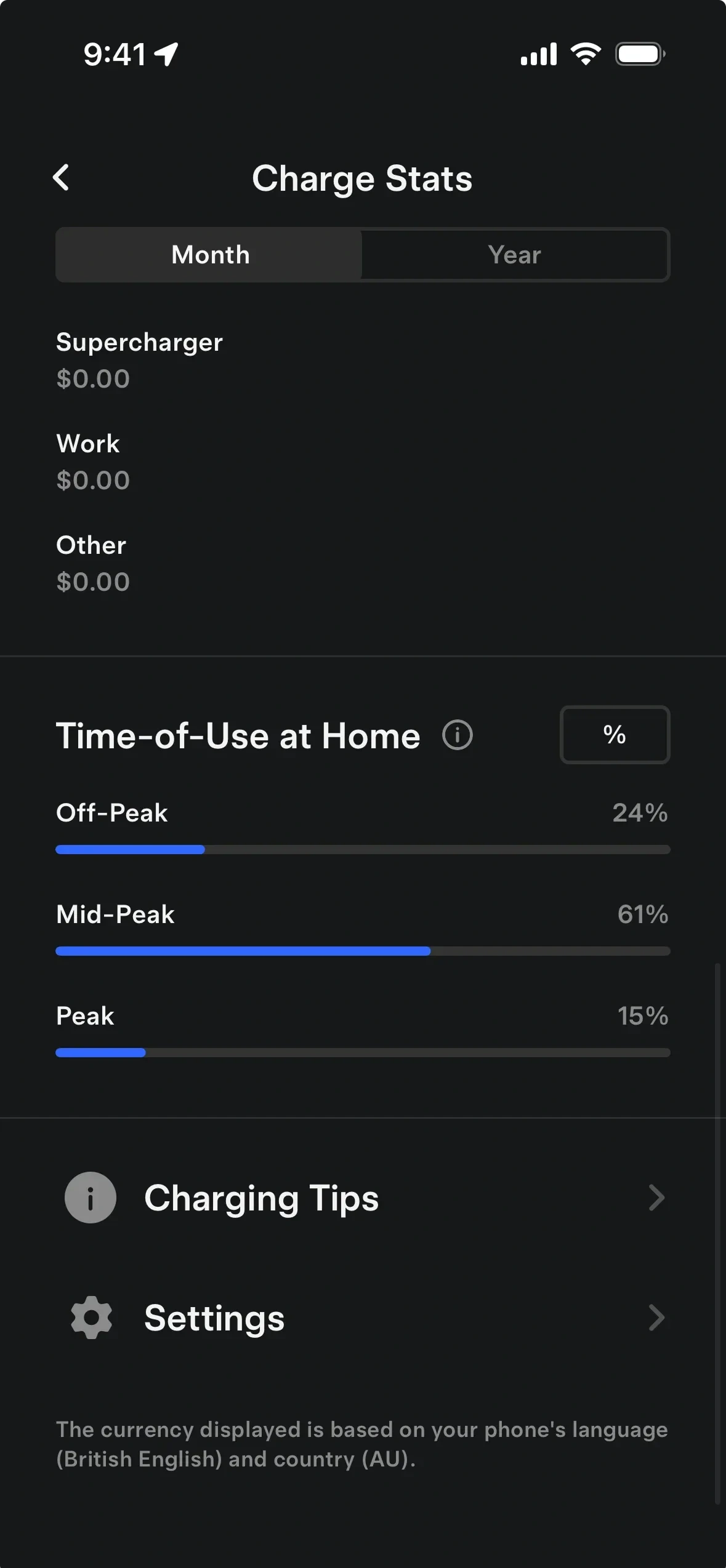
Tips beside the stat
TeslaCharging tips and settings sit right under the numbers they relate to.
For YamDrive: A service tip under the reading it is about: chain care under chain wear.
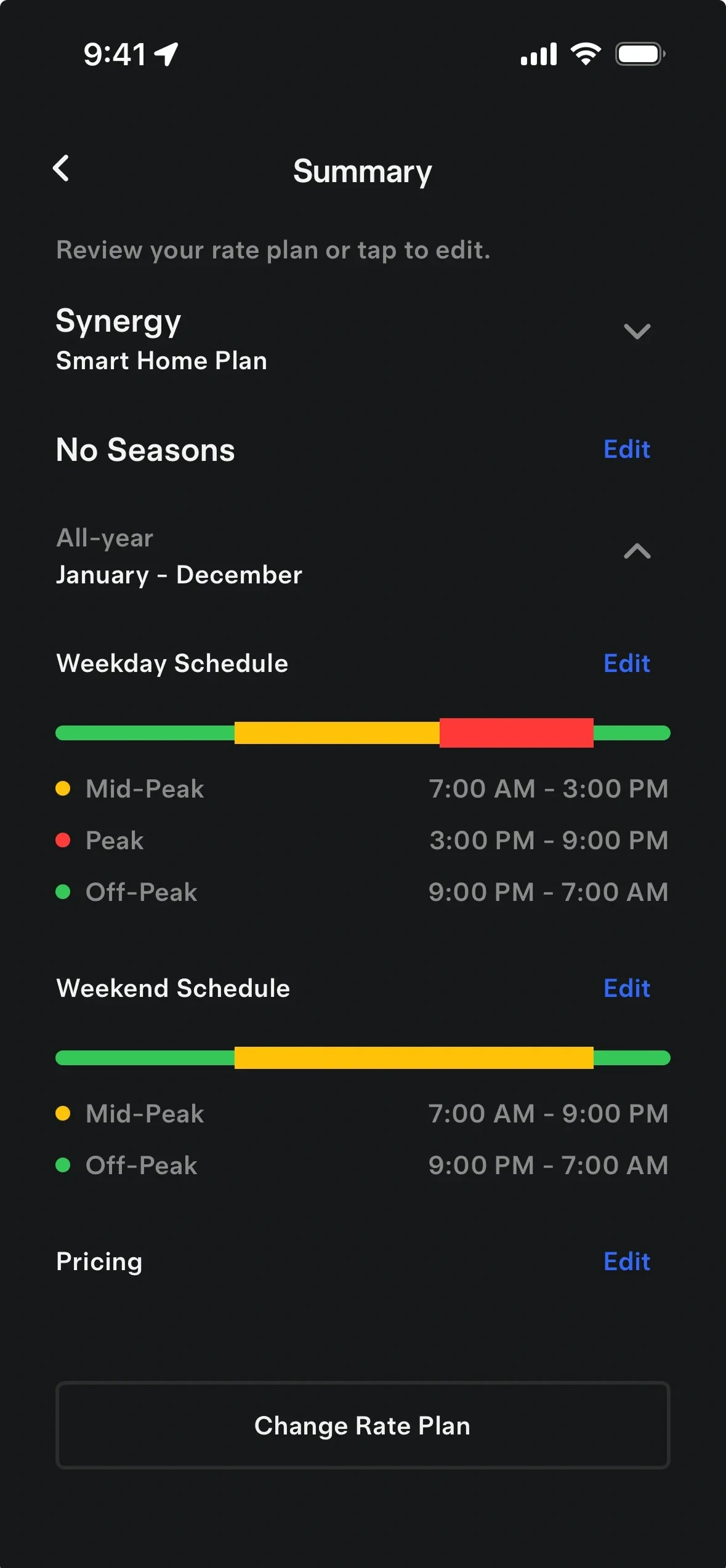
A day in coloured bands
TeslaWeekday and weekend rate schedules as bars of coloured bands.
For YamDrive: When you ride most, as coloured bands across the week and the weekend.
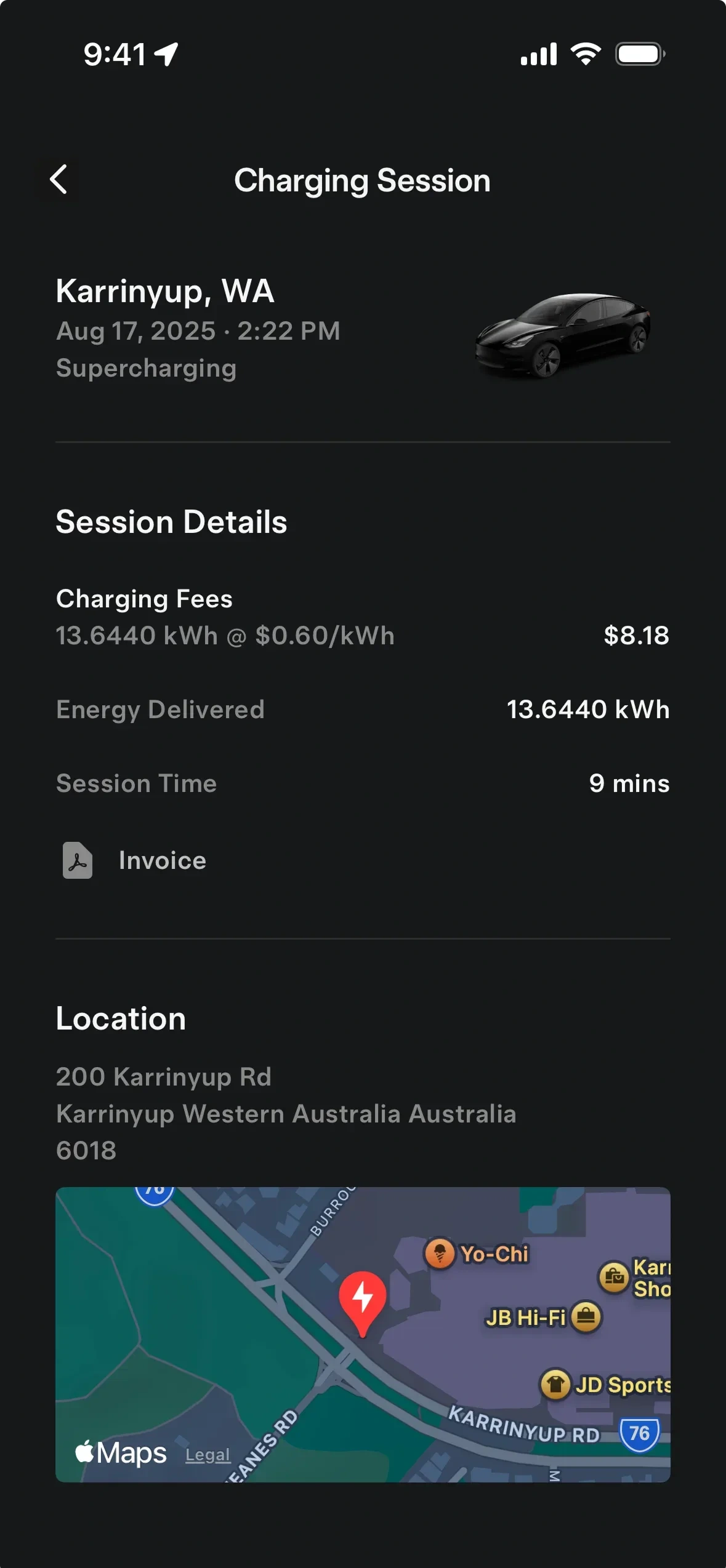
A session as a receipt
TeslaOne charging session with its cost, energy, time and a map of where.
For YamDrive: Each fuel-up as a receipt: litres, cost, odometer and where it was.
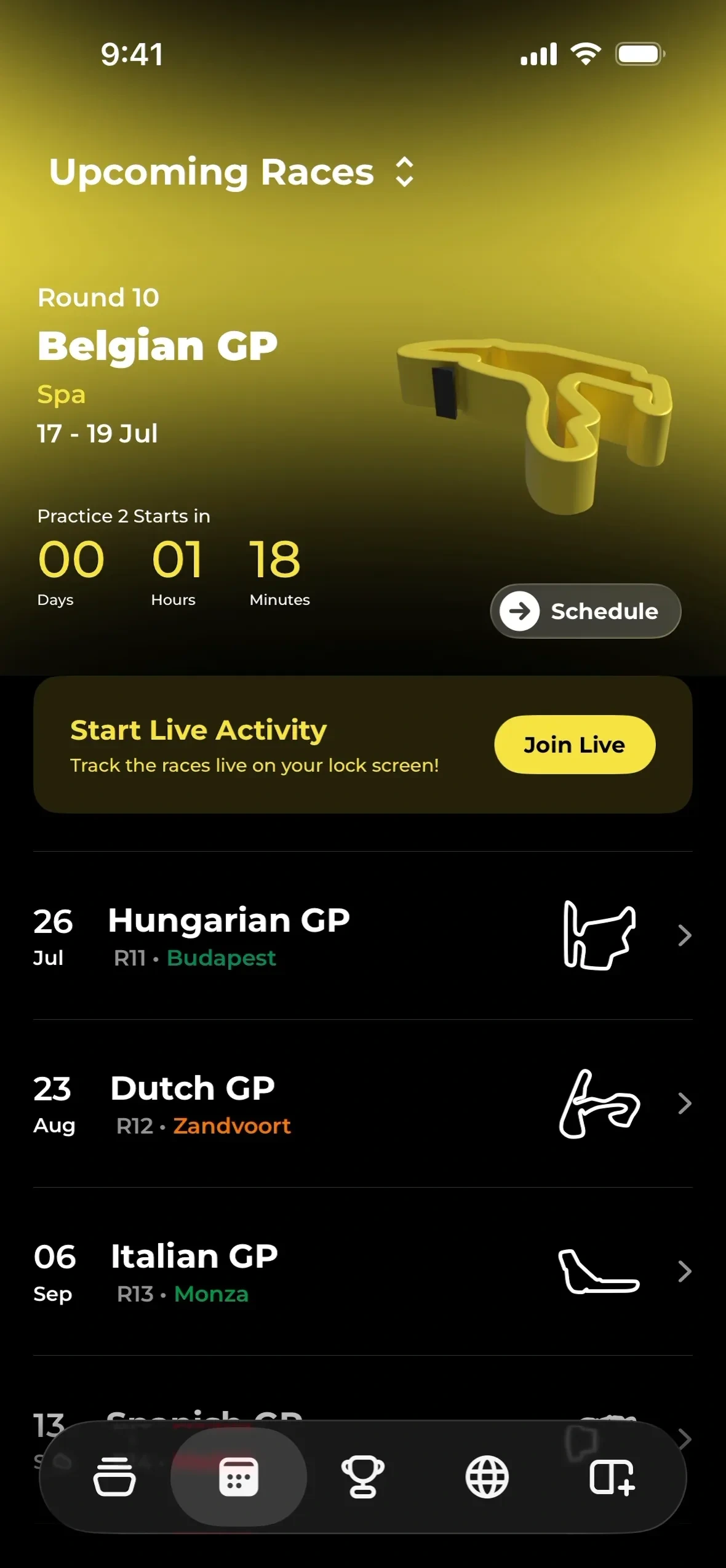
Countdown to the next one
Box Box ClubThe next race counts down in days, hours and minutes, with a Live Activity to start.
For YamDrive: A countdown to a planned ride, then a lock screen Live Activity once you set off.
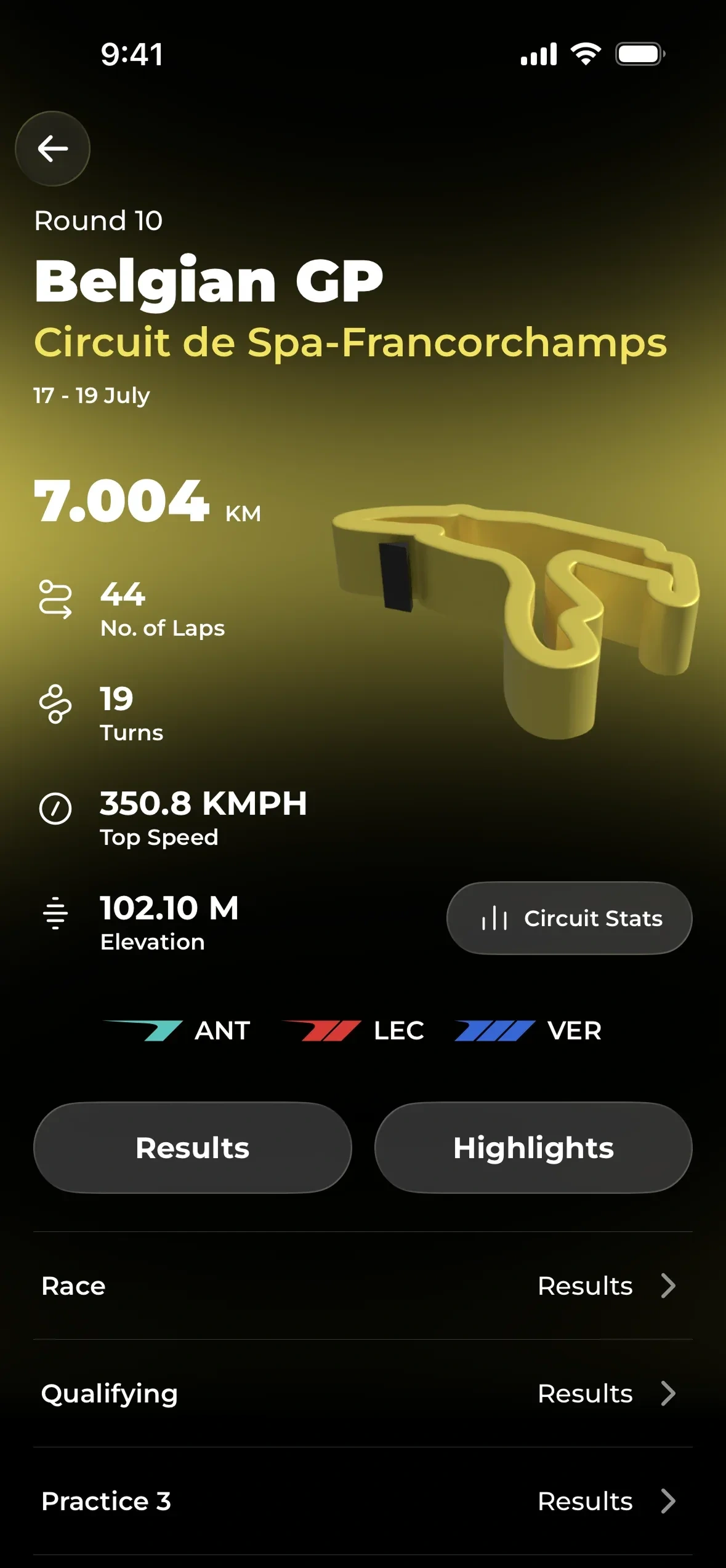
The track and its numbers
Box Box ClubThe circuit as a 3D shape beside its length, laps, turns, top speed and elevation.
For YamDrive: Each saved route as a card: its shape, distance, turns, top speed and climb.
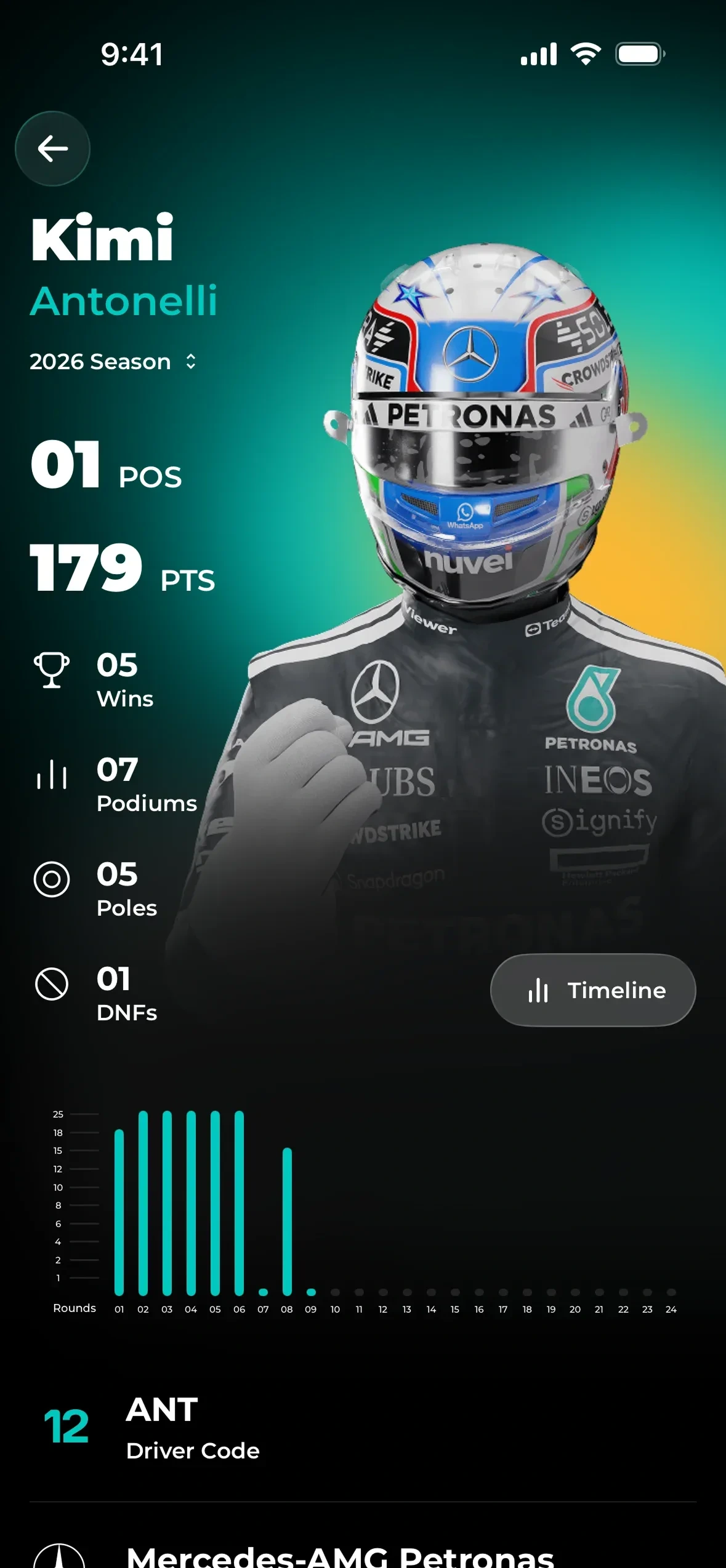
A season in big numbers
Box Box ClubPosition, points, wins and podiums set large, with a bar for every race.
For YamDrive: Your riding year: kilometres, rides and the longest one, with a bar for each month.
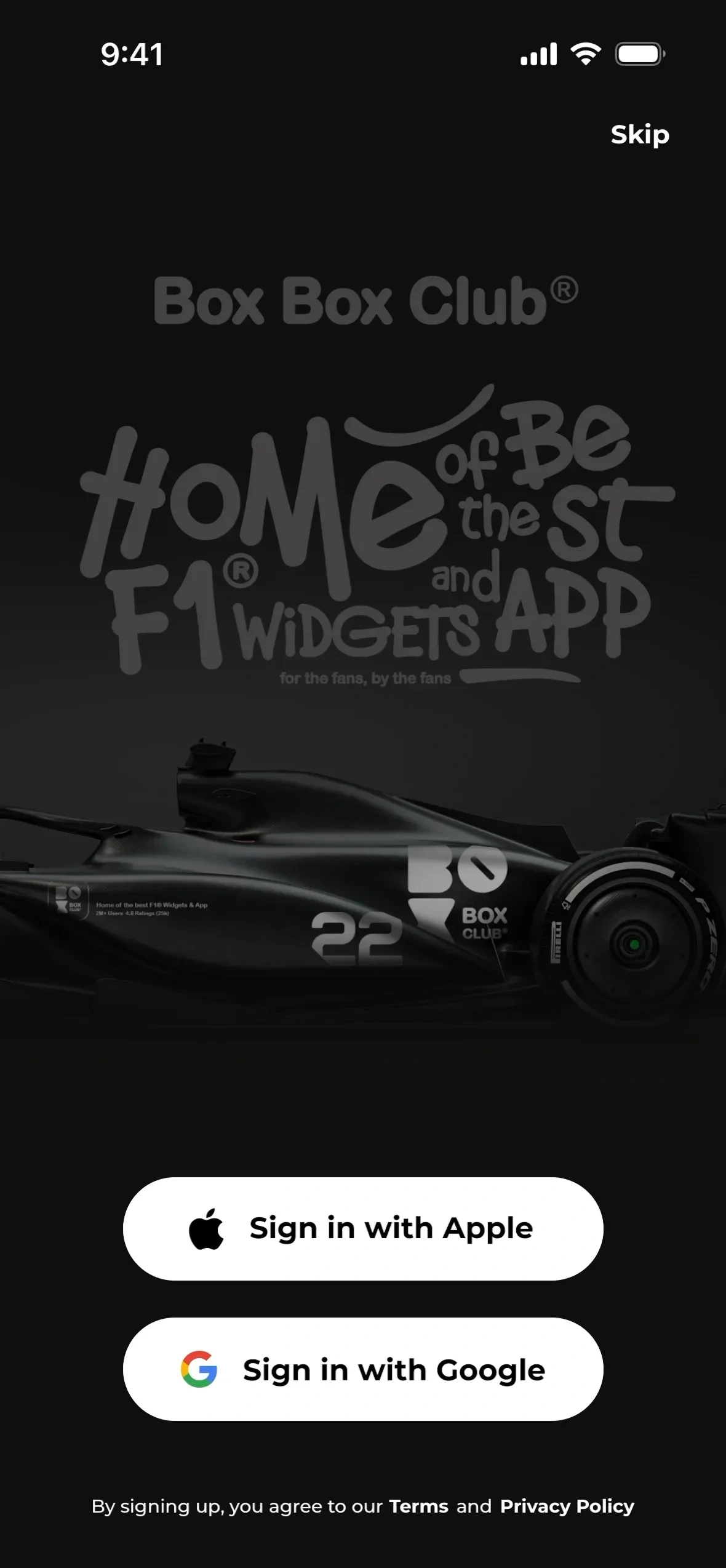
Sign in over the art
Box Box ClubBrand art fills the screen behind two sign-in buttons.
For YamDrive: Sign in with Google over a photo of the Hunter 350, one tap on Android.
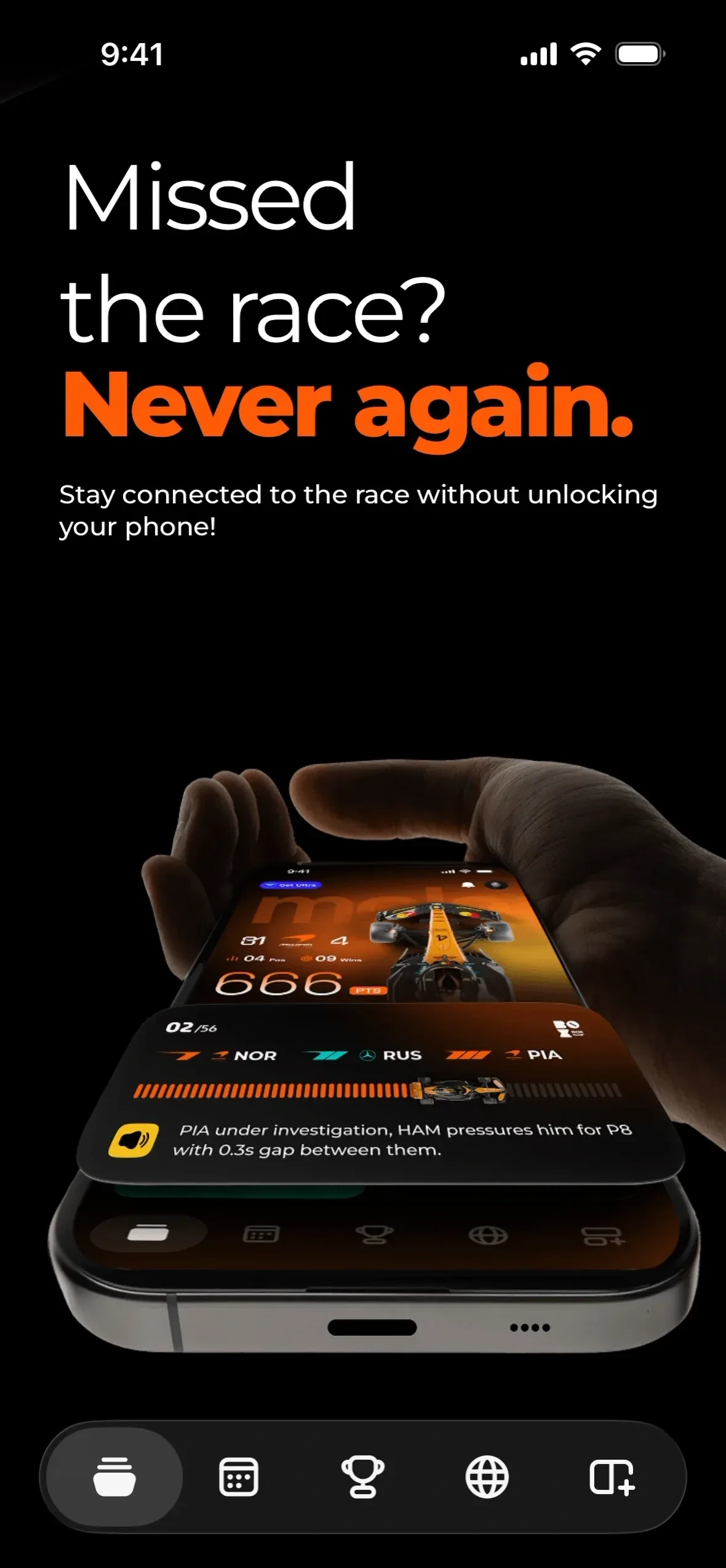
Lead with the promise
Box Box ClubThe first screen is a headline about the problem it solves, with the phone showing the answer.
For YamDrive: Onboarding that opens on the reason for the app, with the ride screen as the picture.
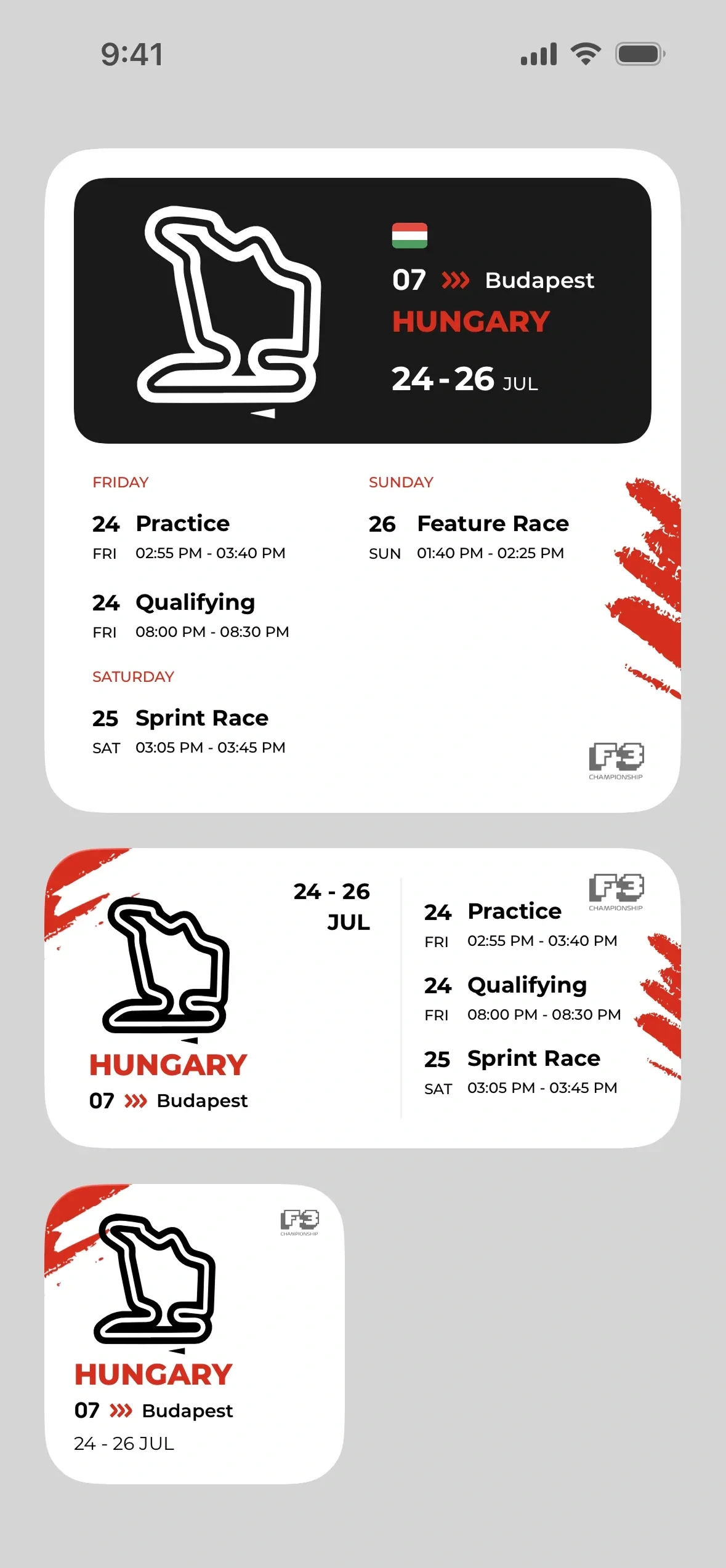
Home screen widgets
Box Box ClubThe race weekend schedule as widgets in three sizes, readable without opening the app.
For YamDrive: Widgets for the next ride, fuel left and the next service, without opening the app.
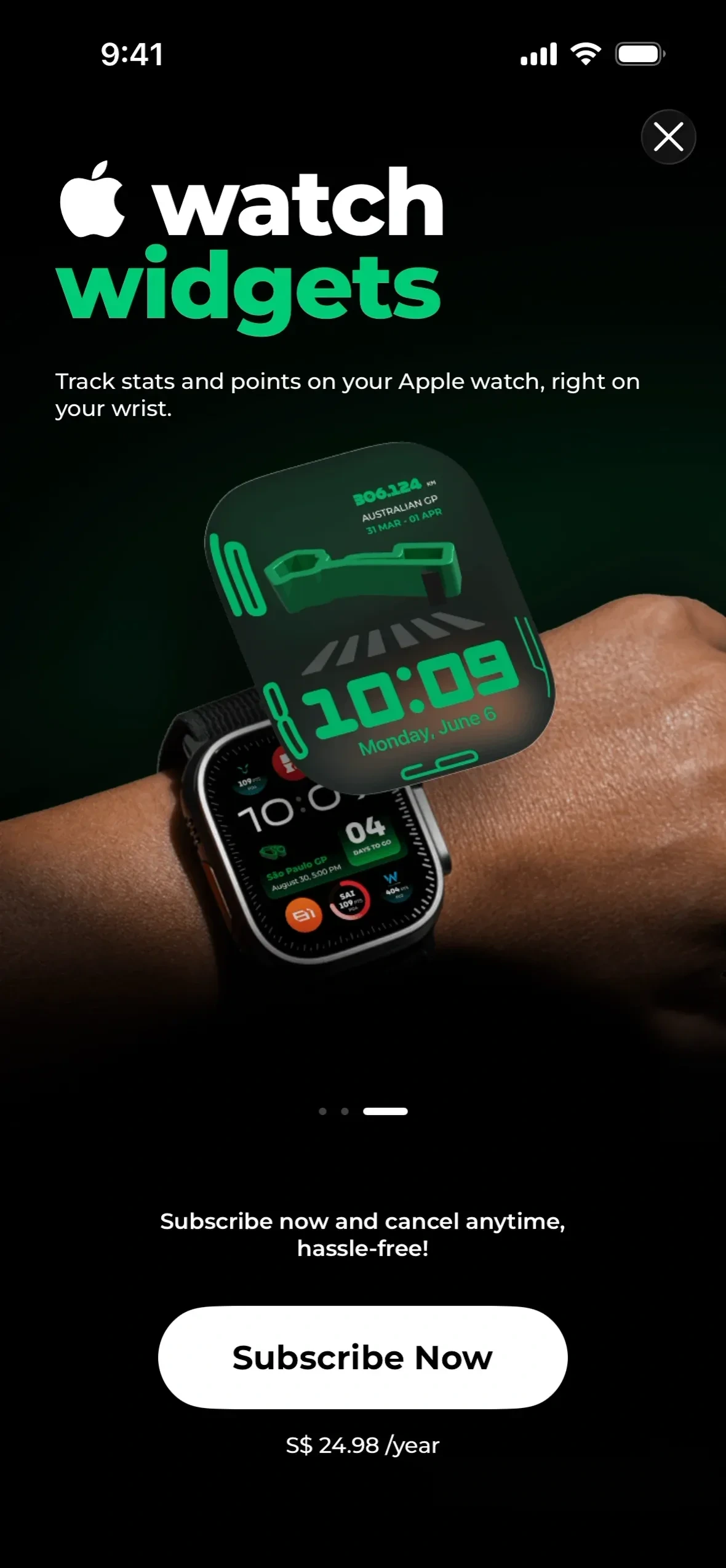
The wrist as a second screen
Box Box ClubStats and points on an Apple Watch, sold as part of the subscription.
For YamDrive: A Wear OS tile with speed and fuel for the Full edition.
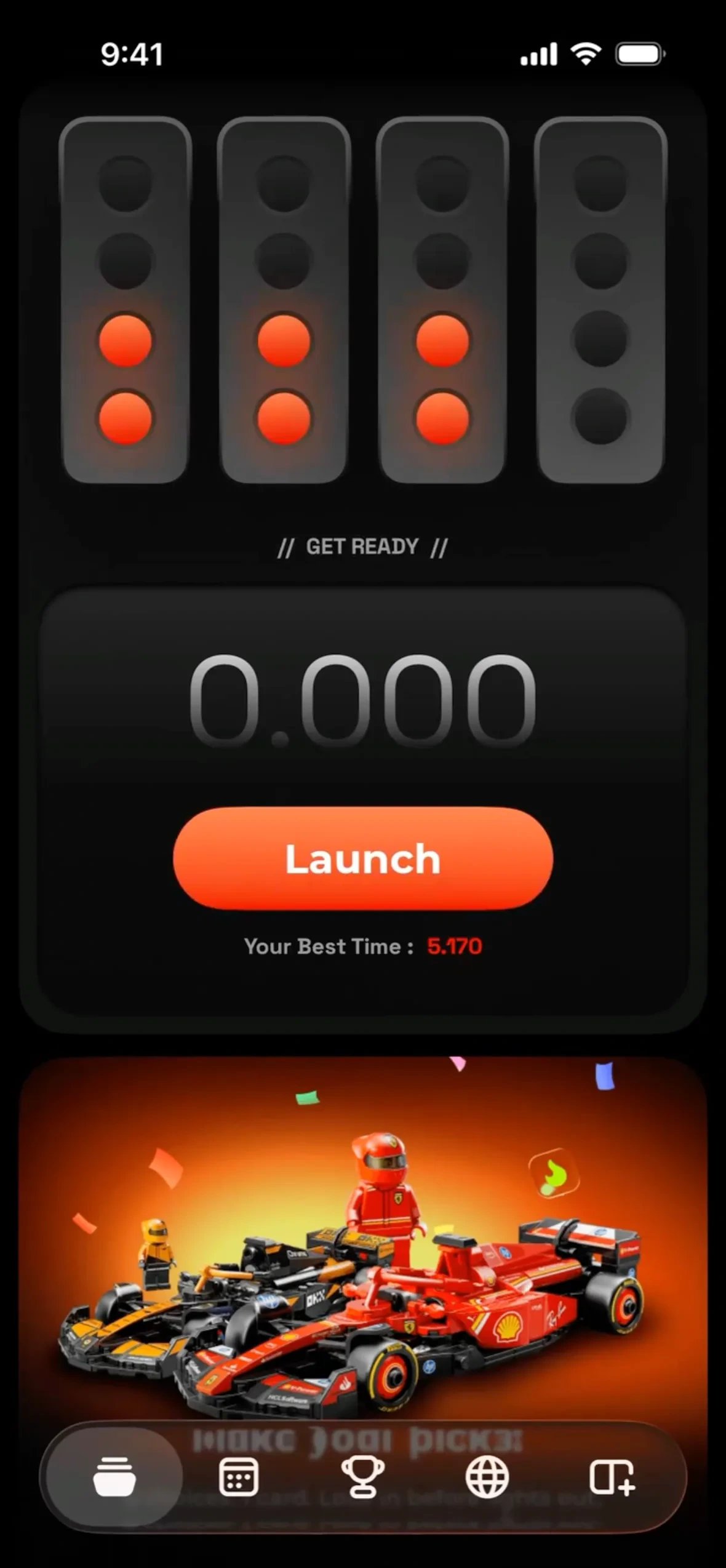
A game at the start
Box Box ClubStart lights and a reaction timer, with your best time under the button.
For YamDrive: The pre-ride checks as start lights, and the ride clock starting at lights out.
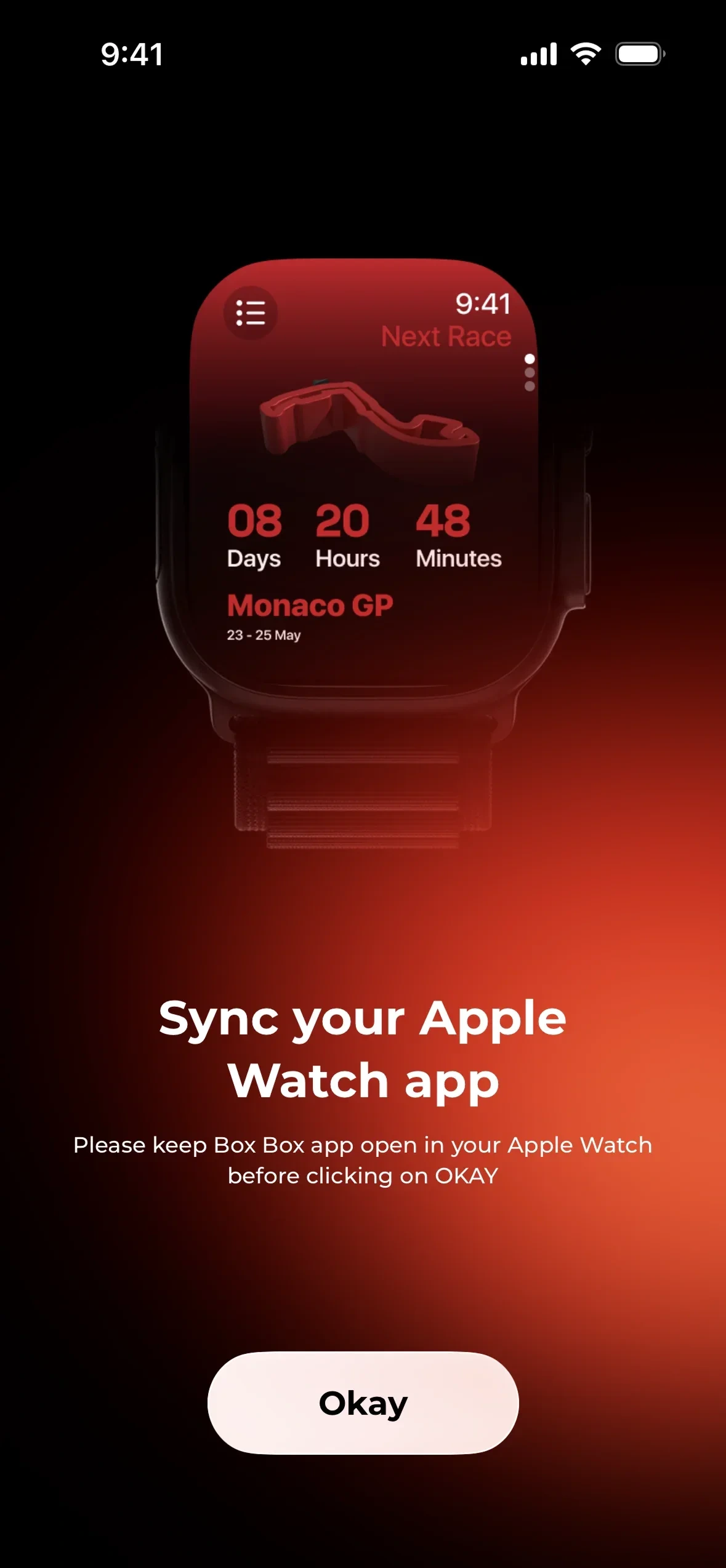
Pairing as one step
Box Box ClubSyncing the watch is its own screen: one picture, one instruction, one button.
For YamDrive: Pairing a bar mount or a sensor as one screen, one instruction, one button.
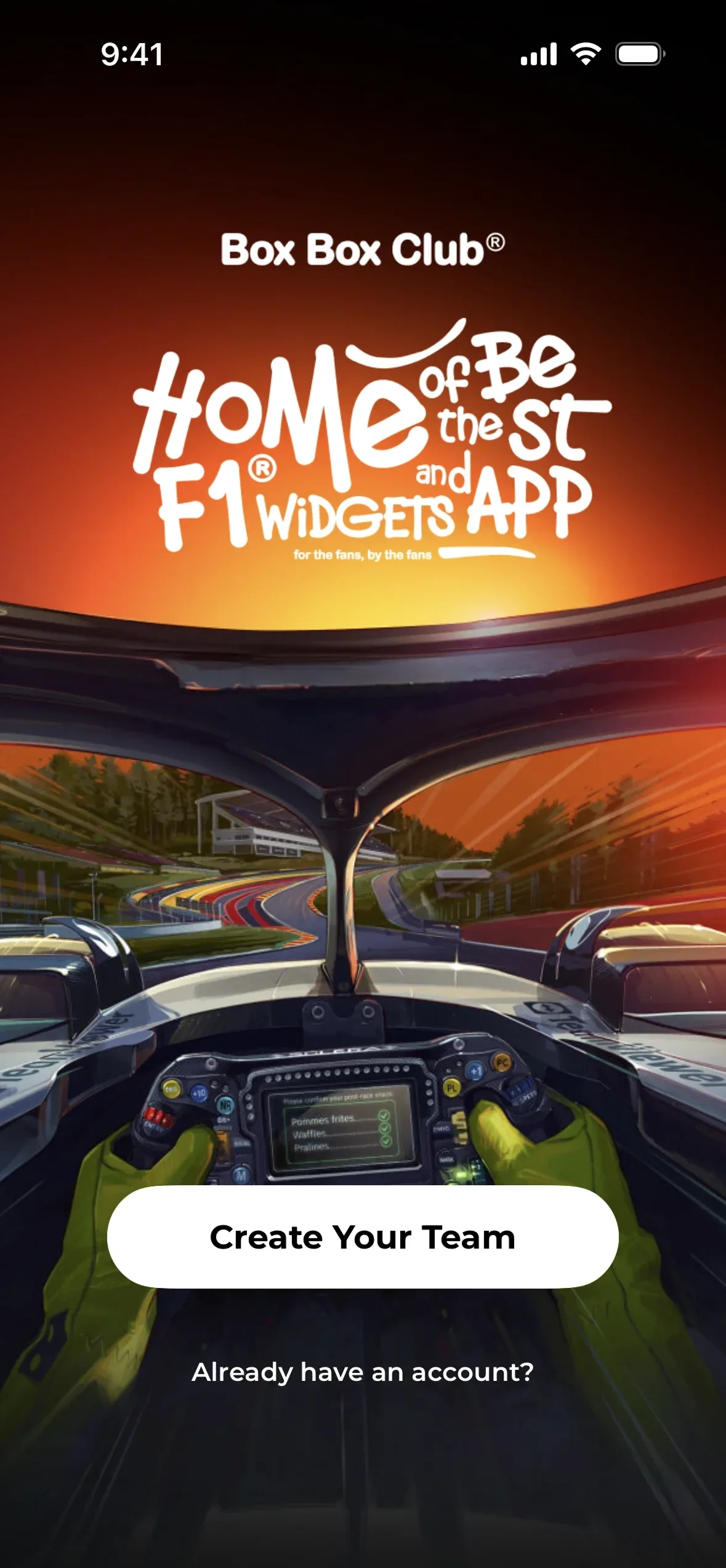
Start by making it yours
Box Box ClubThe welcome screen asks you to create your team before anything else.
For YamDrive: The first run asks you to add your bike, name and all, before showing any screen.
Rivian references
Rivian R1T software, from frames of a video walkthrough. Reference only.
Phone app
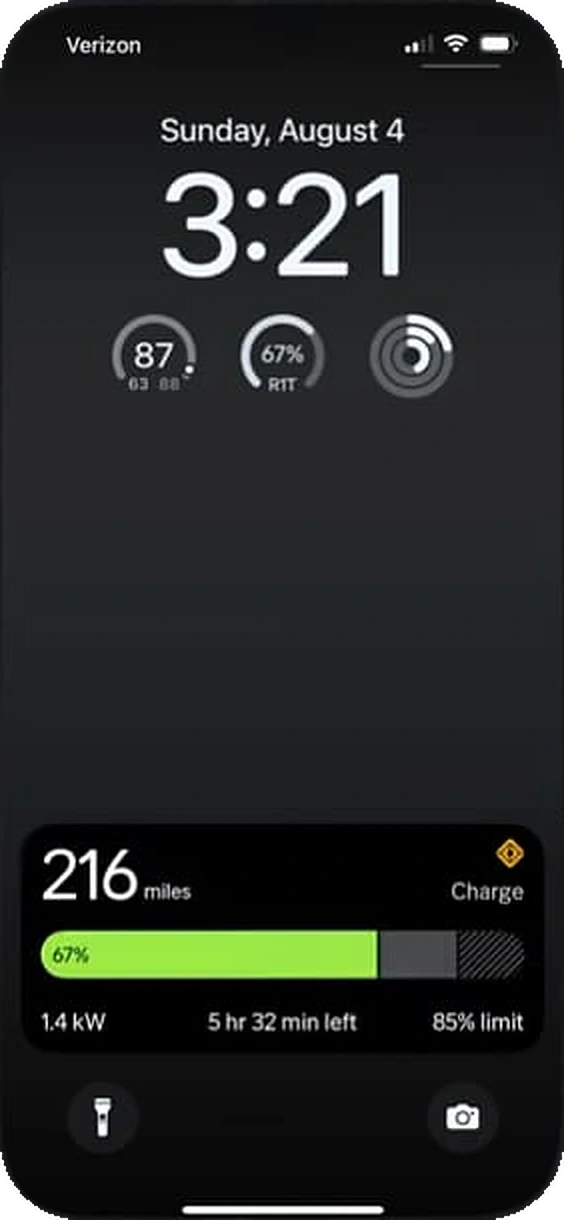
Range on the lock screen
Miles left and a charge bar on the lock screen, with the time until it is full.
For YamDrive: Fuel range on the lock screen, readable before you unlock the phone.
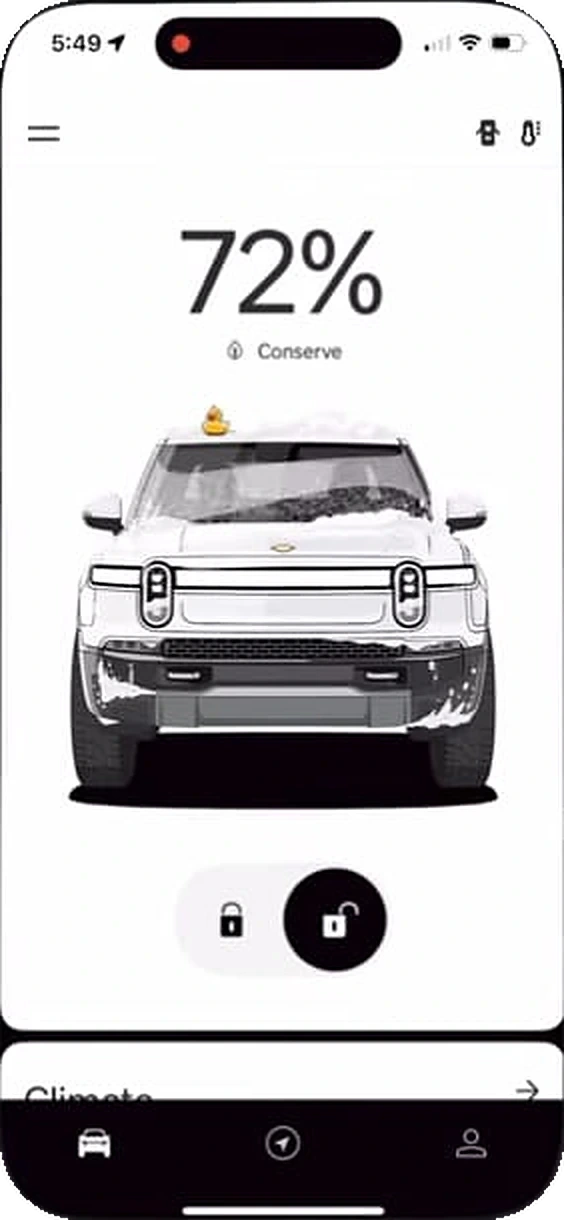
The car under the number
The charge level set huge over a drawing of the truck, with lock and unlock under it.
For YamDrive: The Hunter 350 drawn on the home screen, with the fuel left set large above it.
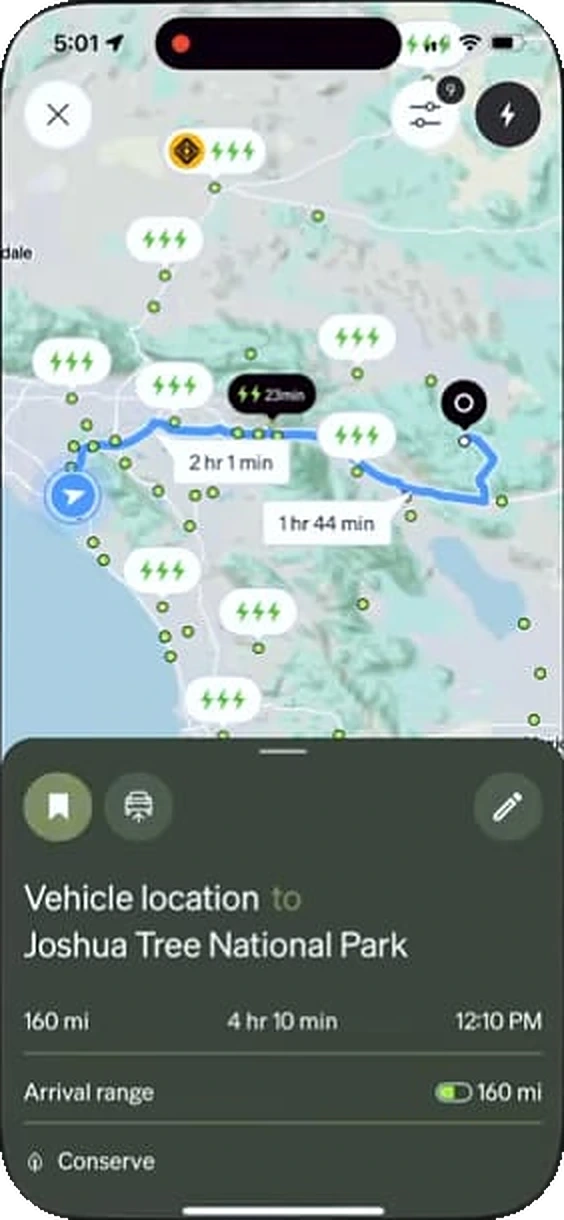
A trip with its stops
The route on the map, with chargers along it and the time for each leg.
For YamDrive: A long ride on the map, with fuel stops marked and the time between them.
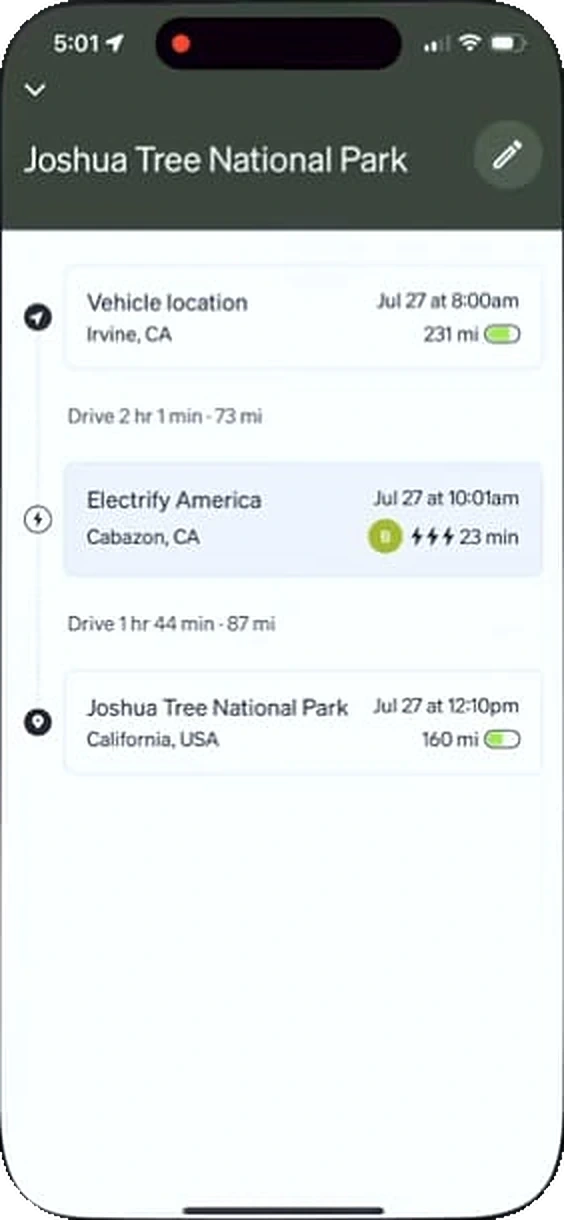
Range at every stop
The trip as a timeline: the start, each charging stop, and the range left on arrival.
For YamDrive: Each leg of a tour with the fuel you will have on arrival, so you know where to fill up.
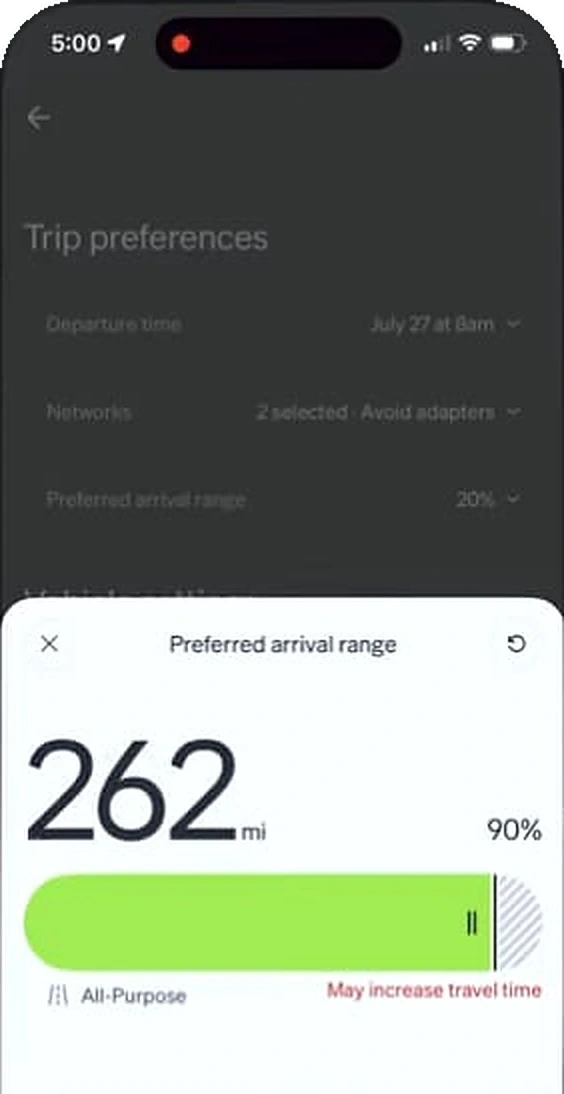
Arrive with a margin
A slider sets how much range you want left when you arrive, and the plan follows it.
For YamDrive: Set the fuel you want left at the end, and YamDrive plans the stops around it.
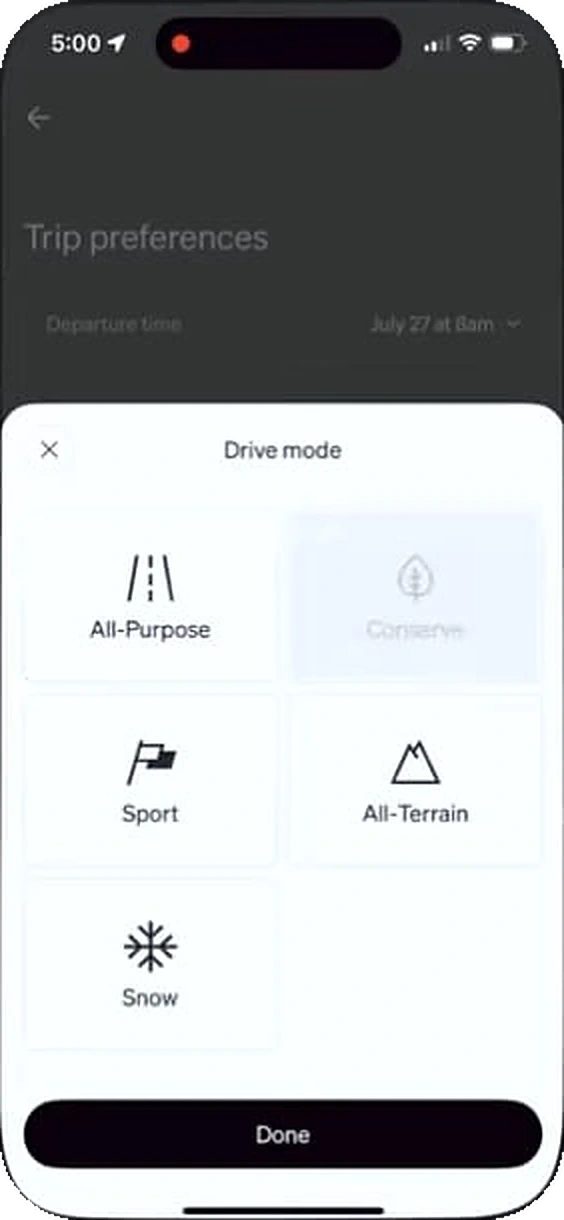
Modes as tiles
Drive modes as large tiles in a sheet: All-Purpose, Conserve, Sport, All-Terrain and Snow.
For YamDrive: Ride types, like commute, highway and tour, as tiles that change what the ride screen shows.
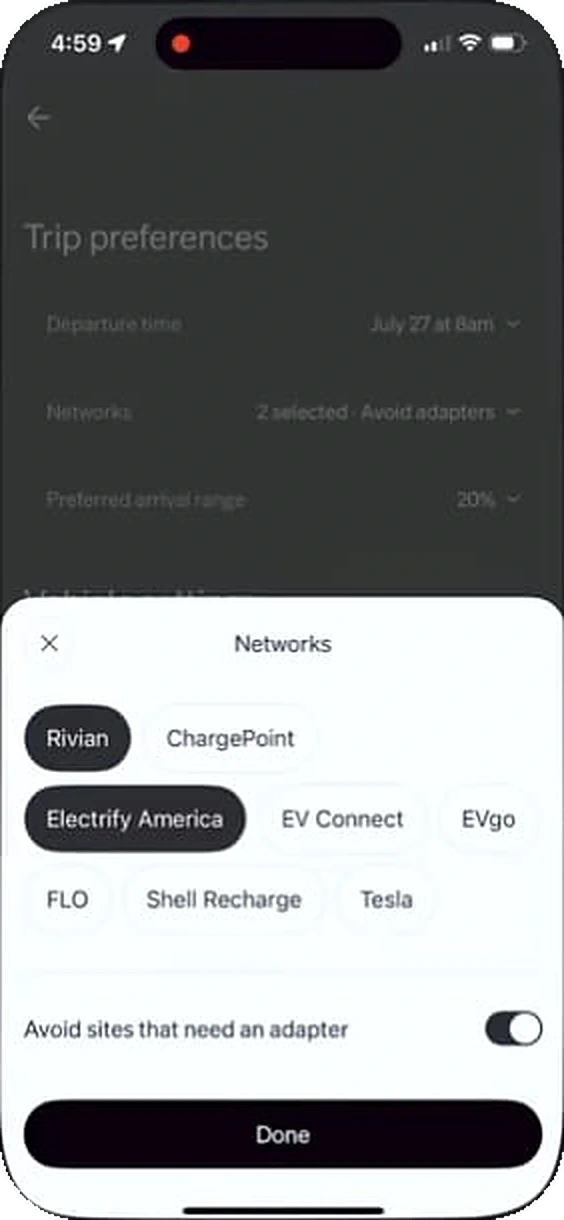
Which stations count
Charging networks as chips, with a switch to skip sites that need an adapter.
For YamDrive: Fuel brands as chips, so a planned trip only stops where you want to fill up.
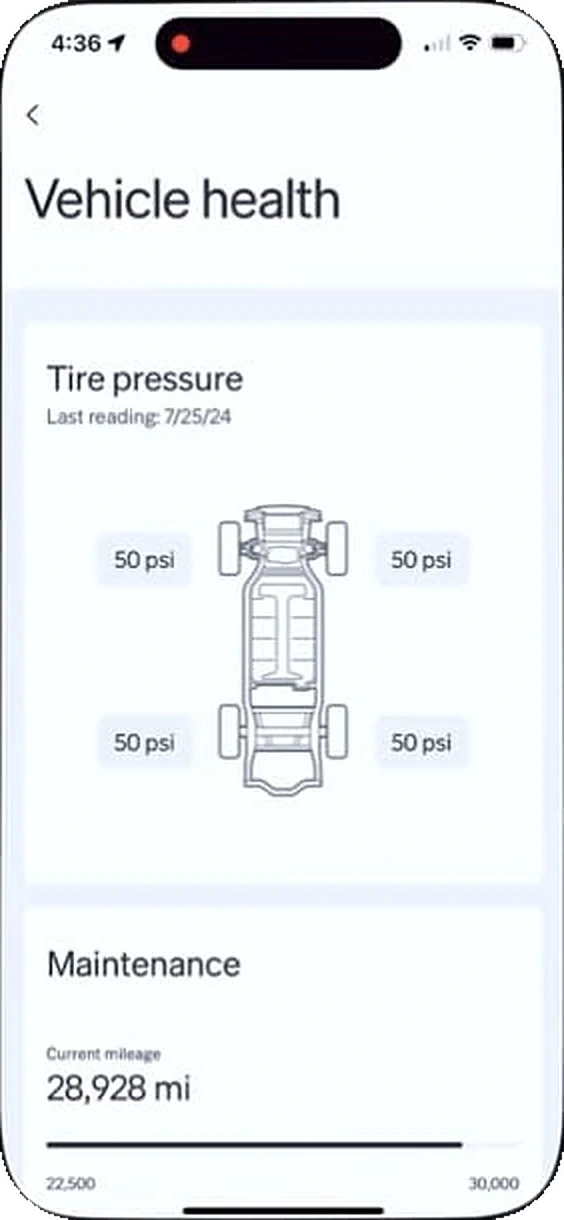
Pressure at each wheel
The truck from above, a psi reading beside each tyre, and the date of the last reading.
For YamDrive: Two wheels, two readings, and the date you last checked them.
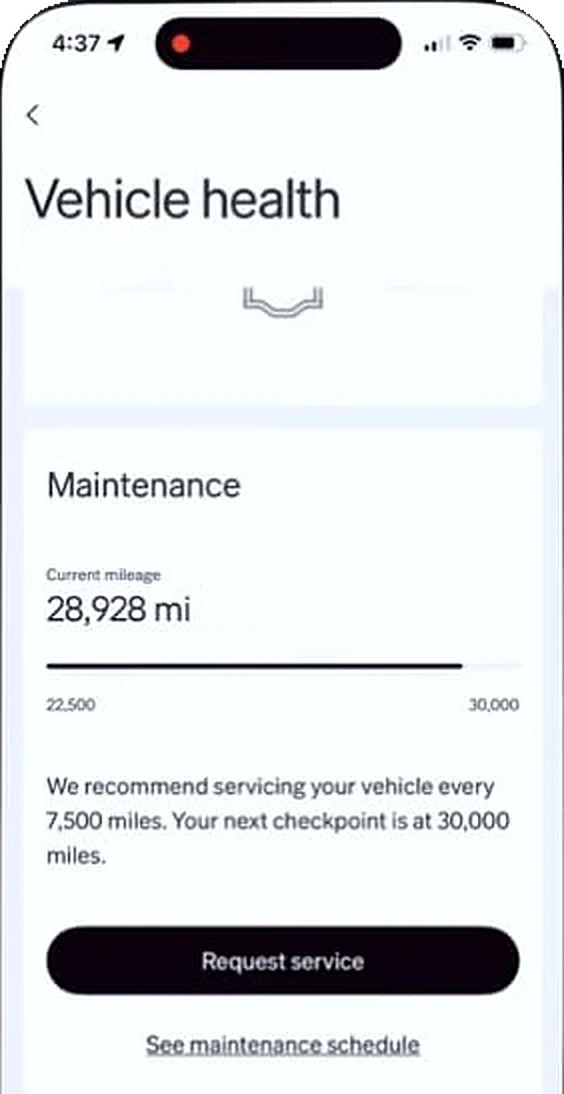
The next service as a bar
The mileage on a bar from the last service to the next one, at 30,000 miles.
For YamDrive: The odometer on a bar from the last service to the next, filling as you ride.
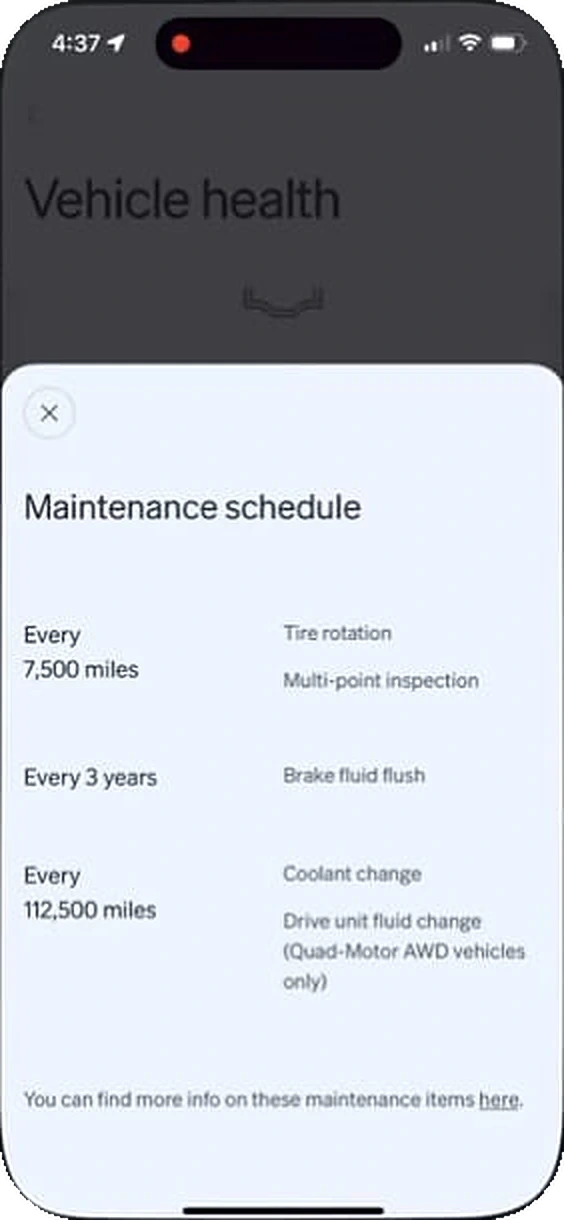
Service by distance and by time
What is due every 7,500 miles, every 3 years and every 112,500 miles, in one list.
For YamDrive: The Hunter 350's service intervals as one list: oil, chain and brakes, by km and by months.
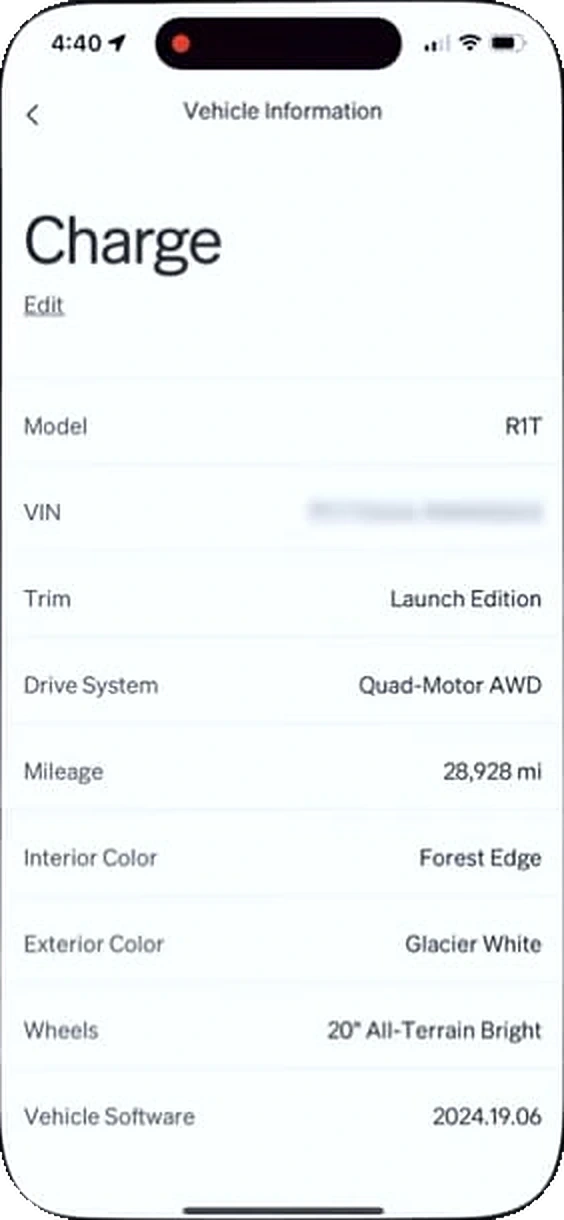
The spec sheet
Model, trim, drive system, mileage, colours, wheels and software version in one list.
For YamDrive: The bike's details in one place: model, registration, odometer, tyres and app version.
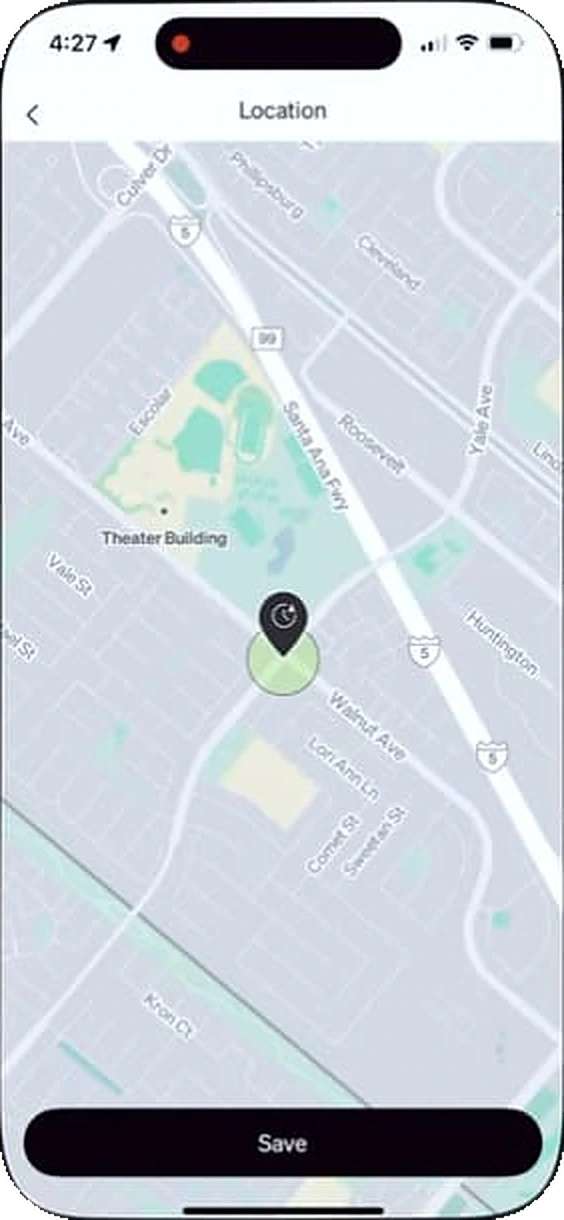
A saved place
A pin and a circle on the map save a location.
For YamDrive: Home and work saved as places, so rides that start or end there are named for you.
In-car screen
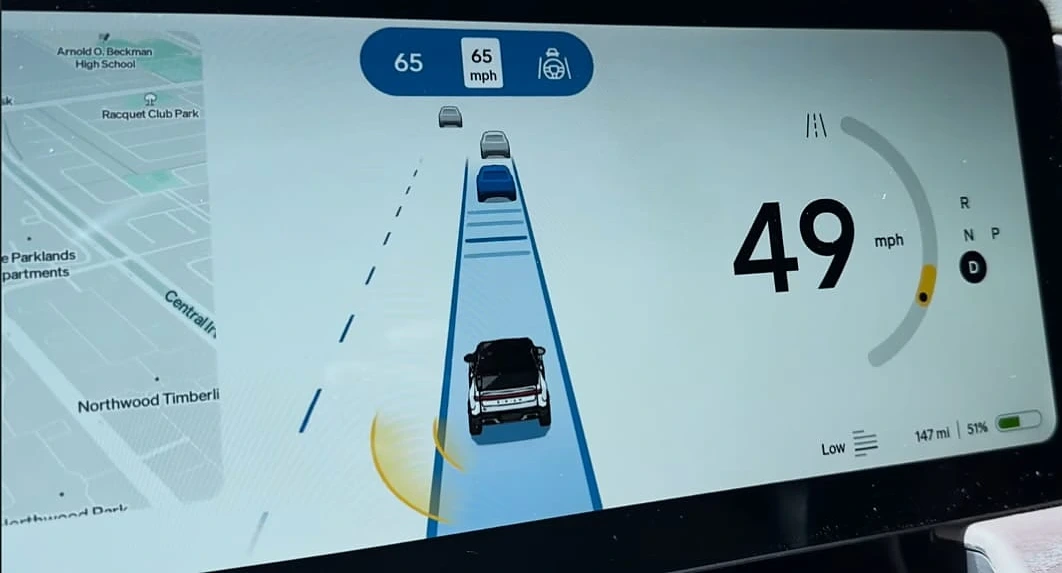
Speed over the road ahead
Speed set huge beside a drawing of the lane, with Highway Assist and the speed limit above it.
For YamDrive: The ride screen: speed large, the road ahead drawn simply, and the limit in a corner.
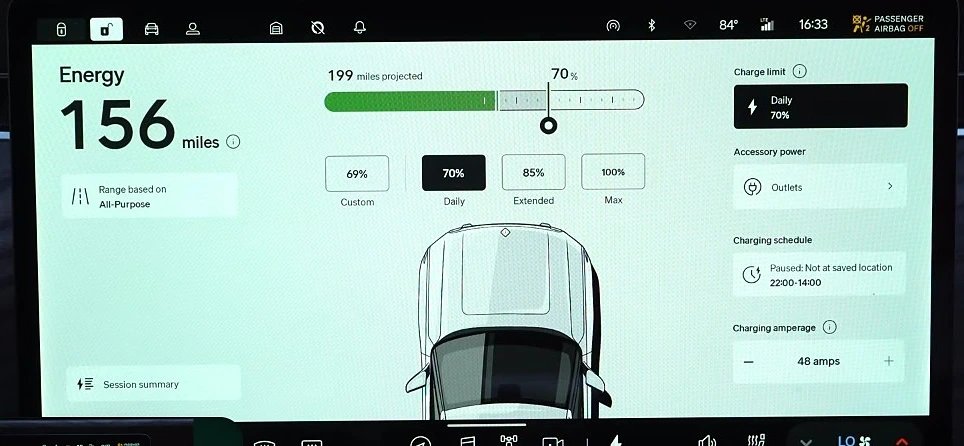
Range, and the limit you set
Miles of range over a bar with a charge limit you drag, and presets under it.
For YamDrive: Range in km over the tank, with a reserve line you set yourself.
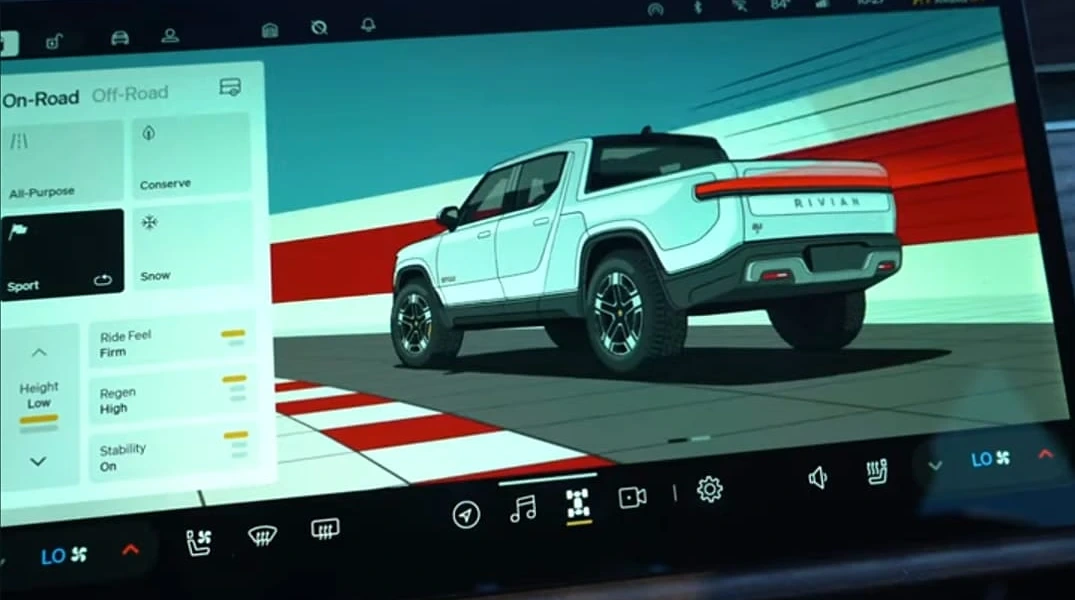
Each mode, its own picture
Picking Sport repaints the screen with the truck on a track, kerbs and all.
For YamDrive: Each ride type with its own drawing of the Hunter 350, so the mode reads at a glance.
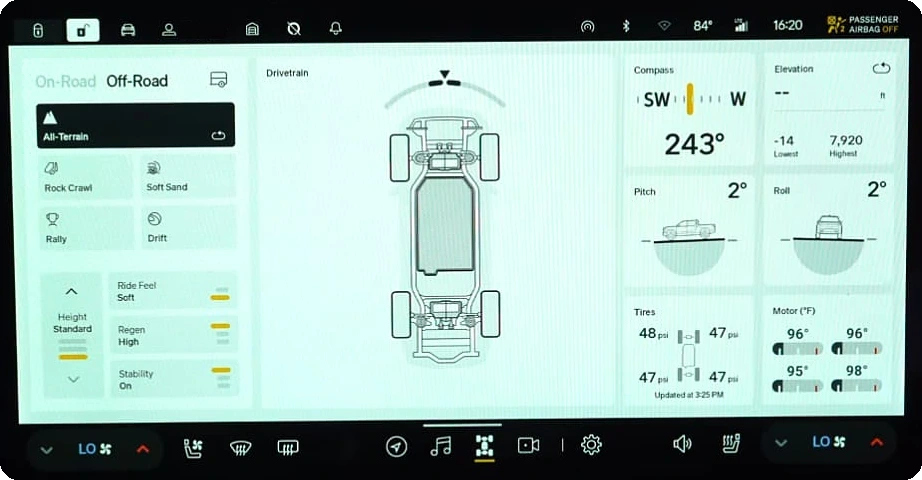
Pitch, roll and heading
The off-road view: drivetrain, compass, pitch and roll, tyre pressures and motor temperatures.
For YamDrive: Lean angle and heading on the ride screen, from the phone's motion sensors.
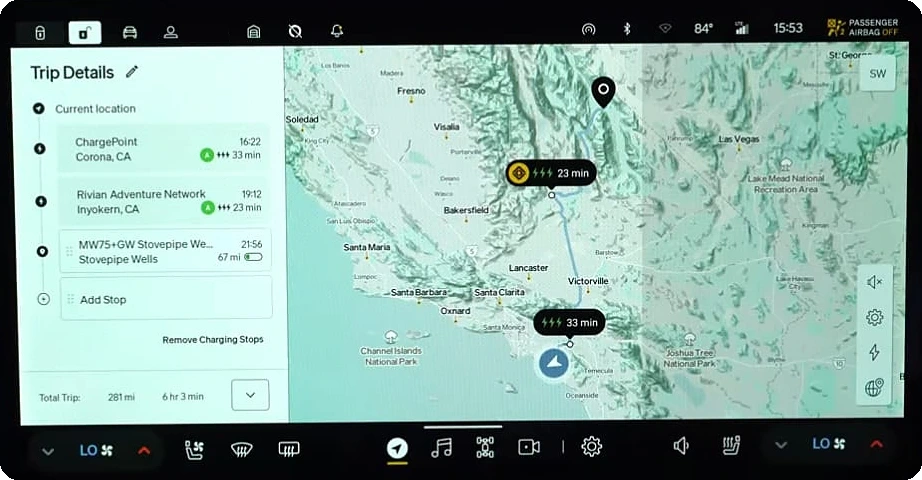
Stops beside the map
The trip as a list of stops next to the map, with the time and charge at each.
For YamDrive: A tour as a list beside the map: each stop, the time to it and the fuel on arrival.
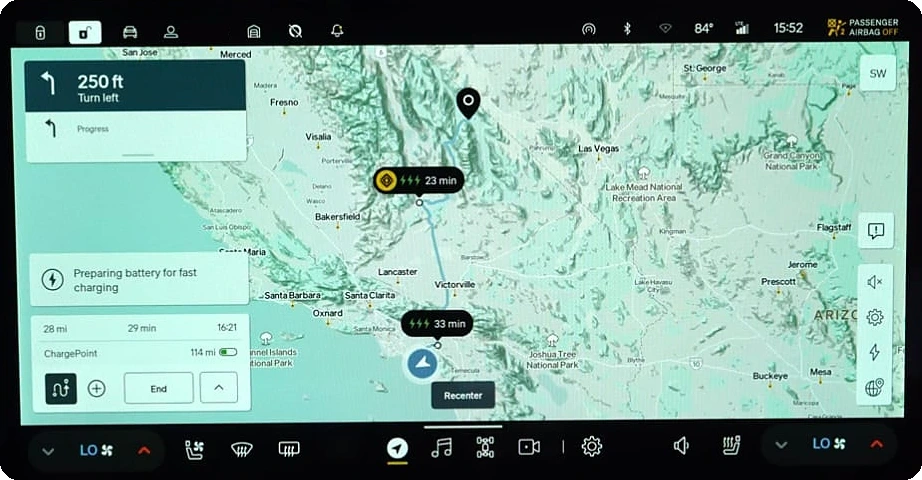
The next turn, alone
The next turn large in a corner of the map, with a note that the battery is warming for the next charger.
For YamDrive: The next turn large and on its own, readable at a glance from the handlebar mount.

F1 (2025), Apple Original Films. Reference only.
A web dashboard for the rides, styled after the telemetry screens in F1.
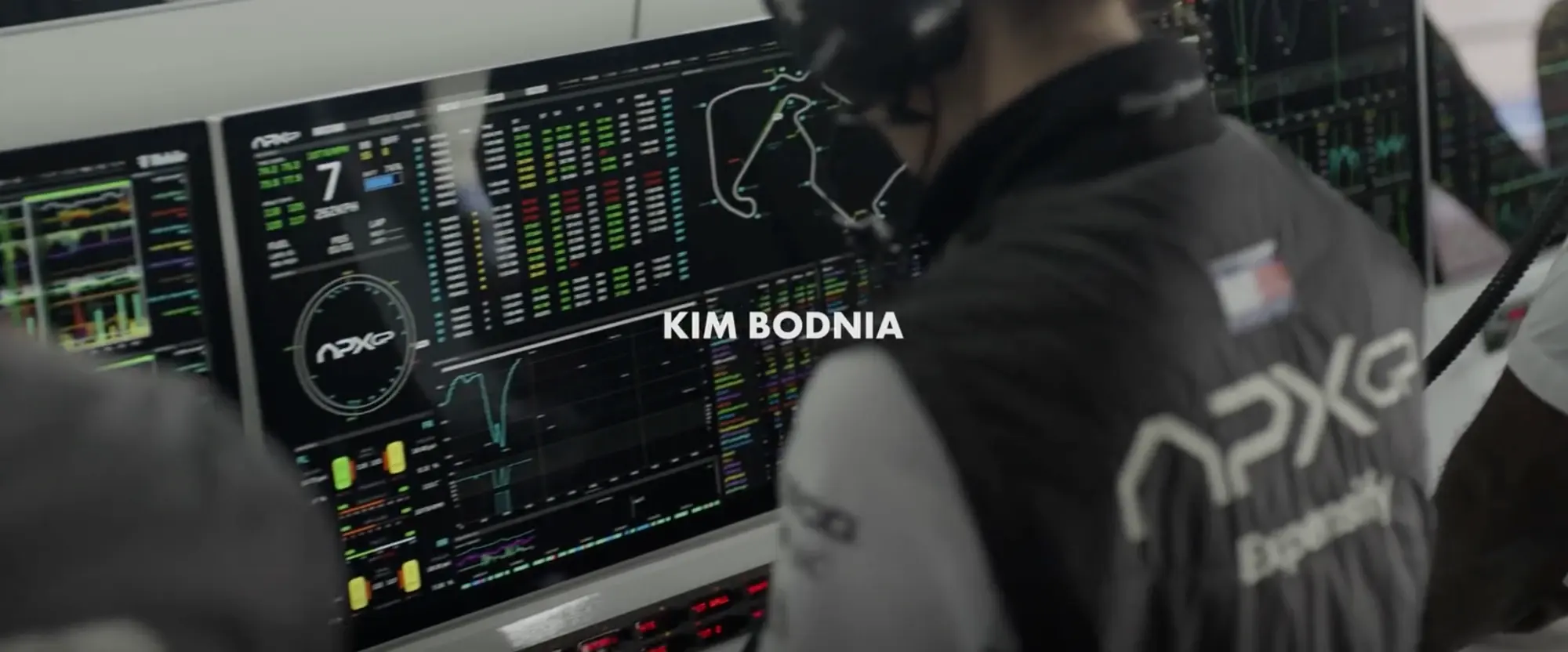
Pit wall telemetry. Still from F1 (2025), Apple Original Films.
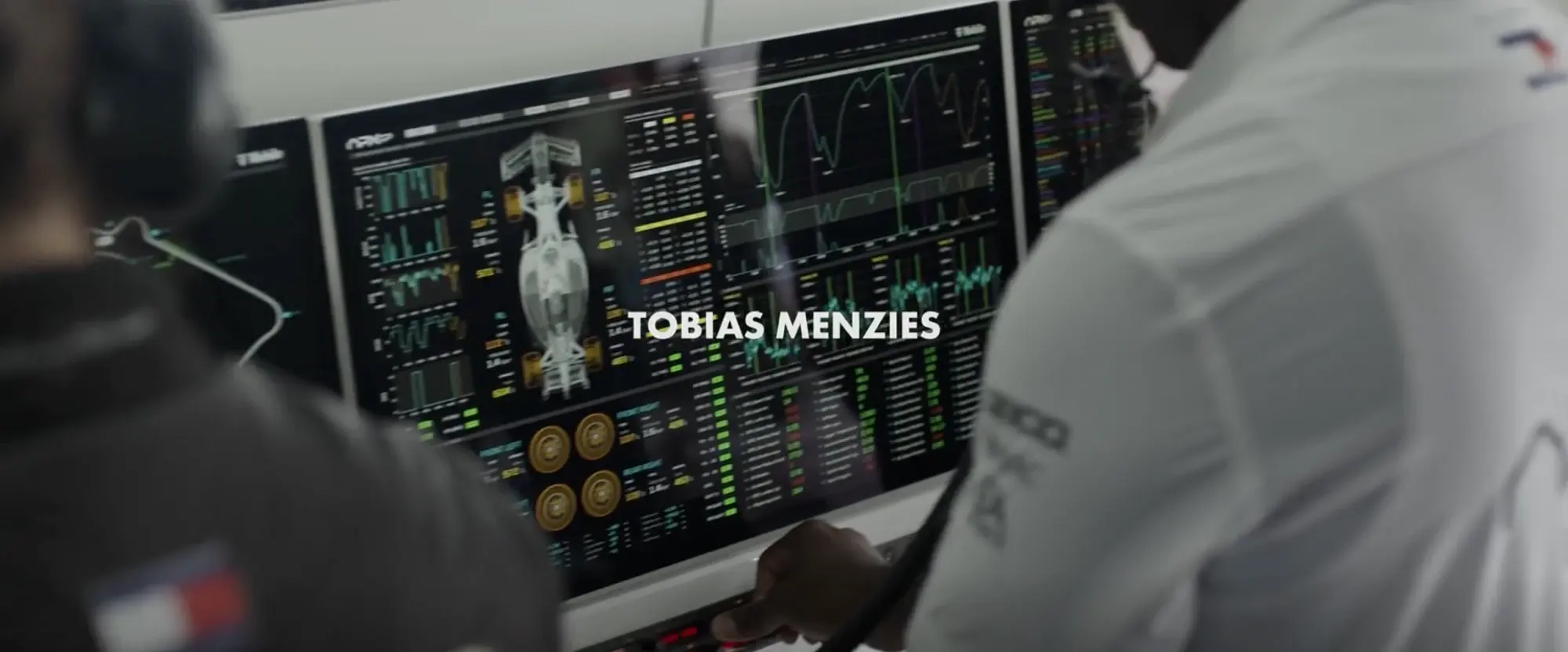
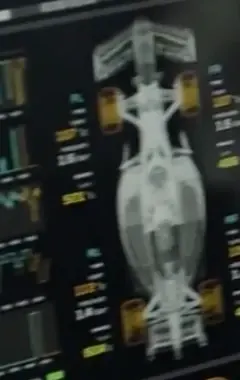
The car, from above
- In the film
- A top-down drawing of the car with a reading beside each wheel.
- For YamDrive
- The Hunter 350 from above, with tyre pressure and brake wear pinned to each wheel.
Tyre pressure needs a TPMS sensor
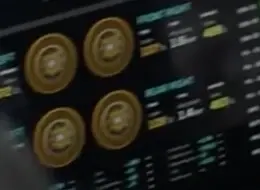
Four round readouts
- In the film
- One disc per tyre, coloured by temperature.
- For YamDrive
- Service rings for oil, chain, brakes and tyres, filling up as each one comes due.
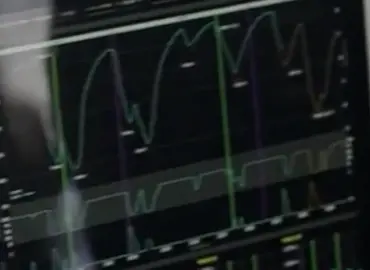
Traces on one timeline
- In the film
- Several channels stacked and lined up, so one moment reads across all of them.
- For YamDrive
- Ride replay: speed, lean and elevation against distance, scrubbed with one cursor.
Lean from the phone's motion sensors
Small multiples
- In the film
- A column of small charts, one channel each, all on the same scale.
- For YamDrive
- Weekly strips for distance, fuel spend and time in the saddle.
Pit wall timing. Still from F1 (2025), Apple Original Films.
One huge number
- In the film
- The gear, set far larger than anything else, with speed right under it.
- For YamDrive
- Current speed, large, with the ride's average and top speed small beside it.
The track as a line
- In the film
- The circuit drawn as a single stroke, with sector markers along it.
- For YamDrive
- The route as one stroke, with fuel stops and checkpoints marked on it.
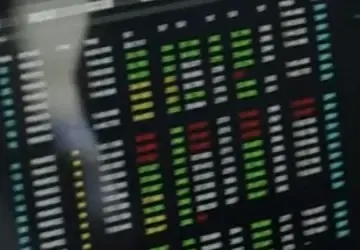
The timing tower
- In the film
- Every lap a row, green where it was faster, red where it was slower.
- For YamDrive
- Ride log: every ride a row, green where it beat your usual on that route.
State as colour
- In the film
- Each tyre a pill, its colour saying its state before any number does.
- For YamDrive
- Bike health at a glance: green, amber or red for each part.
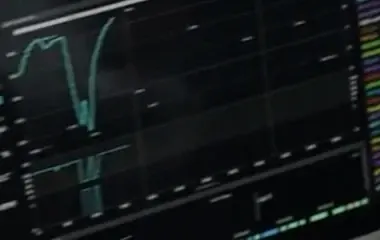
The braking dip
- In the film
- One lap's trace, where the hard stop into a corner is the shape you notice.
- For YamDrive
- Hard braking and sharp corners picked out on the ride replay.
Braking read from the phone's motion sensors
Track close-up. Still from F1 (2025), Apple Original Films.
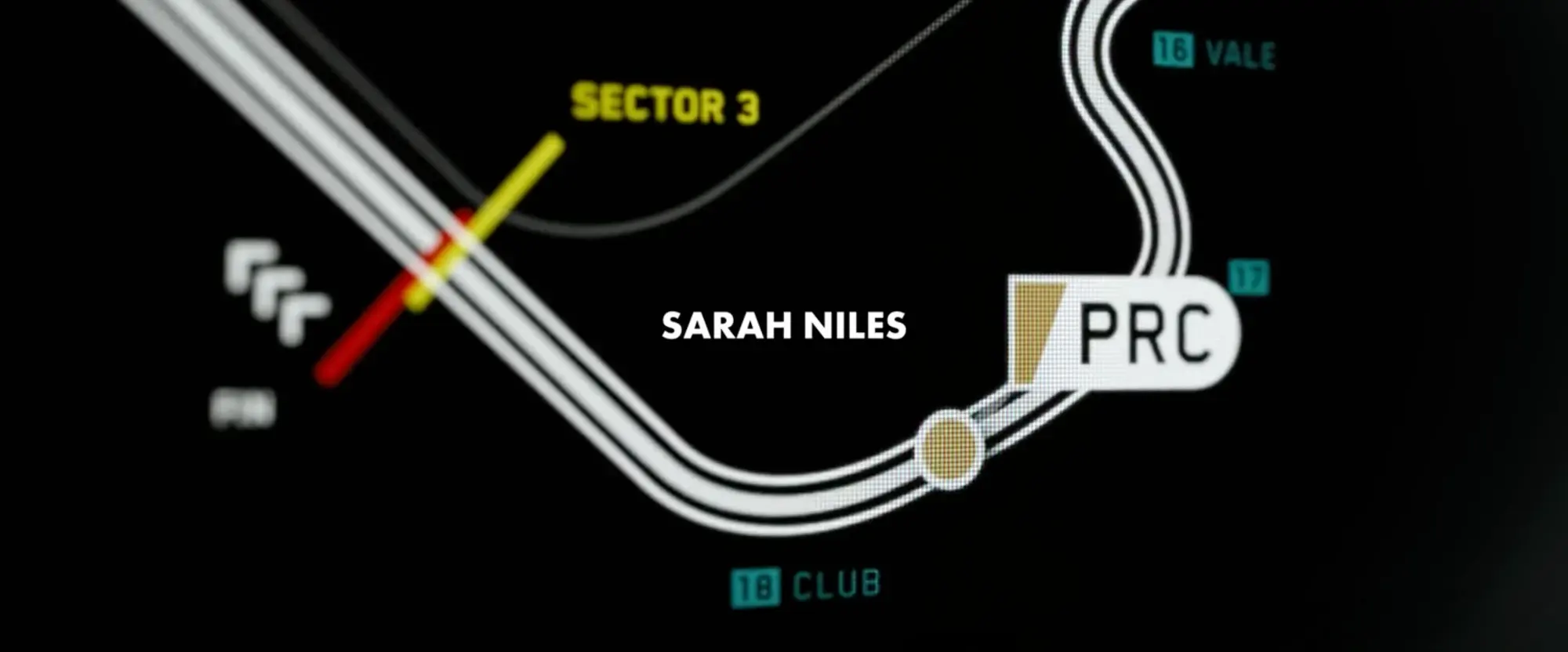
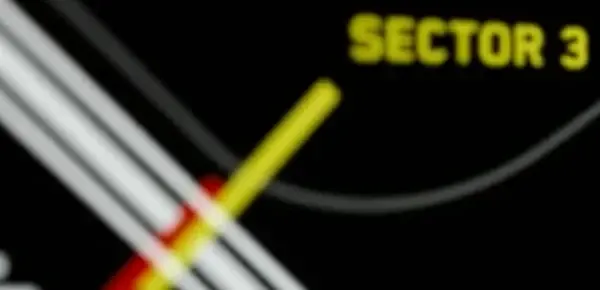
A sector as a bar
- In the film
- A coloured bar laid across the track where the sector starts, named in the same colour.
- For YamDrive
- Split a route into legs, each timed, with a bar where each leg begins.
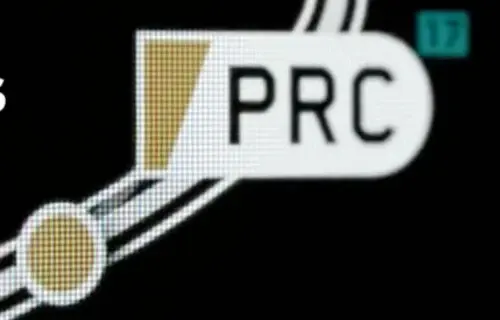
The driver as a tag
- In the film
- The car is a dot on the line with a three-letter tag riding beside it.
- For YamDrive
- You on the replay as a dot and a tag with the bike's name, moving along the route.
Numbered, named corners
- In the film
- Each corner has a number in a box and its name beside it.
- For YamDrive
- Named places along the route: the ghat section, the toll plaza, your chai stop.
Chevrons for direction
- In the film
- Stacked chevrons beside the line say which way the car is going.
- For YamDrive
- Direction of travel drawn on the route, so an out-and-back ride reads both ways.
Steering wheel display. Still from F1 (2025), Apple Original Films.
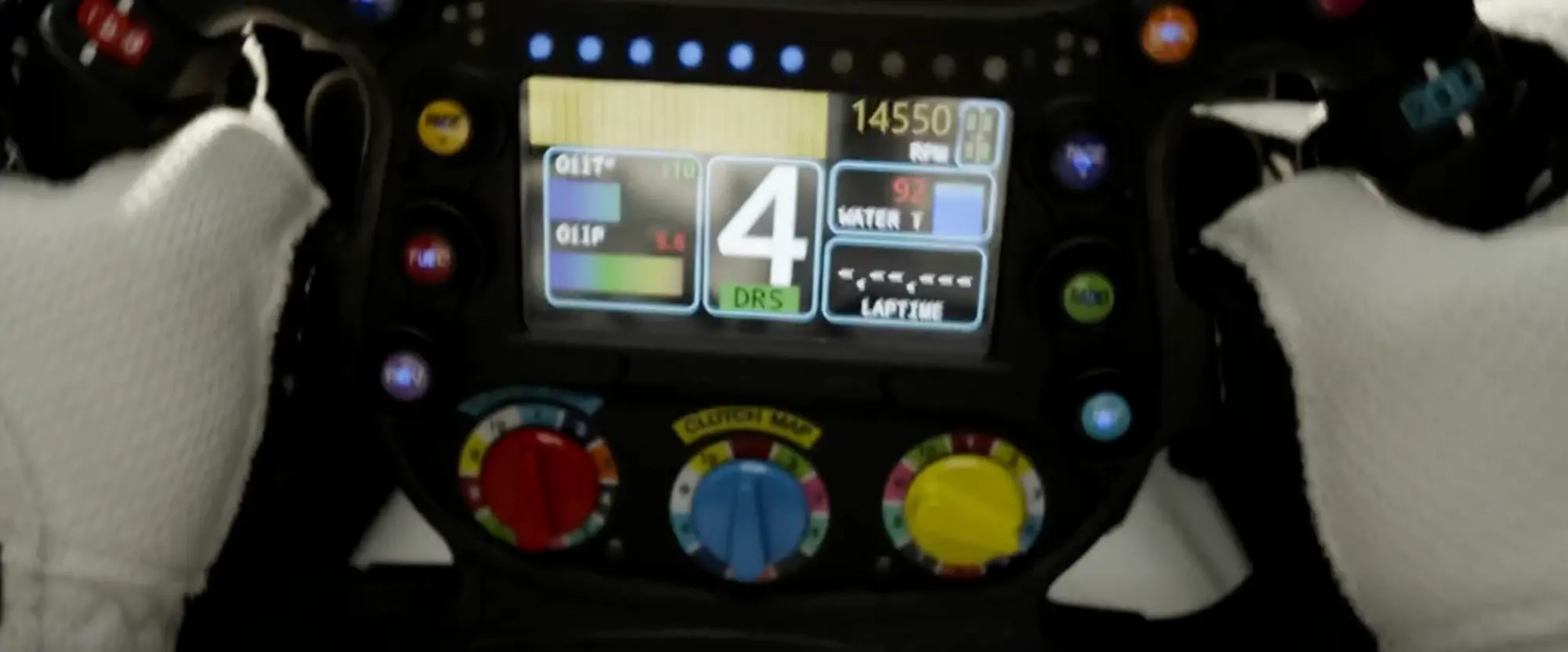
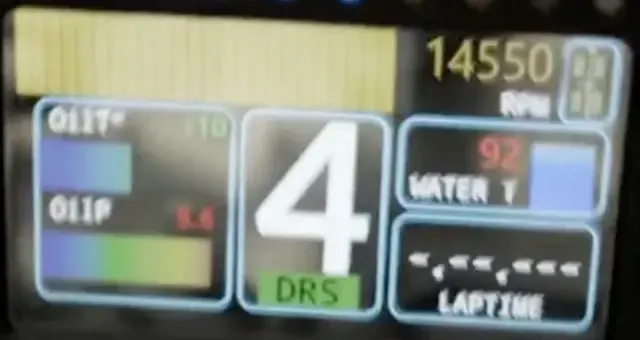
Tiles on a dark ground
- In the film
- Five outlined tiles, each one number with its label, read in a glance at speed.
- For YamDrive
- The handlebar screen: speed, fuel range, trip distance and time, one tile each.
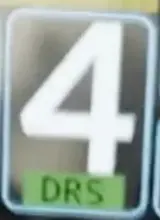
A badge under the number
- In the film
- A small green DRS badge lights up under the gear when it applies.
- For YamDrive
- A badge under the speed that appears only when it matters: Reserve when fuel runs low.

A row of lights
- In the film
- Shift lights that fill left to right as the revs climb.
- For YamDrive
- A row of dots that empties as you ride: fuel left, or distance to the next stop.
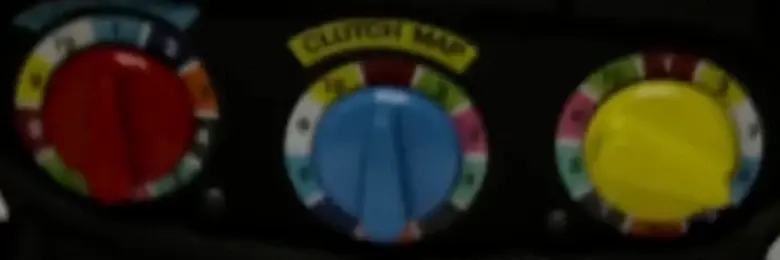
Colour-coded dials
- In the film
- Rotary switches, each its own colour, for modes the driver changes mid-lap.
- For YamDrive
- Ride modes as coloured presets (commute, highway, twisties), each changing what the screen shows.
Circuit map. Still from F1 (2025), Apple Original Films.
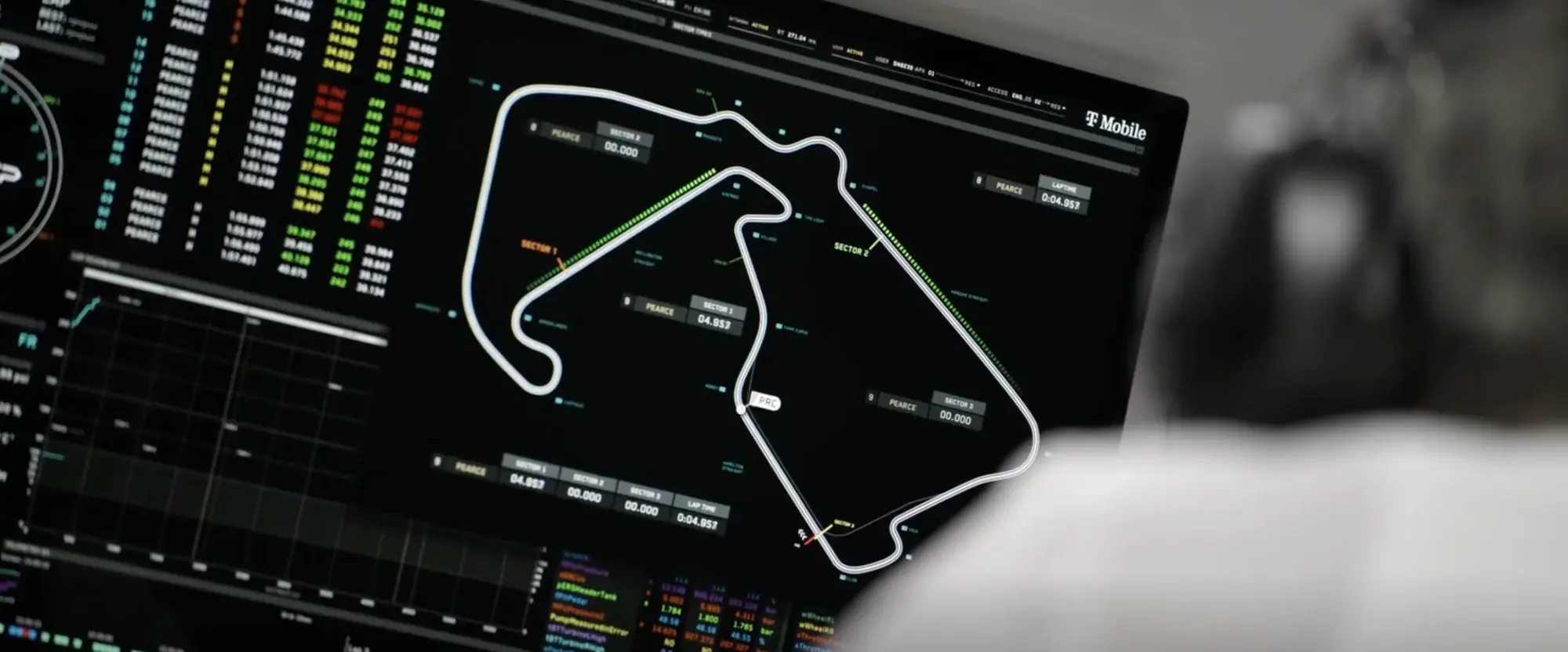
Cards pinned to the line
- In the film
- Each sector's time floats in a small card beside its stretch of track.
- For YamDrive
- Each leg's time pinned beside that leg of the route on the map.
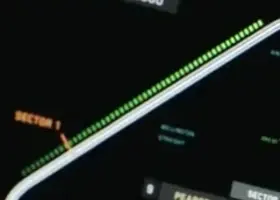
Dotted overlays
- In the film
- A dotted green band runs alongside the straights.
- For YamDrive
- Colour the route by pace: a dotted band where you held a steady cruise.
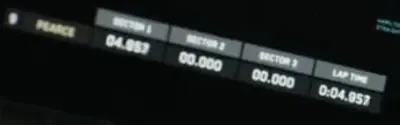
The split table
- In the film
- Sector 1, 2, 3 and the lap time in one row.
- For YamDrive
- The trip in one row: each leg's time, then the total.
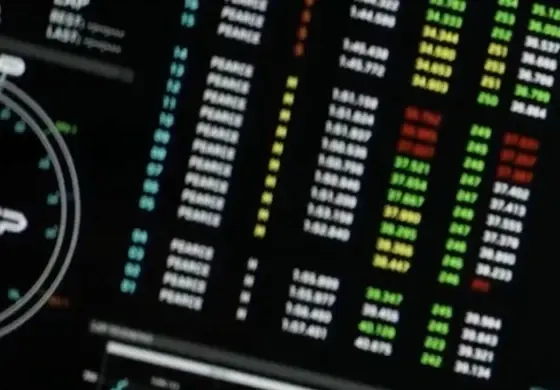
Every lap, listed
- In the film
- A column of every lap with the driver's name, coloured by pace.
- For YamDrive
- Every run of the same route listed, so this week's commute sits against last week's.
Sector timing card. Still from F1 (2025), Apple Original Films.
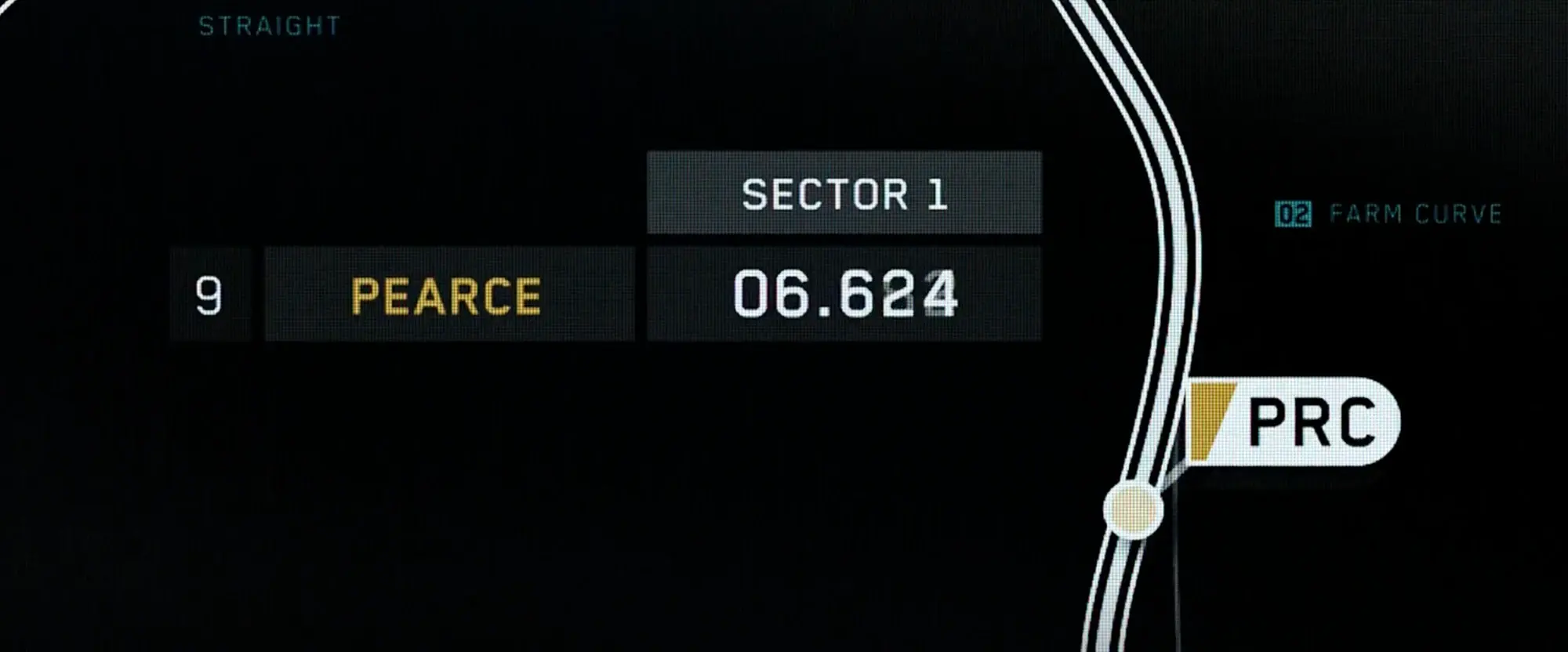
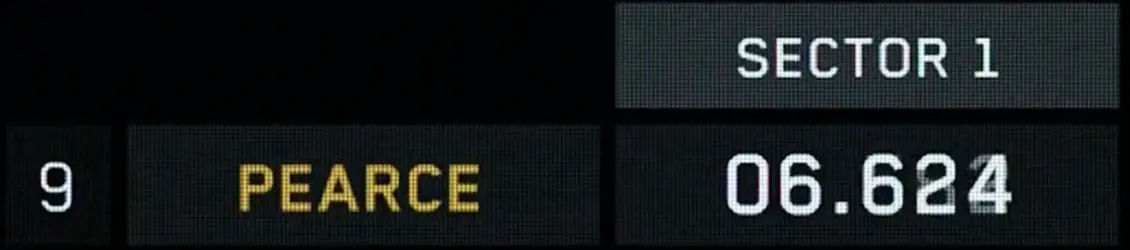
One card, one fact
- In the film
- Position, driver and sector time in three boxes on one row, the name in the team's colour.
- For YamDrive
- A leg card: bike, leg and time in one row, the bike's name in your accent colour.
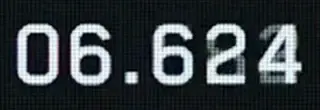
A time still running
- In the film
- The last digit blurs mid-change, so the card reads as live without saying so.
- For YamDrive
- The current leg's timer ticks on its card; finished legs freeze.
Fastest sector. Still from F1 (2025), Apple Original Films.
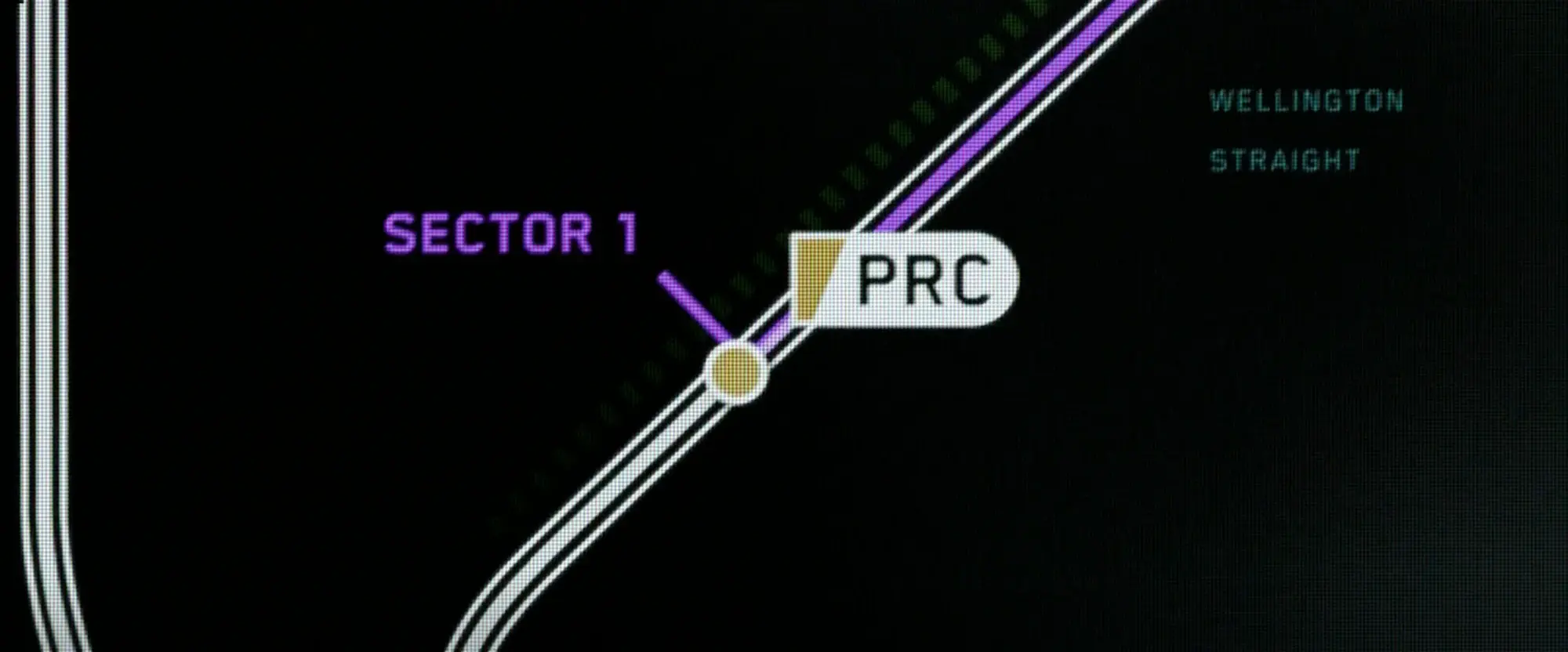
Purple means fastest
- In the film
- The sector label, its marker and the stretch of track all turn purple for the fastest time.
- For YamDrive
- One colour kept for a personal best on a leg, and used for nothing else.
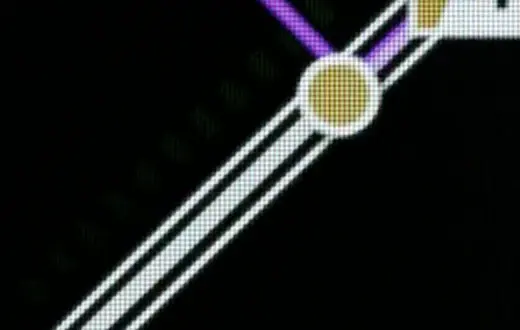
A trail behind the dot
- In the film
- A dashed band fades out behind the car, showing where it has just been.
- For YamDrive
- A fading trail behind your dot on the replay, so direction and pace read at once.
Split table. Still from F1 (2025), Apple Original Films.
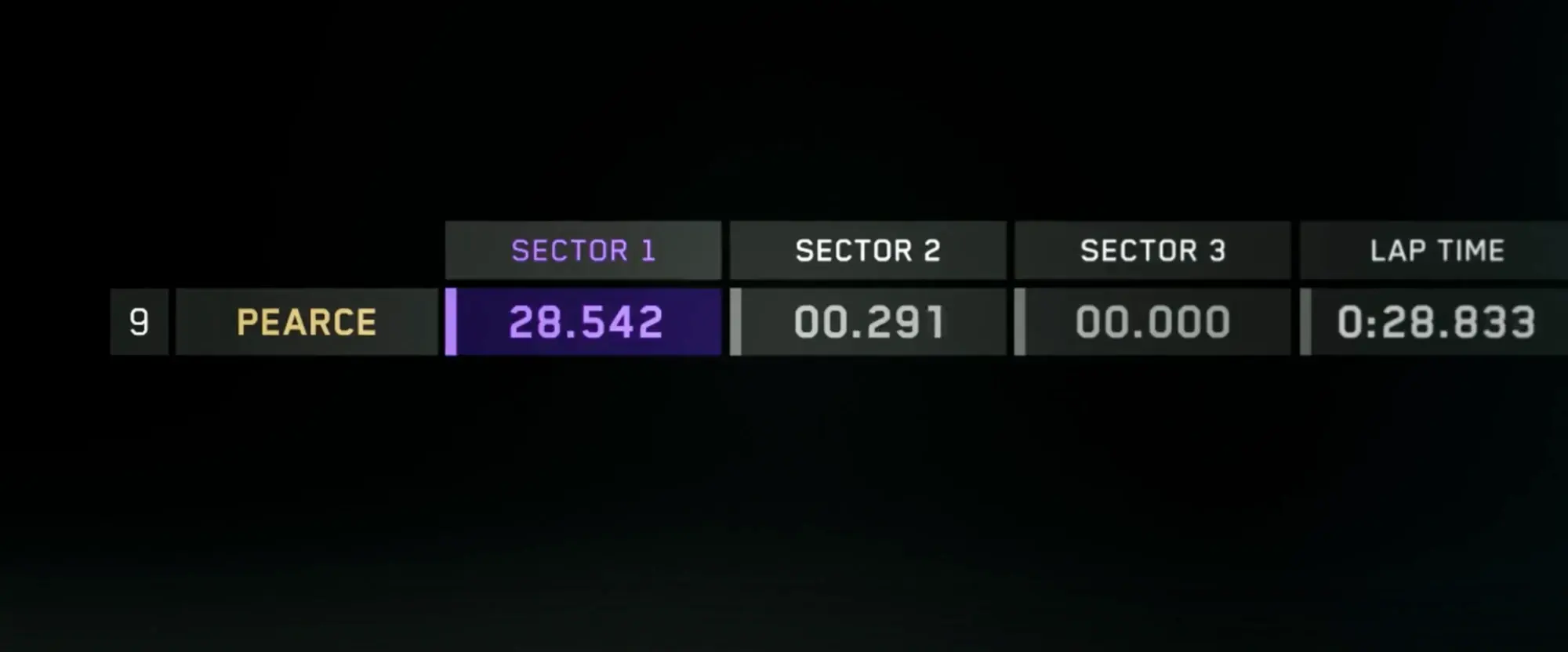
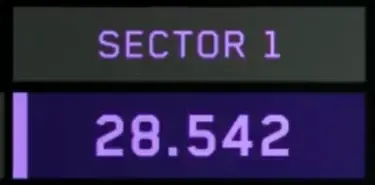
Only the best is filled
- In the film
- The fastest sector gets a filled purple cell and a coloured edge; the rest stay grey.
- For YamDrive
- Only your best leg gets a filled cell, so the eye goes there first.
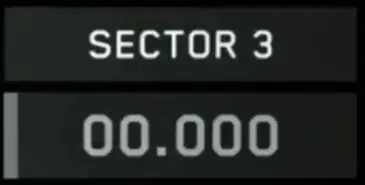
Zeros for what is to come
- In the film
- Sectors not yet run sit at 00.000, dimmed, in their final place.
- For YamDrive
- Legs not ridden yet shown as dim placeholders, so the trip's shape is there from the start.
Tyre readout. Still from F1 (2025), Apple Original Films.
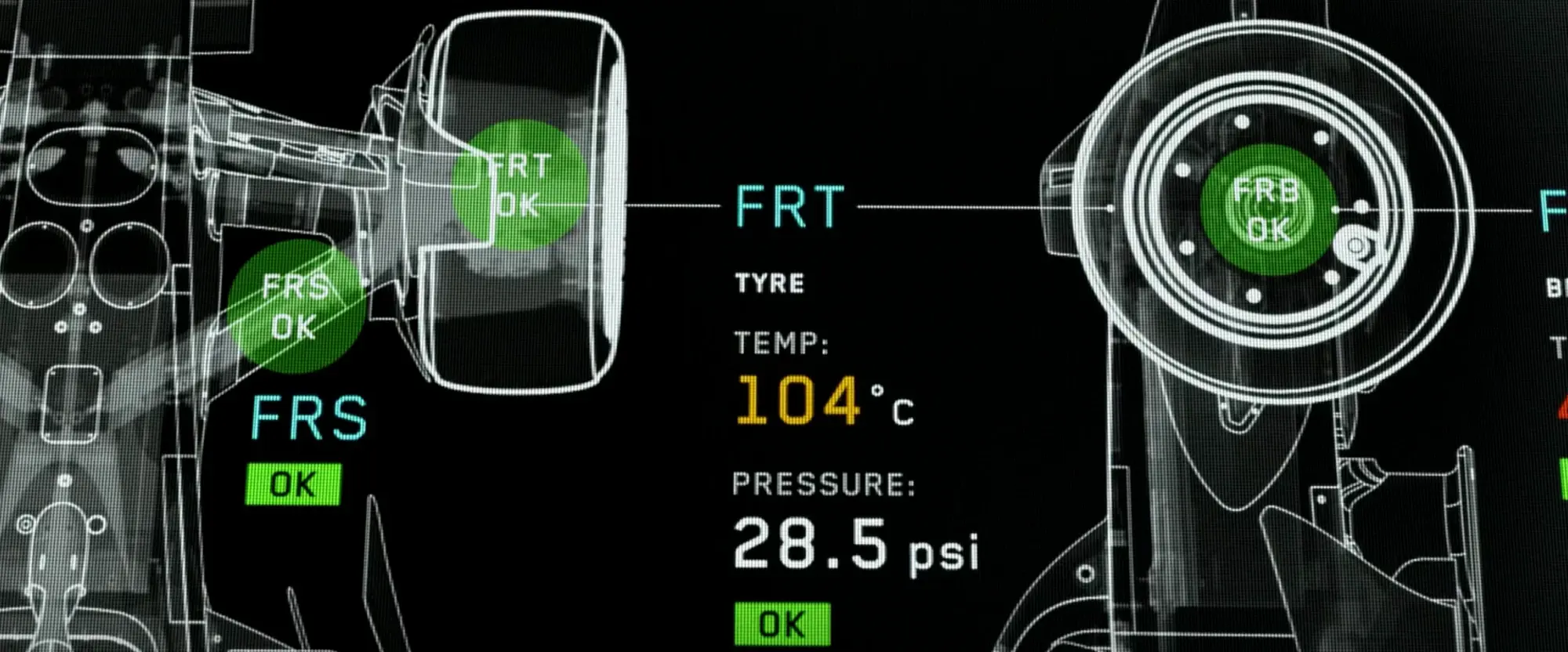
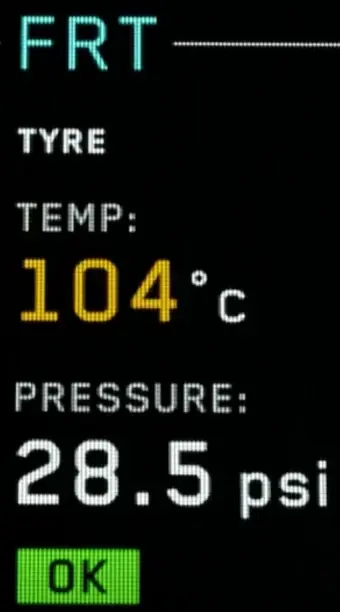
Label, value, status
- In the film
- A part code, what it is, two readings in large type, then an OK chip, stacked in that order.
- For YamDrive
- A part card: name, the reading that matters, then an OK chip.
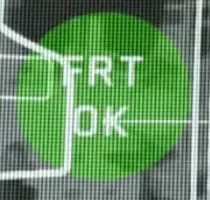
A halo on the part
- In the film
- A green disc sits on the part in the drawing itself, with OK written inside it.
- For YamDrive
- Status drawn onto the bike: a green halo on the chain, amber on a worn brake pad.
Wear levels logged by you, or read from service dates
Car health, top view. Still from F1 (2025), Apple Original Films.
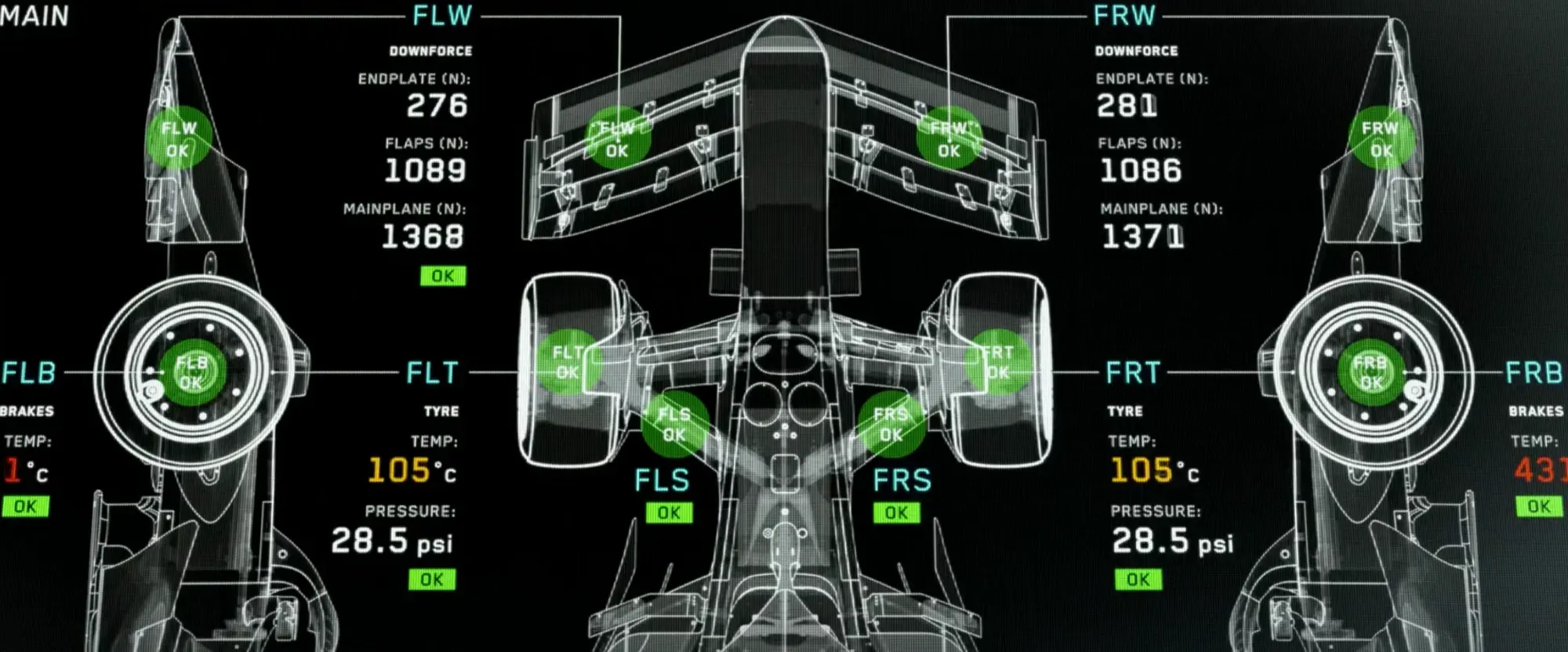
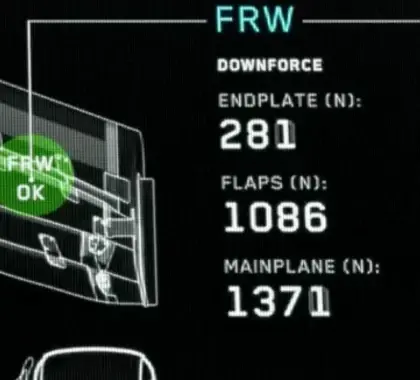
Leader lines to the part
- In the film
- Every readout is tied to its part with a thin line, so the screen needs no legend.
- For YamDrive
- Each reading joined to its part of the bike with a hairline, and no legend.
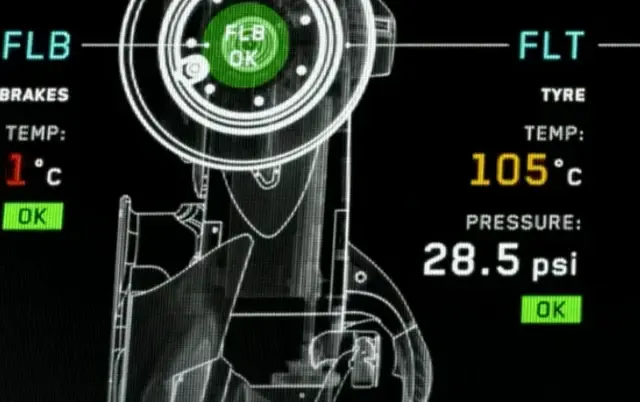
Mirrored sides
- In the film
- Left and right readouts mirror each other around the car, so a mismatch stands out.
- For YamDrive
- Front and rear stacked the same way, so an odd one out shows before you read it.
Car health, front view. Still from F1 (2025), Apple Original Films.
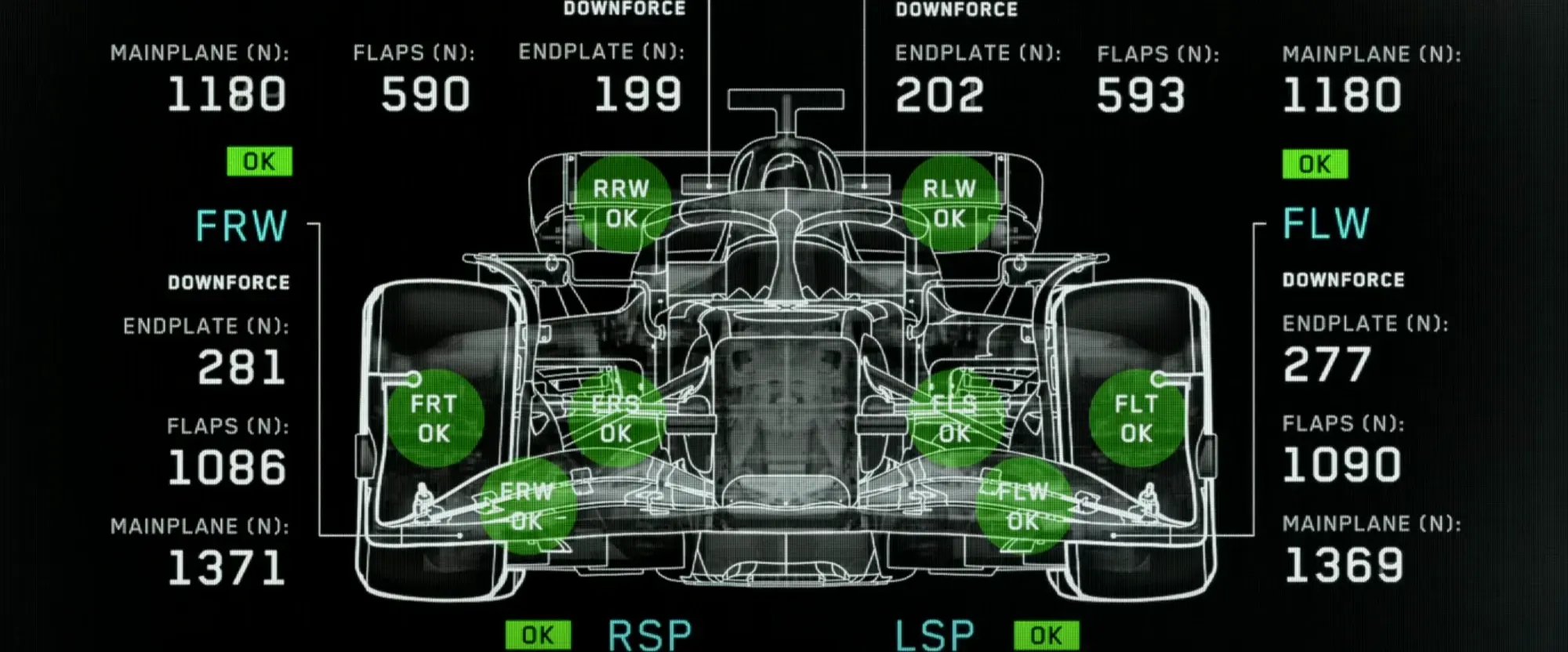

Big numbers, small labels
- In the film
- The value is set large; what it measures and its unit sit small above it.
- For YamDrive
- 28 set large with Tyre pressure, psi small above it, so the number is what you see.

Codes with OK chips
- In the film
- Short part codes with a green OK chip each, in a row along the bottom.
- For YamDrive
- The ride checks as a row of codes and chips: tyres, chain, lights, fuel, all green before you set off.
Full lap. Still from F1 (2025), Apple Original Films.
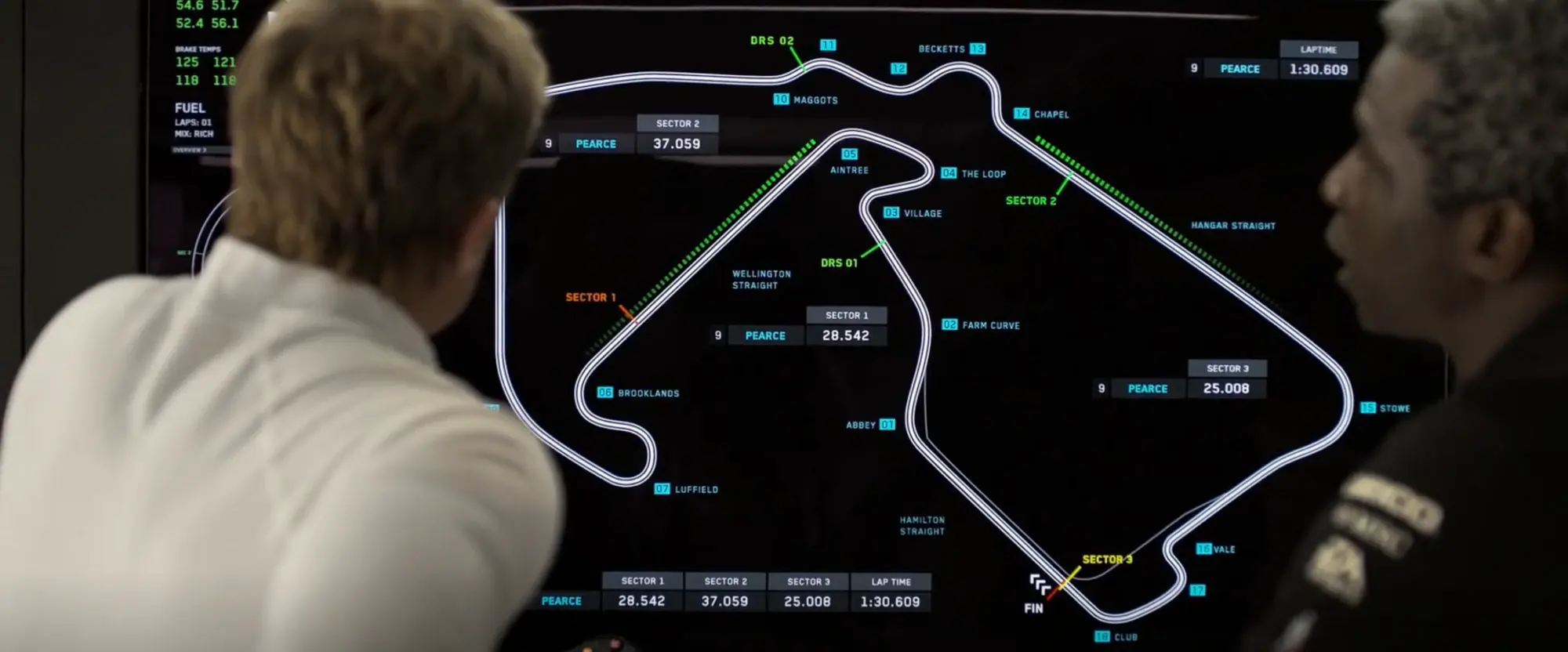
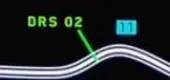
Zones as a tick and a label
- In the film
- Each DRS zone is a short green tick across the track with its name beside it.
- For YamDrive
- Zones along the route marked the same way: a speed camera stretch, a school zone, a fuel stop.
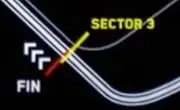
Where it ends
- In the film
- The finish is chevrons and FIN at the line, where the last sector closes.
- For YamDrive
- The start and end of the ride marked on the route, so a loop reads as a loop.
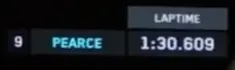
The total, in the corner
- In the film
- The lap time sits alone in the top right, apart from the sector cards.
- For YamDrive
- The ride's total time and distance parked in one corner of the replay.

Every cell filled
- In the film
- The same split table as before, now complete: three sectors and the lap.
- For YamDrive
- The trip summary: the split row that filled in as you rode, now final.
Cockpit view. Still from F1 (2025), Apple Original Films.
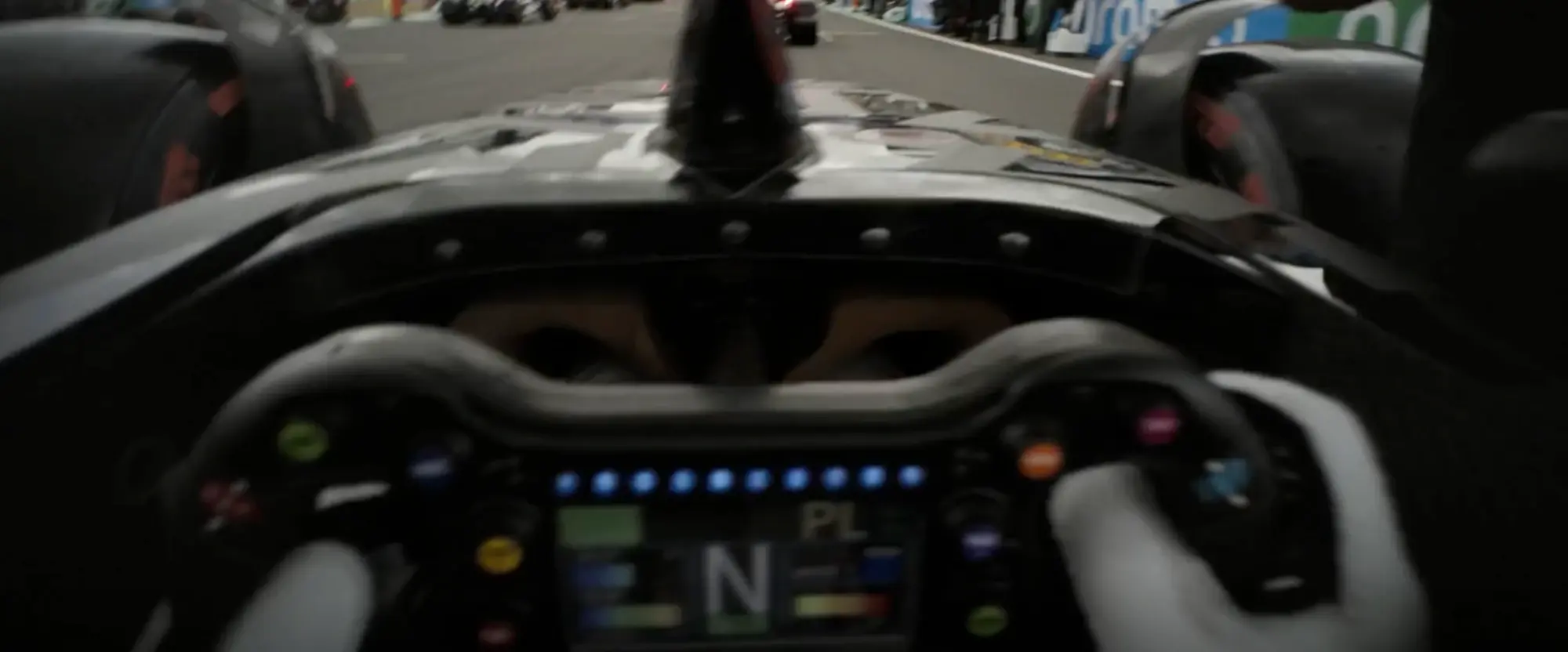
Below the eyeline
- In the film
- From the seat, the road fills the view and the screen sits low, read in glances.
- For YamDrive
- The bar-mounted Lite edition sits below the rider's eyeline too, so it shows two or three numbers, large.

Read without looking
- In the film
- The row of lights is bright enough to catch at the edge of vision, eyes on the road.
- For YamDrive
- A colour band along the Lite screen's top edge: green on course, amber for a turn ahead, caught without looking down.
Steering wheel in the pit lane. Still from F1 (2025), Apple Original Films.
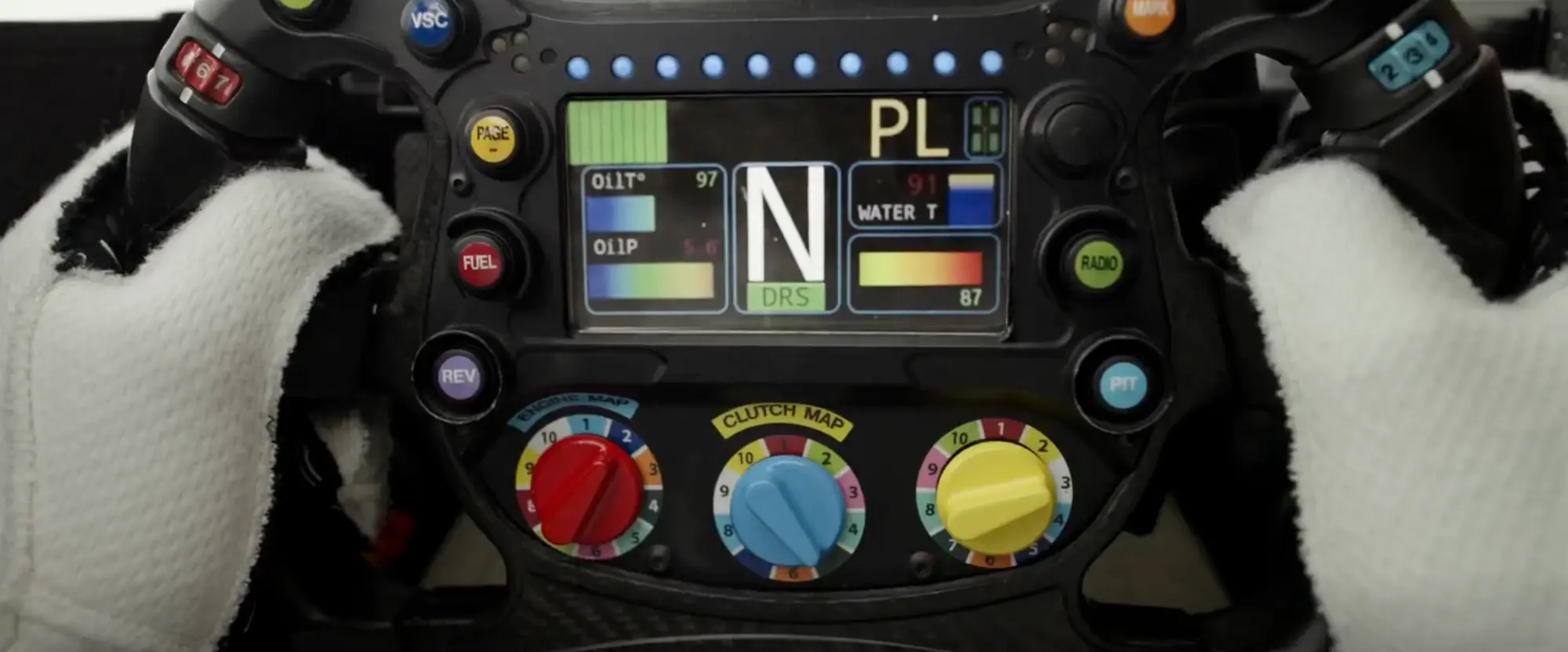
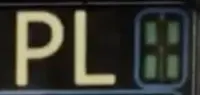
The mode, in two letters
- In the film
- PL, the pit limiter, set large in the corner for as long as it is on.
- For YamDrive
- The active ride preset as a short badge in one corner, so the rider knows which screen they are on.
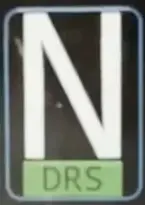
The centre changes with the state
- In the film
- Stopped, the gear tile shows N instead of a number.
- For YamDrive
- Stopped, the speed tile gives way to what matters parked: fuel, trip so far, the next stop.
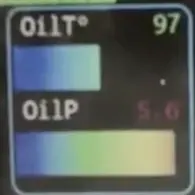
Gradient bars
- In the film
- Oil temperature and pressure as bars running cold to hot under each number.
- For YamDrive
- Engine temperature as a cold-to-hot bar under its number.
Needs an ECU link the bike does not expose
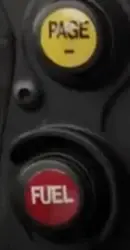
Every button says what it does
- In the film
- Each button carries its own word, Page and Fuel here, in its own colour.
- For YamDrive
- Large, labelled targets on the Lite screen, one word each (Fuel, Stop, Mark), usable in gloves.
Aero views. Still from F1 (2025), Apple Original Films.
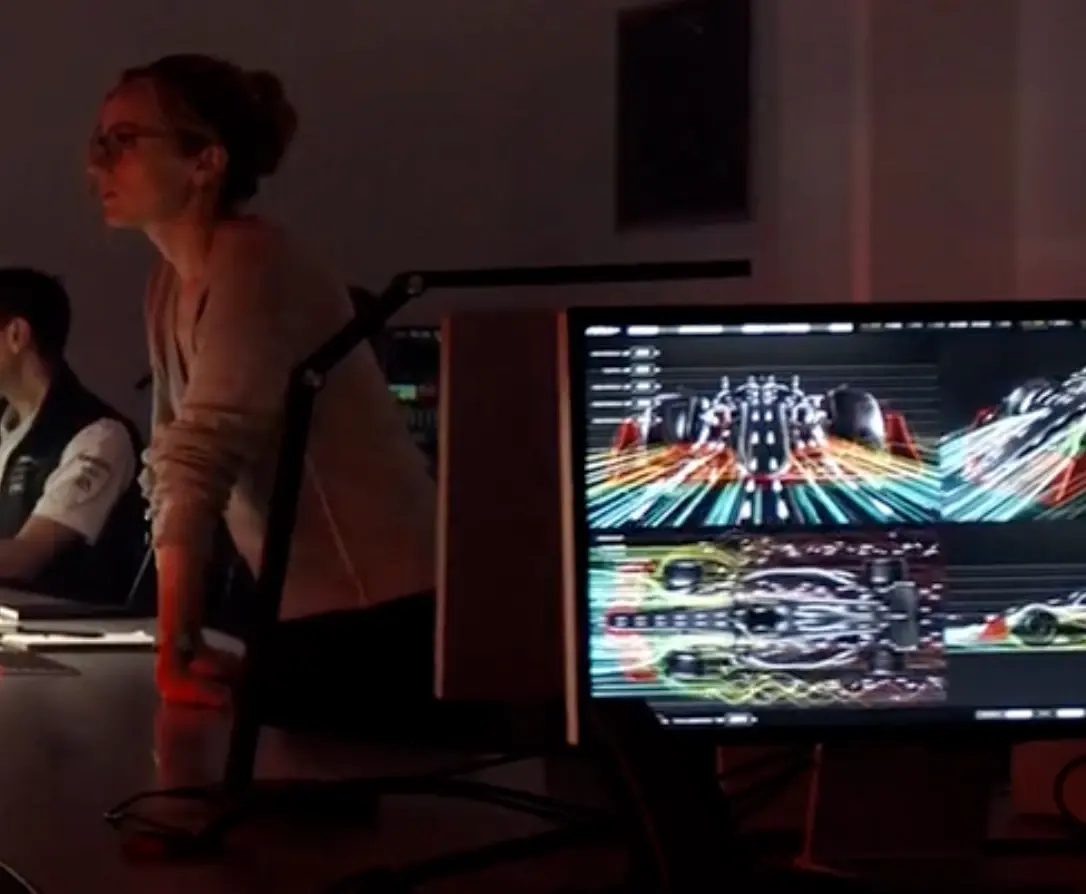
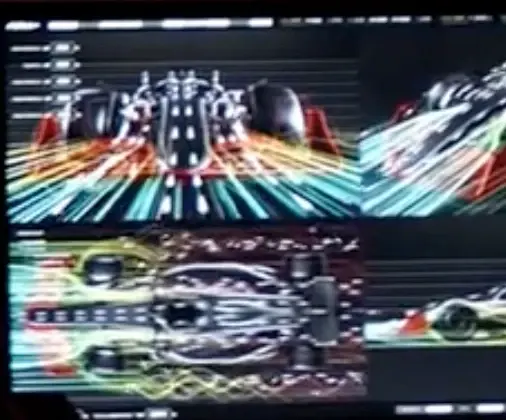
One subject, four views
- In the film
- The same car from the front, the top and the side, in panels of one screen.
- For YamDrive
- One ride four ways, side by side: the map, the elevation, the speed and the lean.
Flow as colour
- In the film
- Airflow drawn as streaks, their colour saying how fast the air moves.
- For YamDrive
- The route drawn in streaks coloured by speed, so the fast and slow stretches show from across the room.
Wind tunnel. Still from F1 (2025), Apple Original Films.
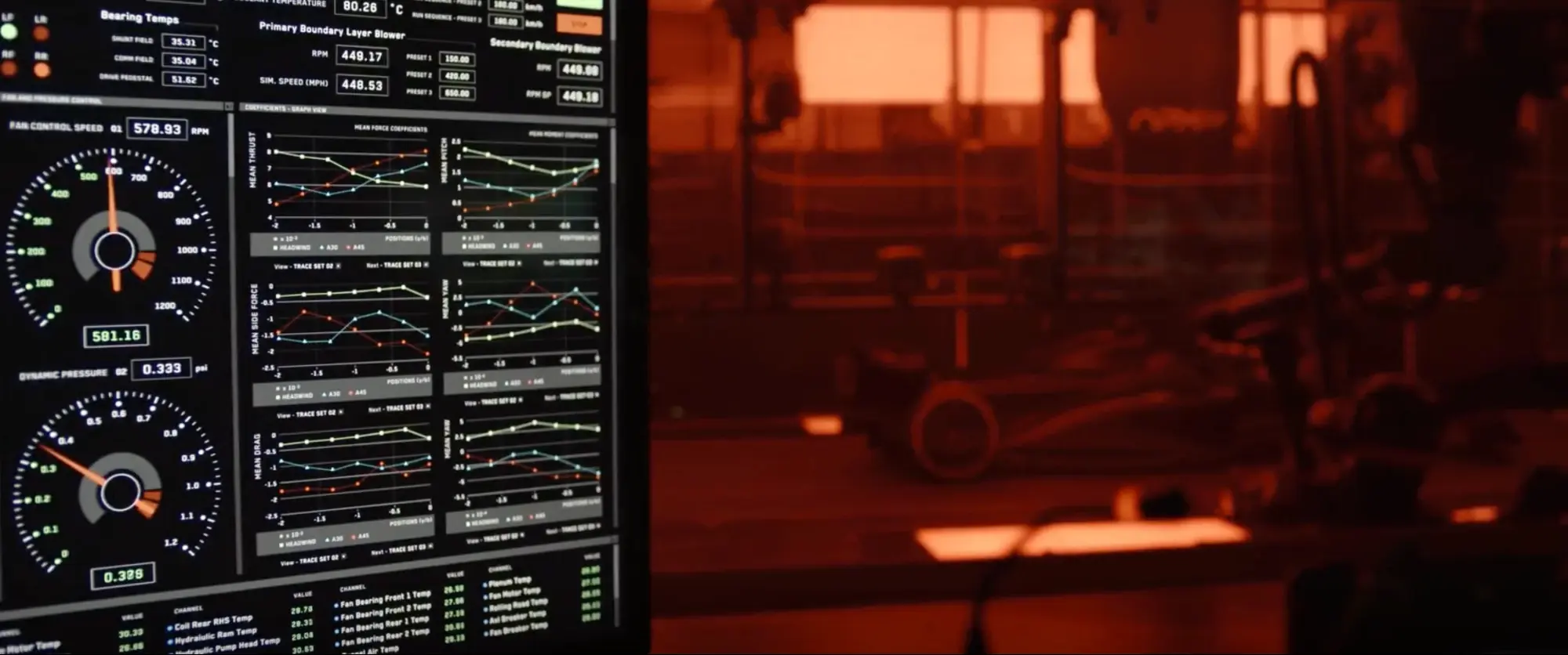
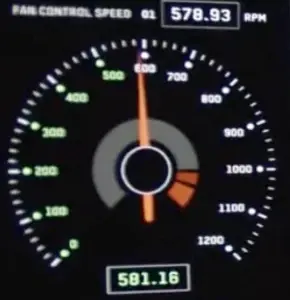
A dial with its number
- In the film
- An analogue dial for the feel of it, with the exact value boxed below.
- For YamDrive
- A speedometer dial on the Lite screen with the exact speed boxed under the needle.
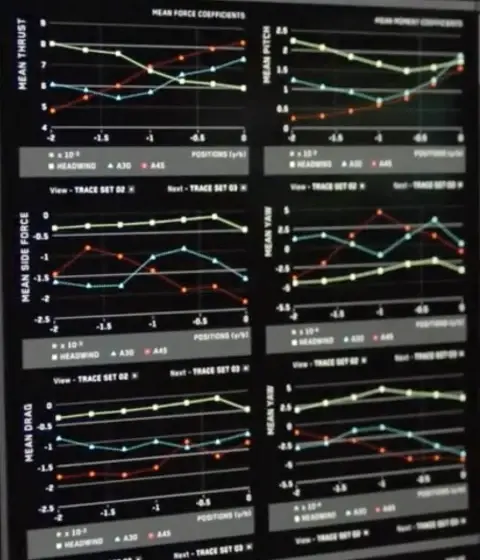
Three runs, one colour each
- In the film
- Six small charts on shared axes, each comparing the same three runs in the same three colours.
- For YamDrive
- Three rides on the same route compared, each one colour, on every chart at once.
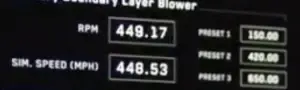
Values in boxes
- In the film
- Settings as outlined boxes with the label to the left and presets beside them.
- For YamDrive
- Targets as boxed values, tyre pressure and the service interval, each editable where it sits.
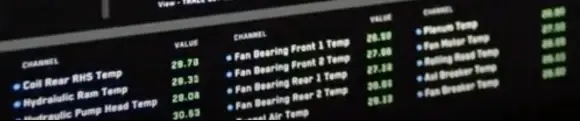
The legend is the data
- In the film
- A channel list where each row is a colour dot, a name and its current value.
- For YamDrive
- Readings as a list whose dots match the chart lines, so the list doubles as the legend.
Aero desk. Still from F1 (2025), Apple Original Films.
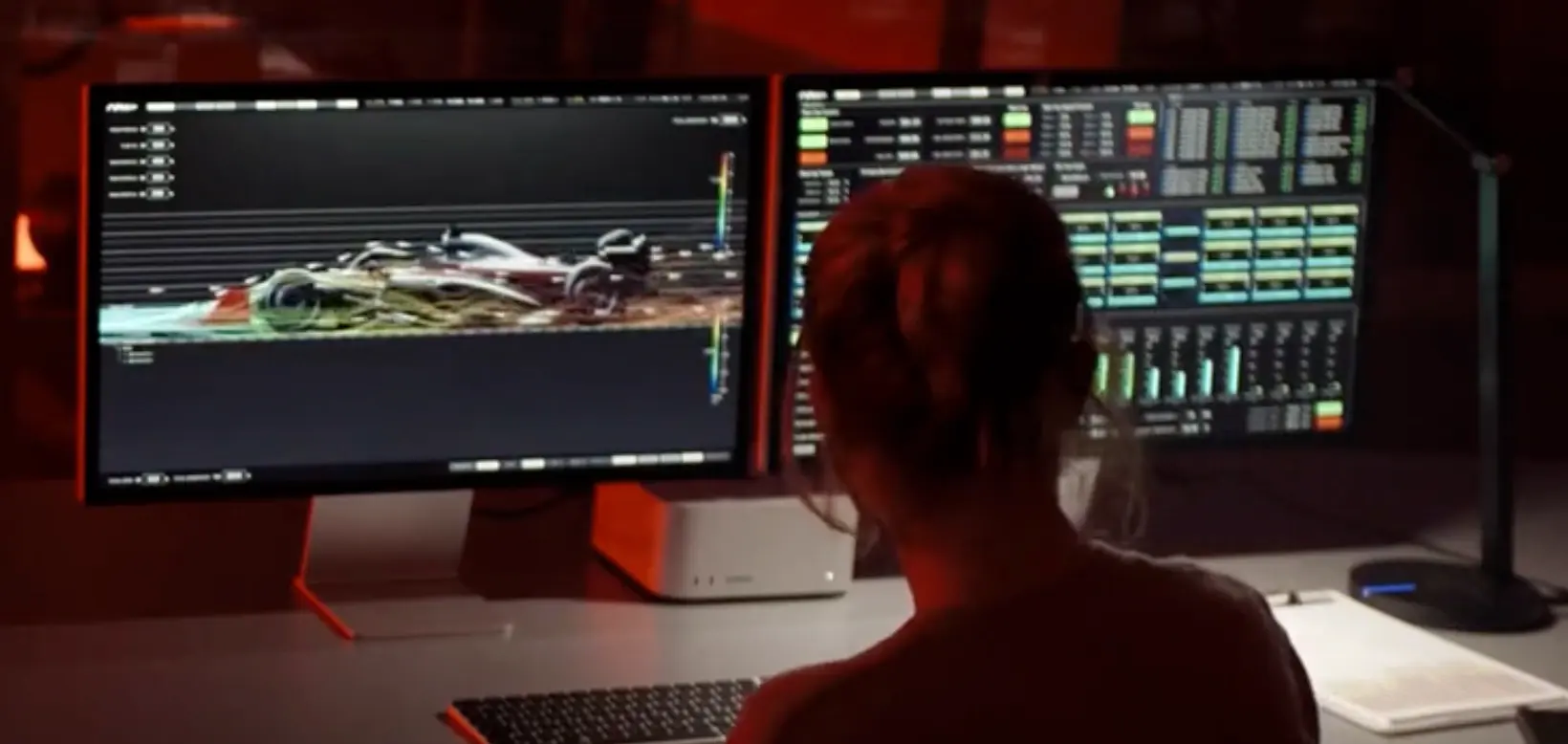
A scale beside the view
- In the film
- A vertical colour scale sits at the edge of the flow view, so the colours can be read.
- For YamDrive
- A slow-to-fast scale beside the coloured route, so the colours mean a speed, not a mood.
Look left, read right
- In the film
- One screen shows the car; the one beside it is only numbers, in a grid of tiles.
- For YamDrive
- The web dashboard split the same way: the replay on one side, its numbers in tiles on the other.
Start lights. Still from F1 (2025), Apple Original Films.
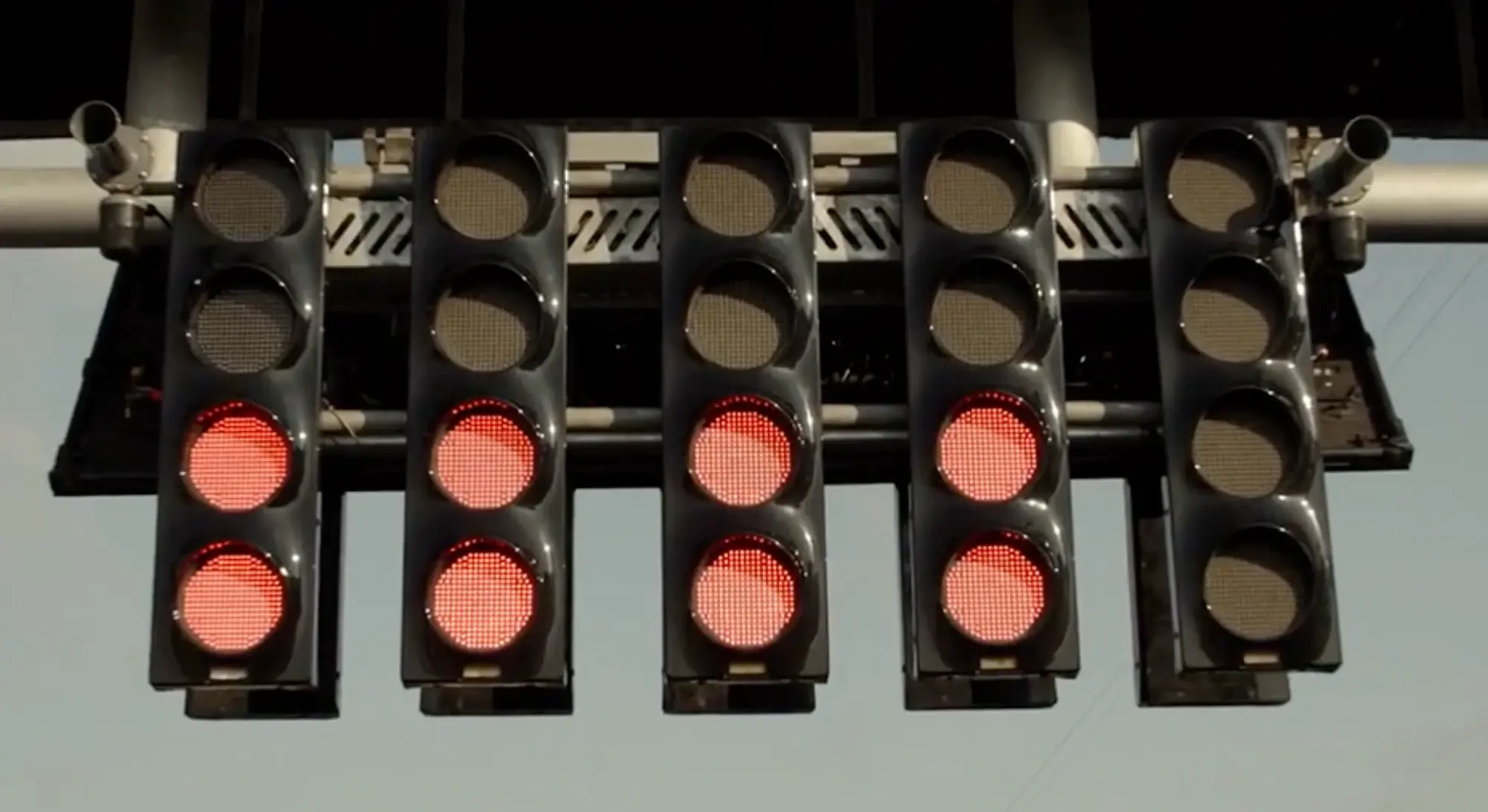
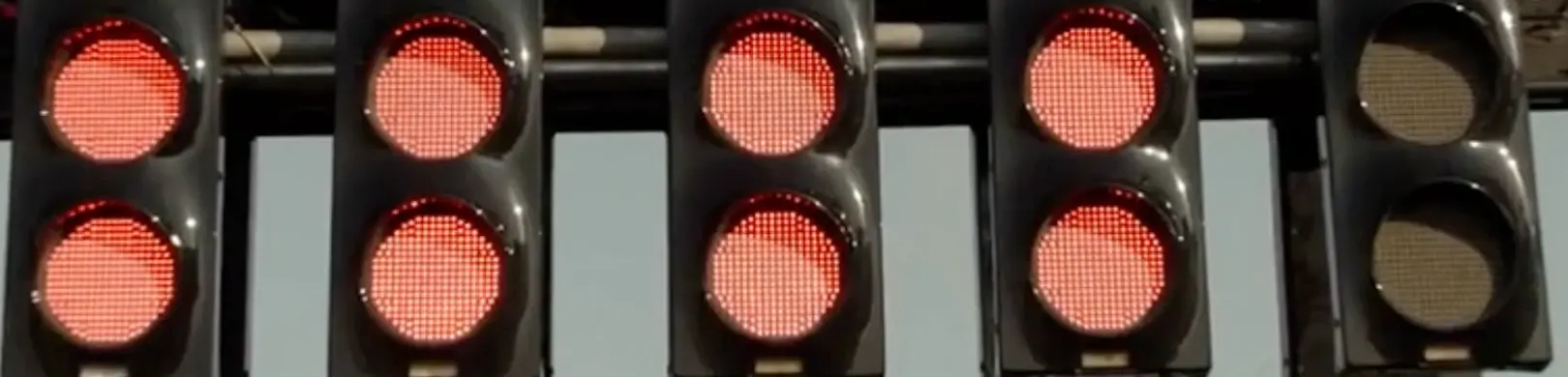
Counting to the start
- In the film
- Five lights come on one by one, and when they all go out the race starts.
- For YamDrive
- The pre-ride checks light up one by one (GPS, fuel, tyres), and the ride starts when every one is on.
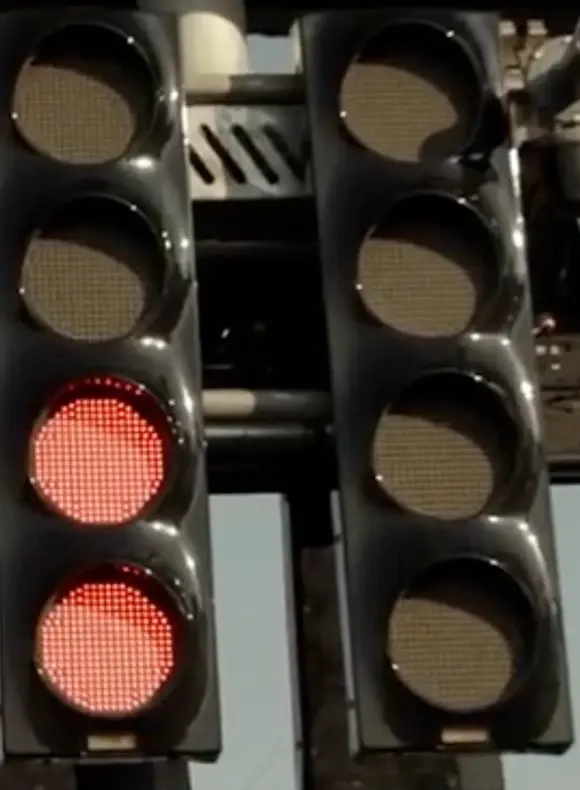
Progress without a number
- In the film
- The one column still dark says how far the sequence has got, with no count shown.
- For YamDrive
- A trip's progress as filled segments, one per leg, the unlit ones still ahead.
The component canvas: every component the app ships, in every state, on light and night.
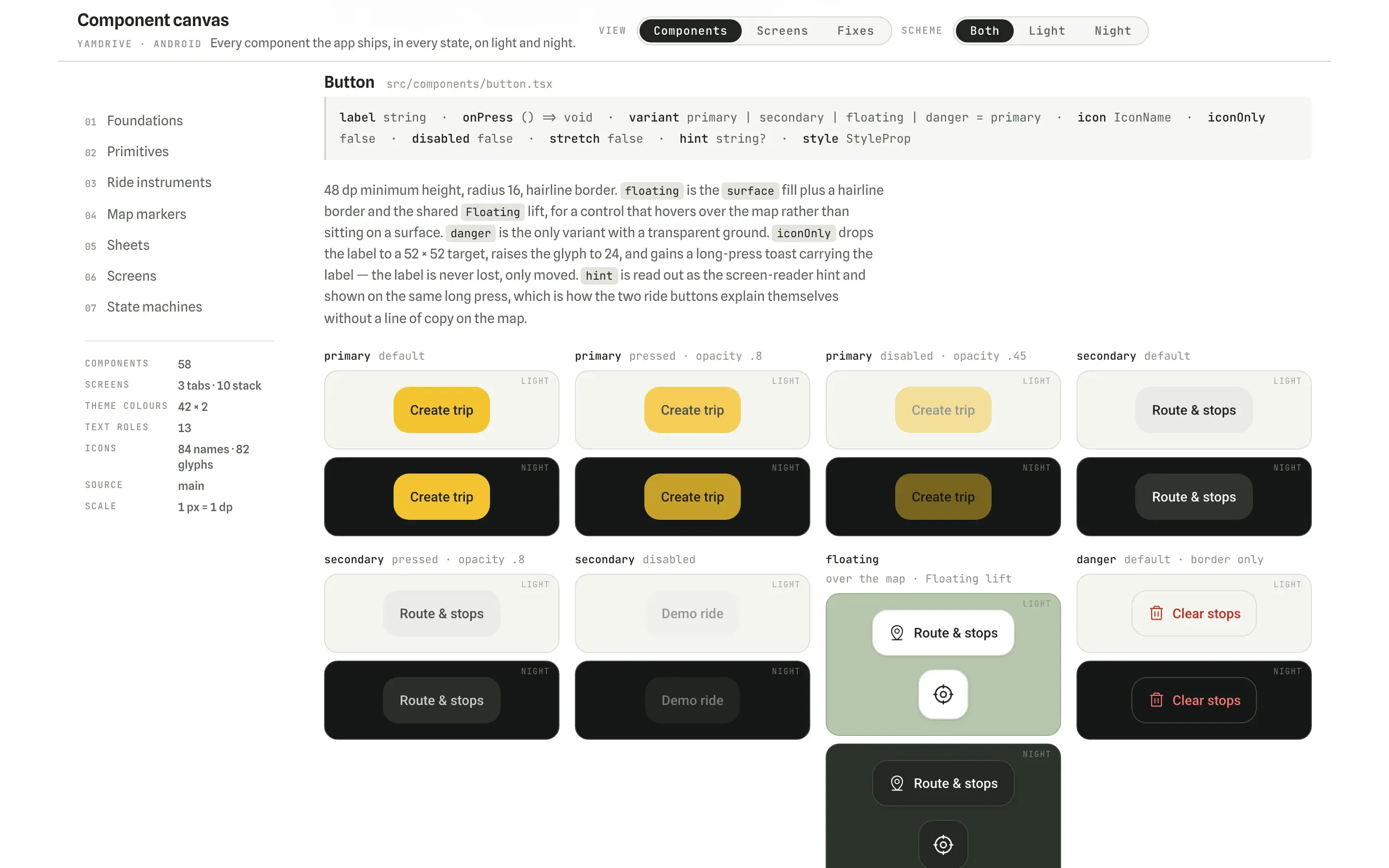 (opens in a new tab)Open the component canvas(opens in a new tab)