iPad app, in progress
YamDraw
An iPad app for marking things up, where the canvas and the screen recording are the app rather than two things you set up first. A blank board to draw on, or a live web page frozen where you froze it.
Writing over a talking head is a known technique, and the reason more people do not do it is the setup. Nothing about a notes app in black, or a screen recording started by hand, has anything to do with the thing being made. It is tax paid before the work starts. YamDraw is the answer to a small question: why is that not just one app?
The app
What helped build it
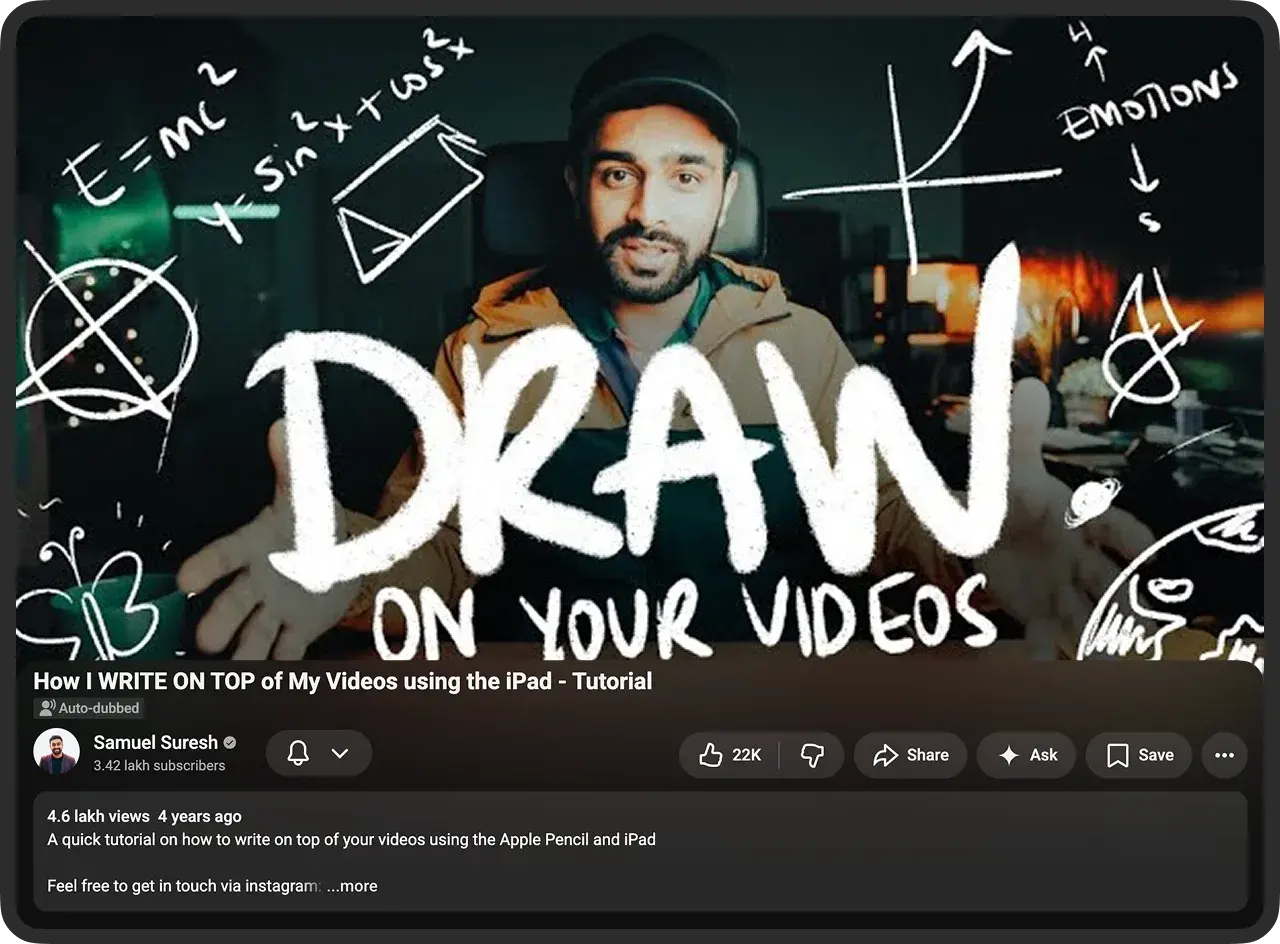
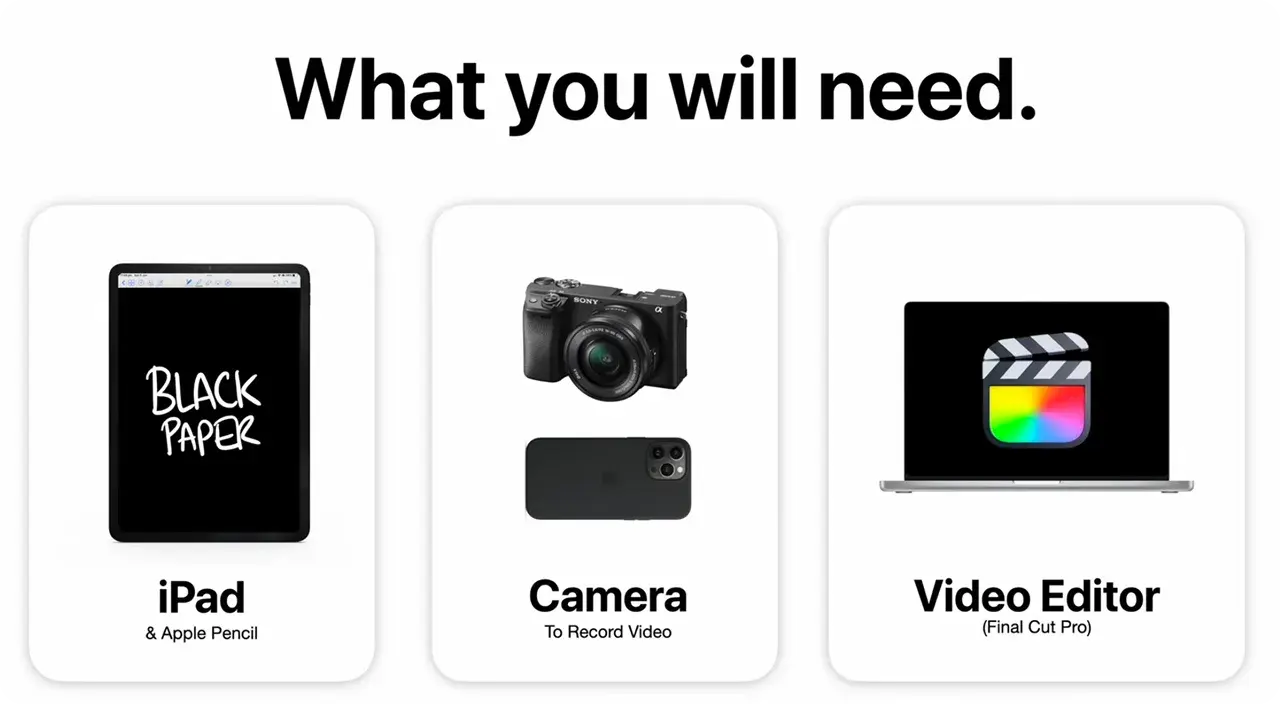
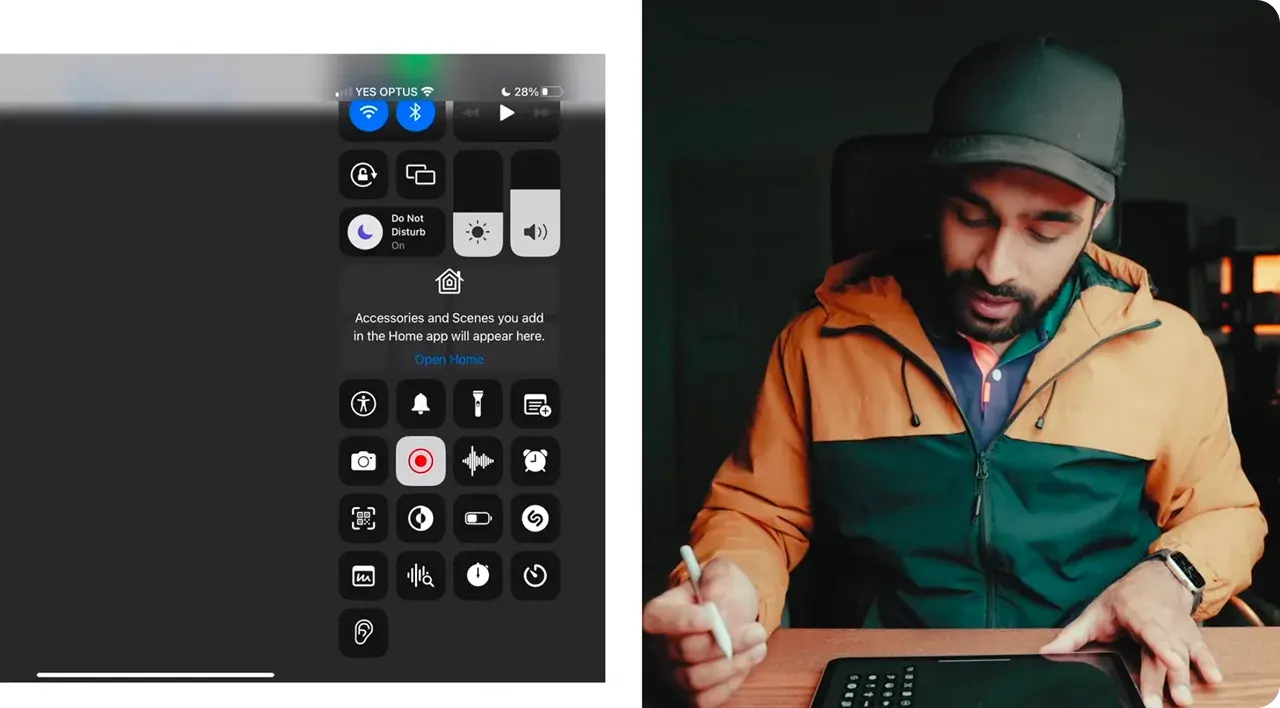
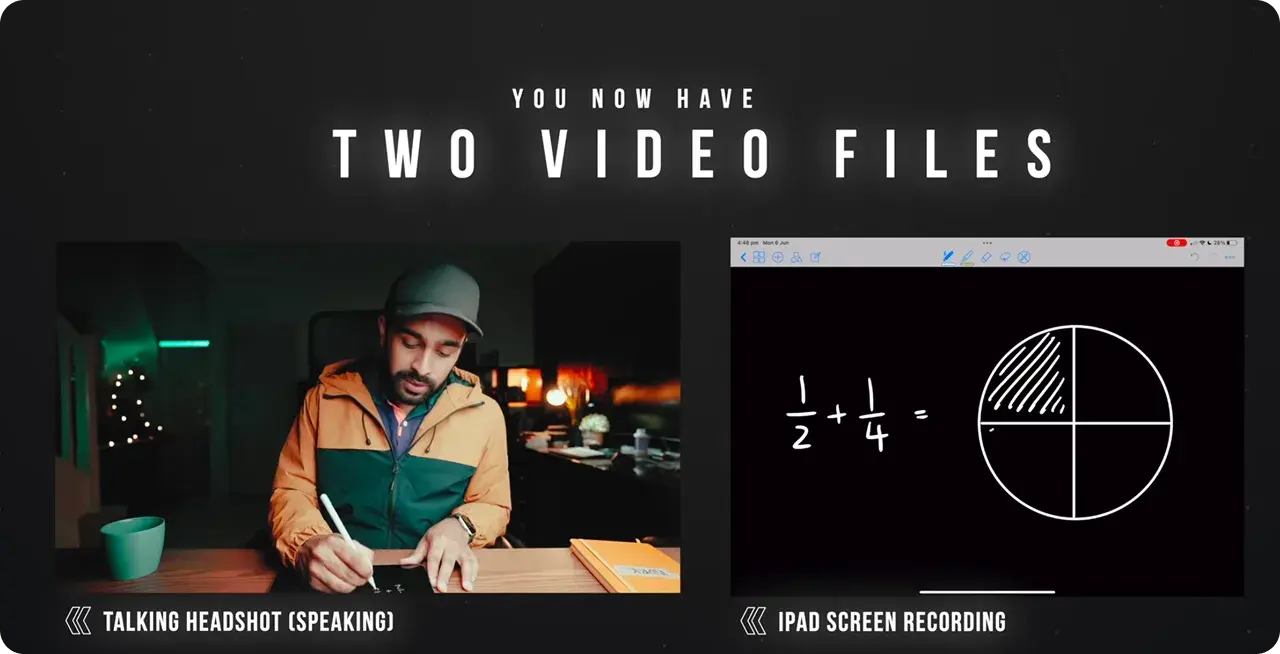
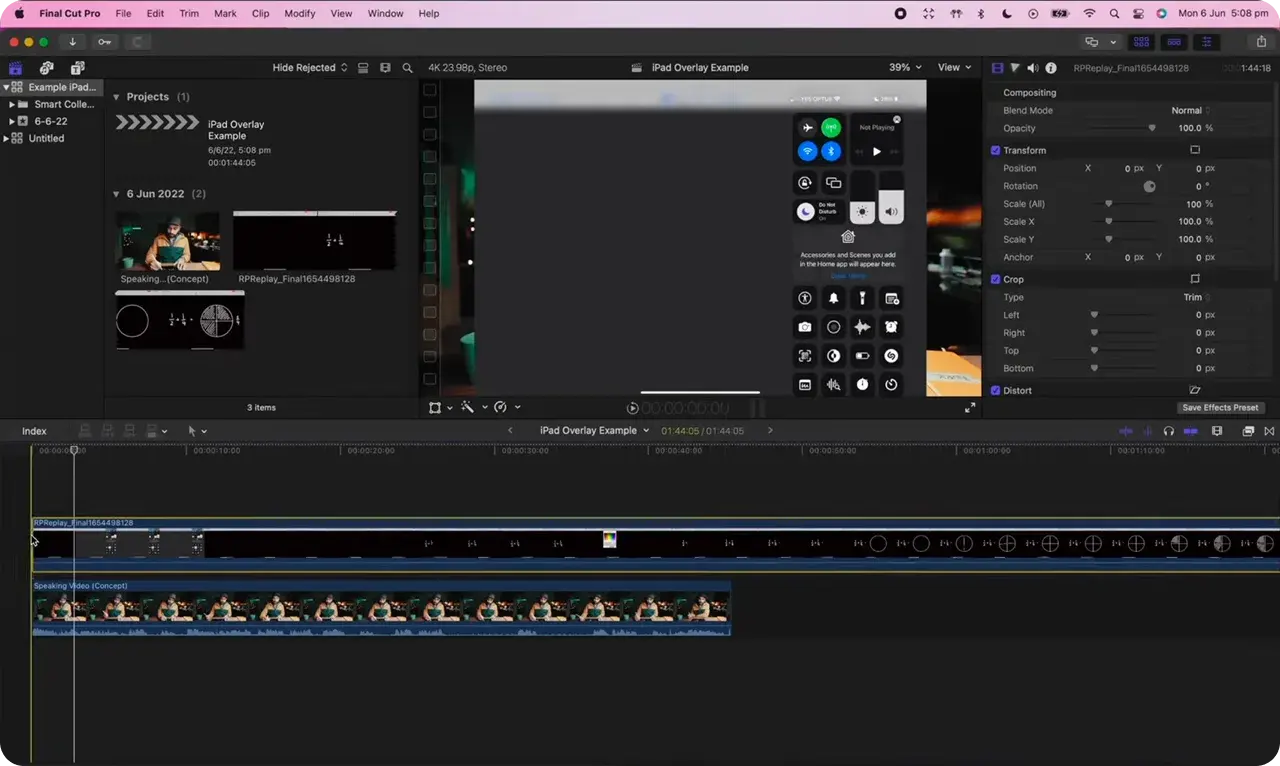
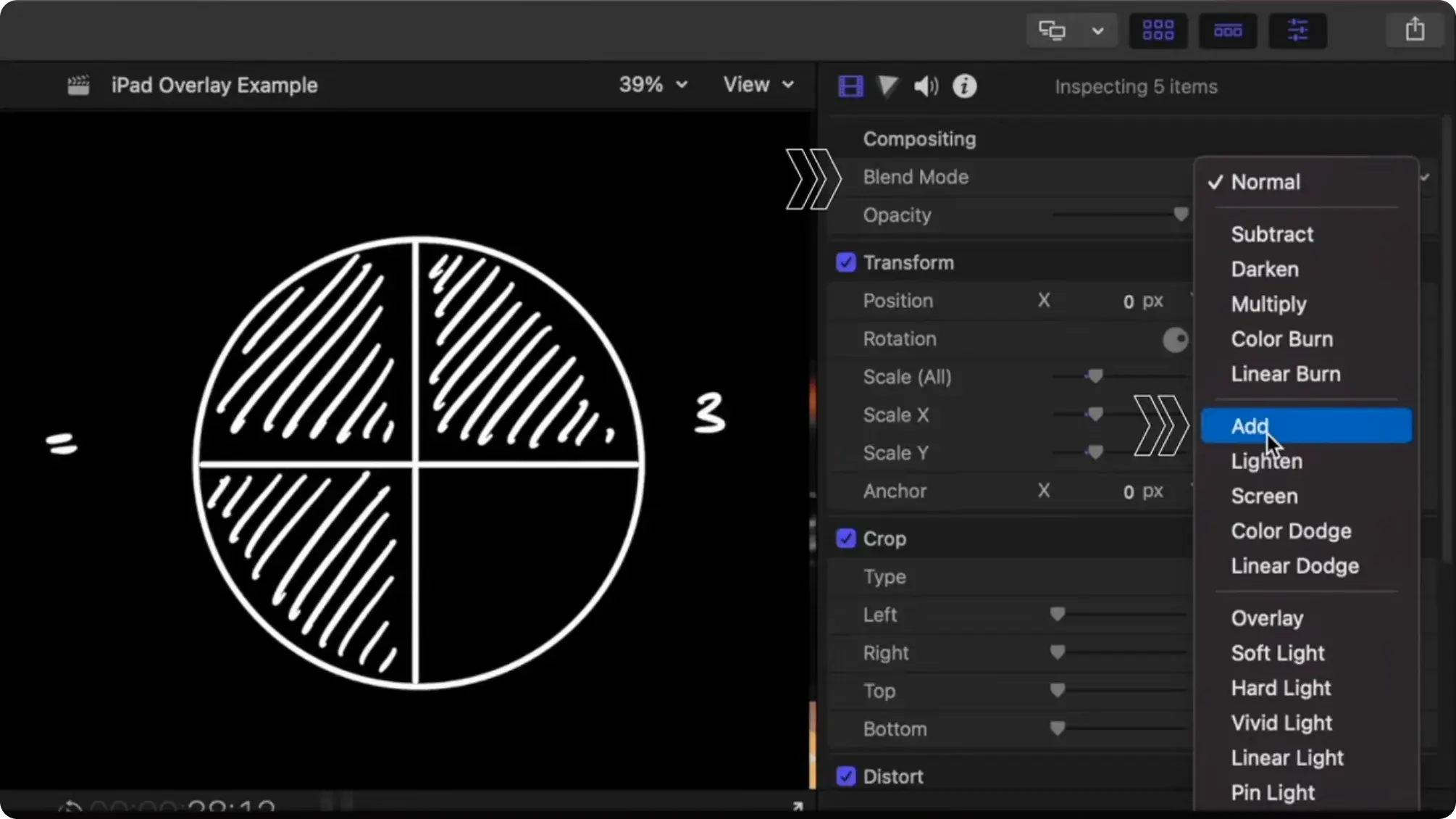
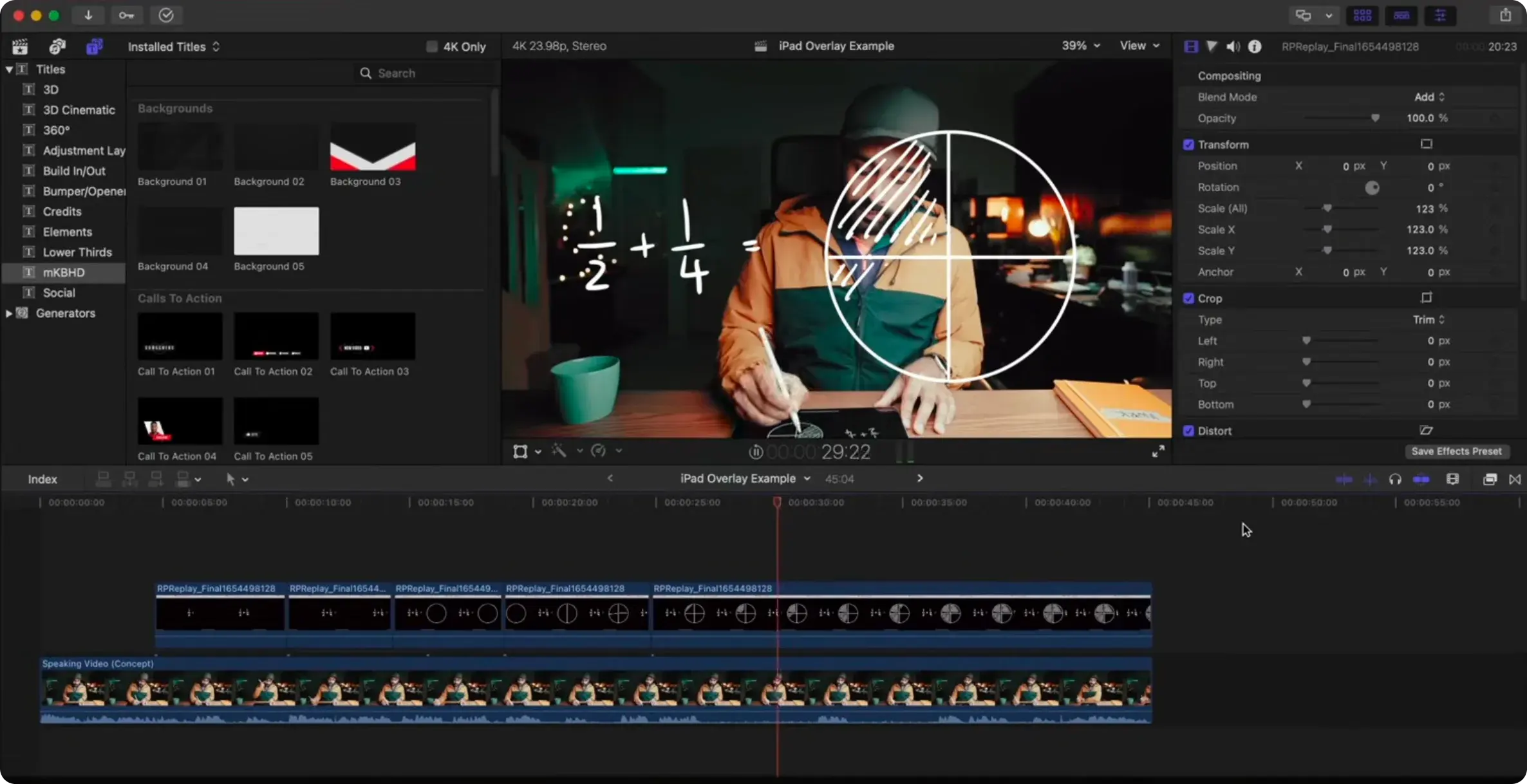
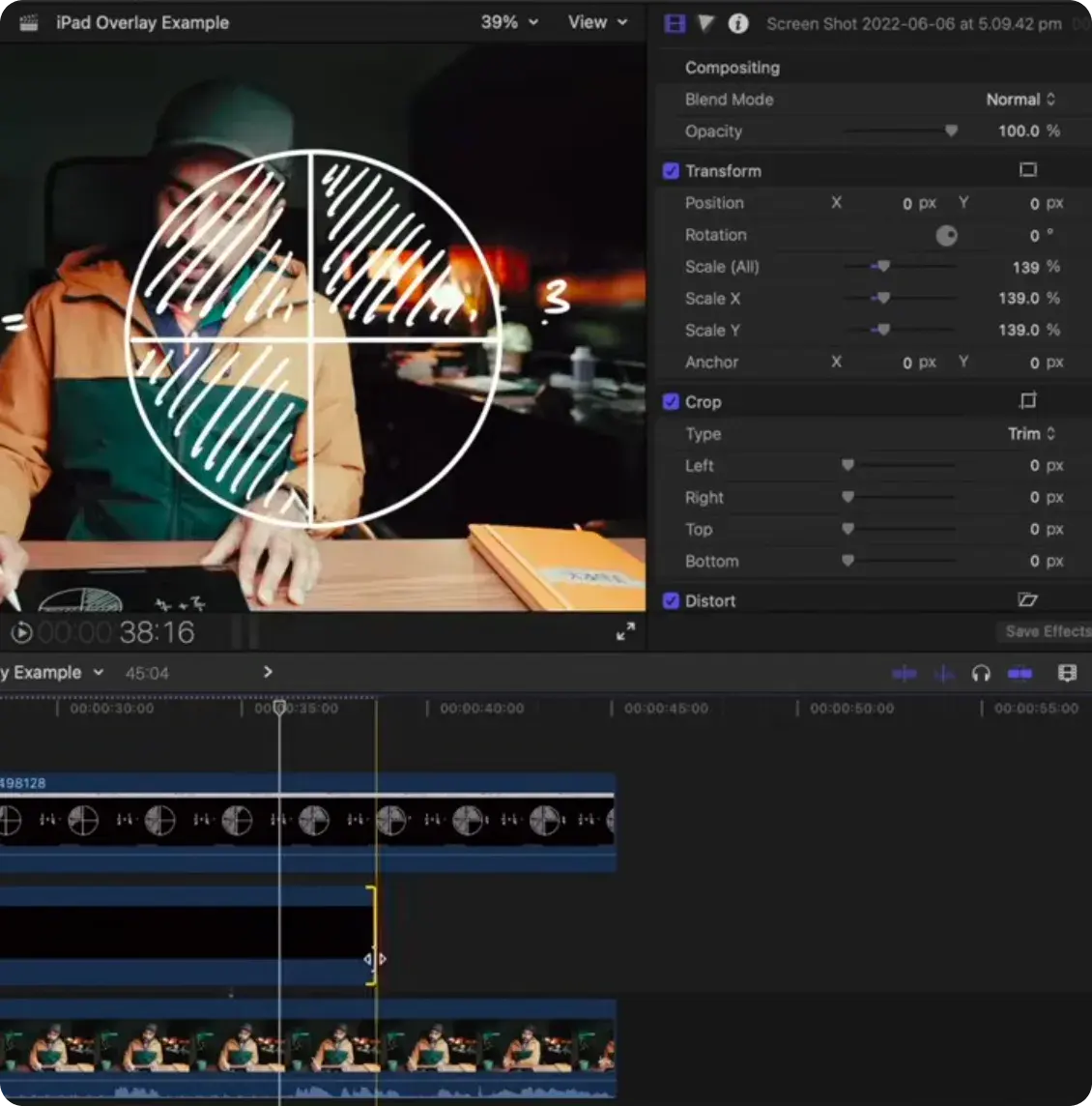
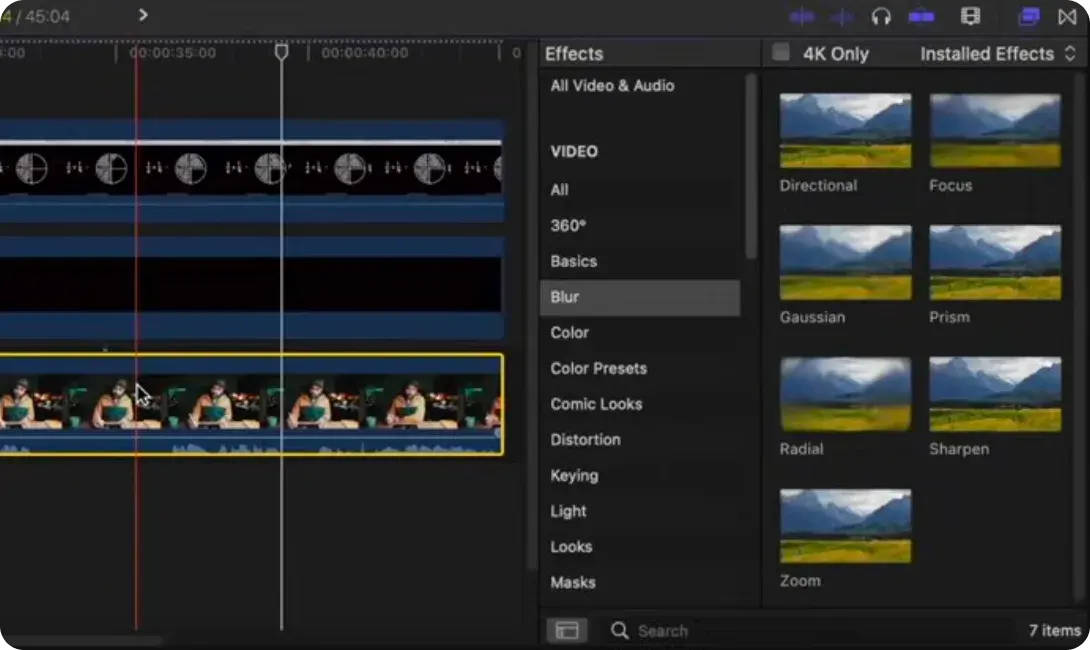
These frames are not YamDraw. They are from Samuel Suresh's tutorial on writing over your videos with an iPad, which is where the idea came from. His video, his workflow, and a fair account of what it currently takes.
What YamDraw removes
Today
- Open a notes app and set up a black page to draw on.
- Start an iPad screen recording, then draw.
- Record the talking head separately, on a camera.
- Import both files into a video editor.
- Set the ink clip to Add so the black drops out, then scale and crop it over the face.
With YamDraw
- Open YamDraw and draw. The page is already black, the recording is already running.
- Record the talking head separately, on a camera.
- Import both, set the ink clip to Add, scale it to fit.
Five steps become three. The two that go are the two that were never about drawing. The edit stays an edit: YamDraw does not pretend to replace the video editor, it removes the reason you were fighting one before you had anything to cut.
A closer look · October 2026
A visual review, kept together
Browse a website or sketch on a board, annotate with Apple Pencil, record a spoken explanation, and keep video plus marked-up frames as one session.
Captured on an iPad Air 11-inch (M4) simulator, 19 October 2026, app version 0.1 (2). The design rationale below is an editorial interpretation, not a formal user-research finding.
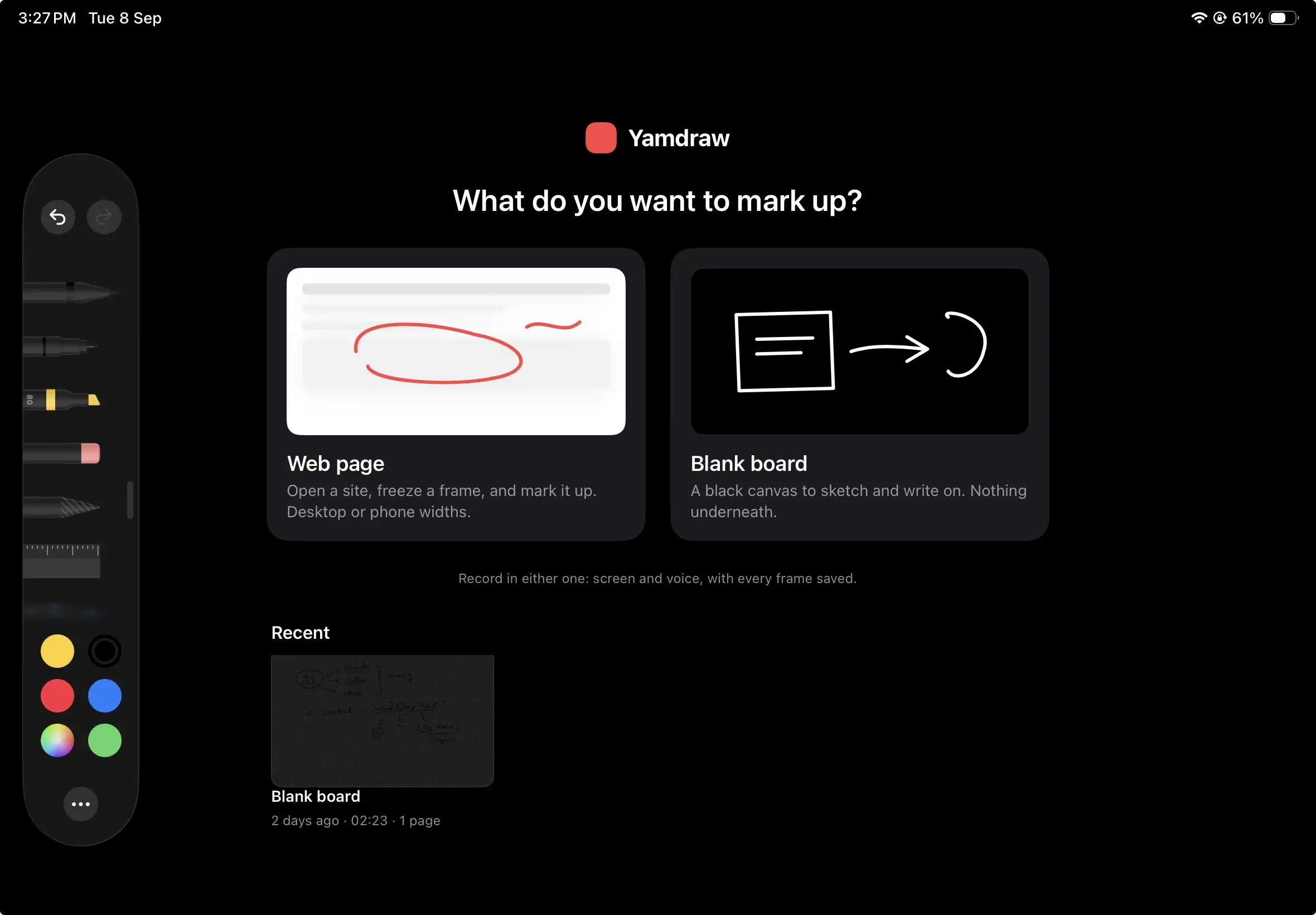
Workspace chooser: Choose the kind of feedback
Yamdraw begins with a concrete question: “What do you want to mark up?” Two visual choices separate reviewing an existing website from explaining an idea on a blank board.
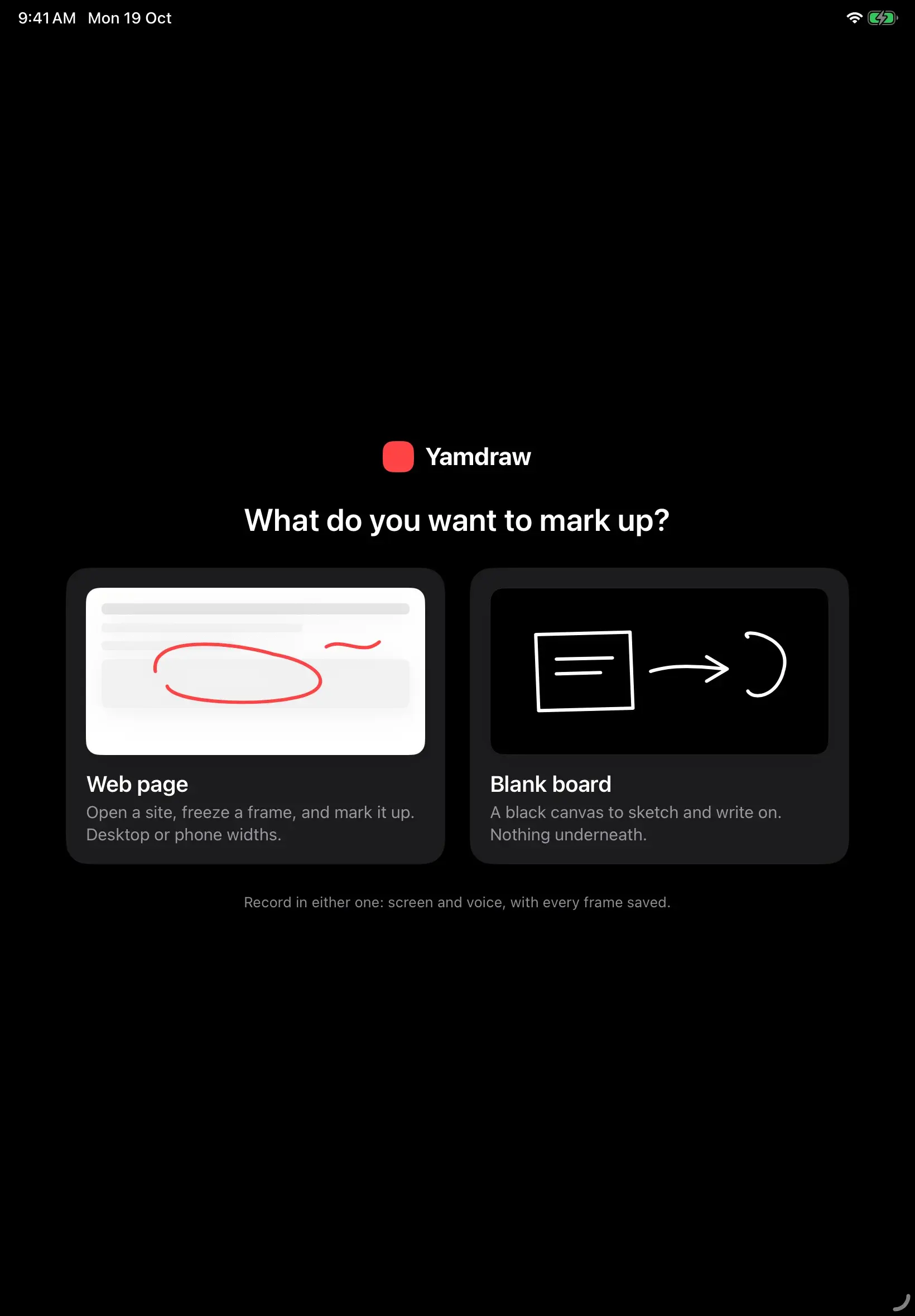
- Web page opens a live browser for reviewing an interface in context.
- Blank board opens a drawing surface for sketches, flows and written explanations.
- Both paths support snapshots and narrated recordings. The same capture model works across both workspaces.
- When saved sessions exist, Recent appears below the choices. The initial empty state stays focused on starting work.
Design rationale: The entry point is organized around the reviewer’s material. Users do not need to understand file types or recording settings before getting started.
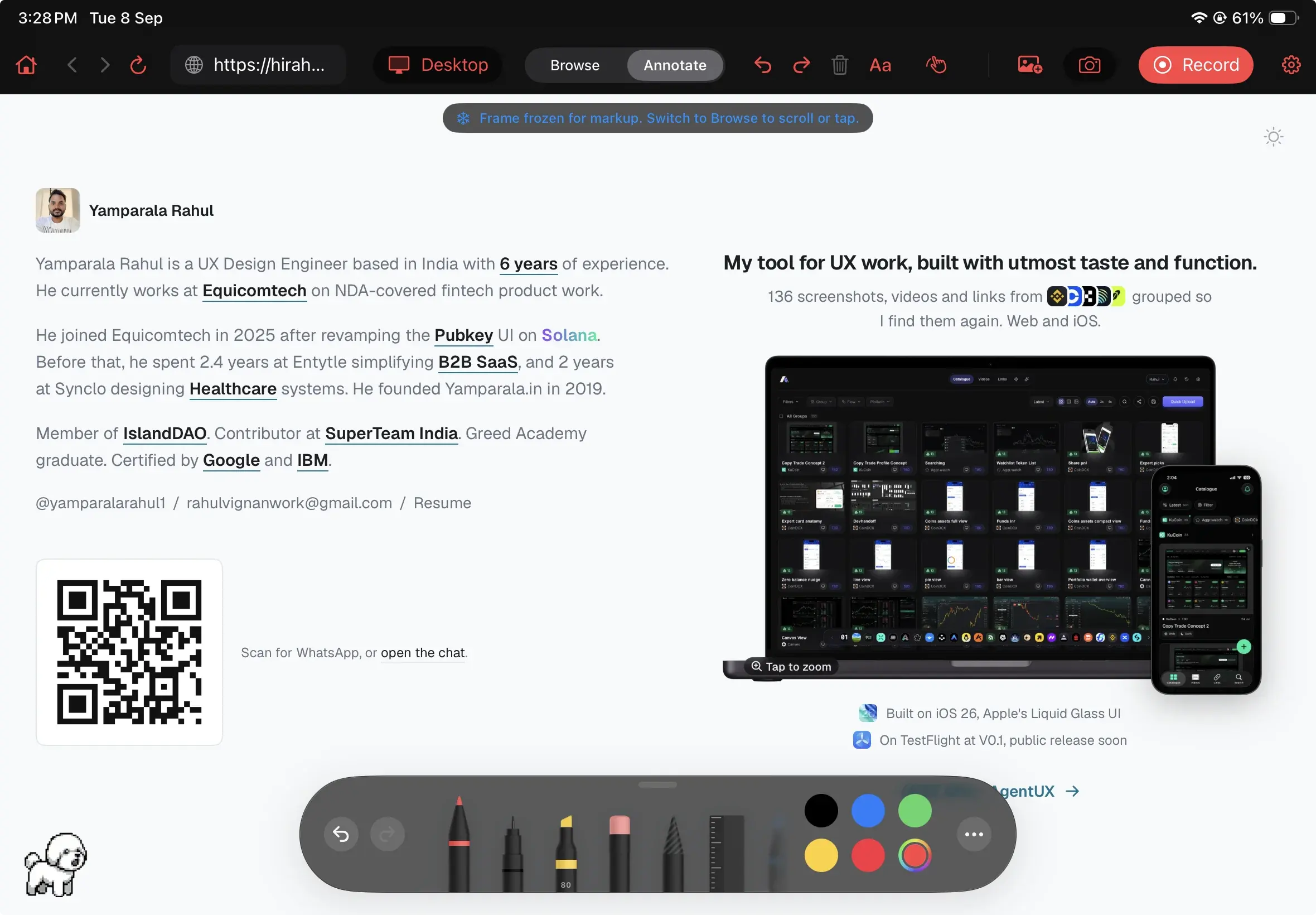
Web workspace / Browse: Review the live website
The browser keeps the website inside the review environment. A reviewer can navigate to a screen, interact with it, then annotate the moment that needs attention.
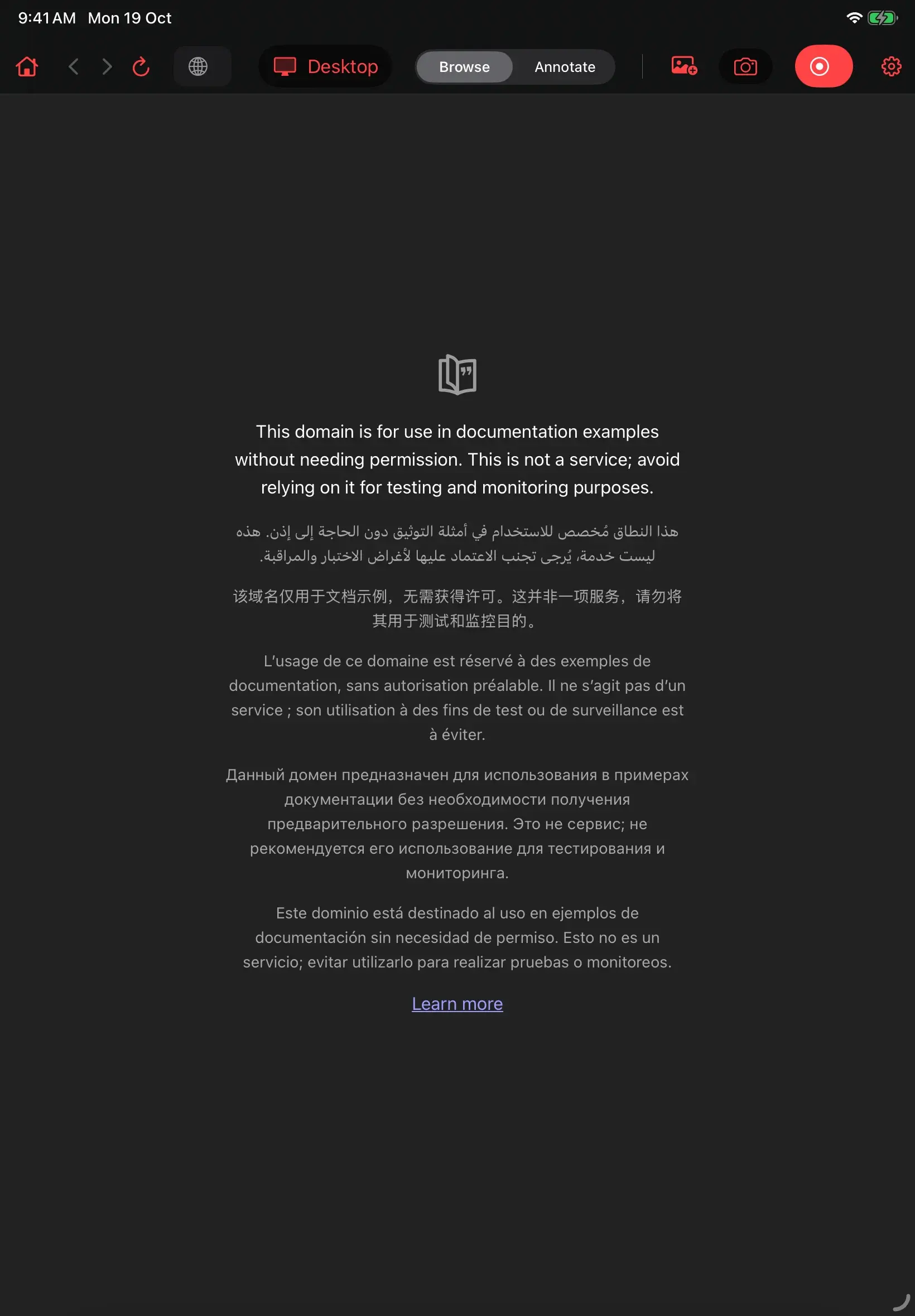
- The address field accepts full HTTP(S) URLs, adds HTTPS to bare hostnames, and sends other text to a web search. Plain HTTP remains subject to the app’s transport-security restrictions.
- Back, forward, reload and stop-loading controls support normal navigation. WebKit uses persistent website storage for browsing sessions.
- Desktop mode requests desktop content and fills the stage. A finger can scroll and tap links while the page is live.
- Home closes the active page and returns to the chooser; the address remains available for reopening.
Design rationale: Keeping navigation and feedback together preserves the context of a critique. The reviewer can demonstrate a behavior before marking up its result.
Responsive viewport preview: Inspect a smaller screen on the iPad
The viewport control changes the space in which the website lays itself out. Phone presets appear in a device-shaped frame, leaving surrounding room for notes.
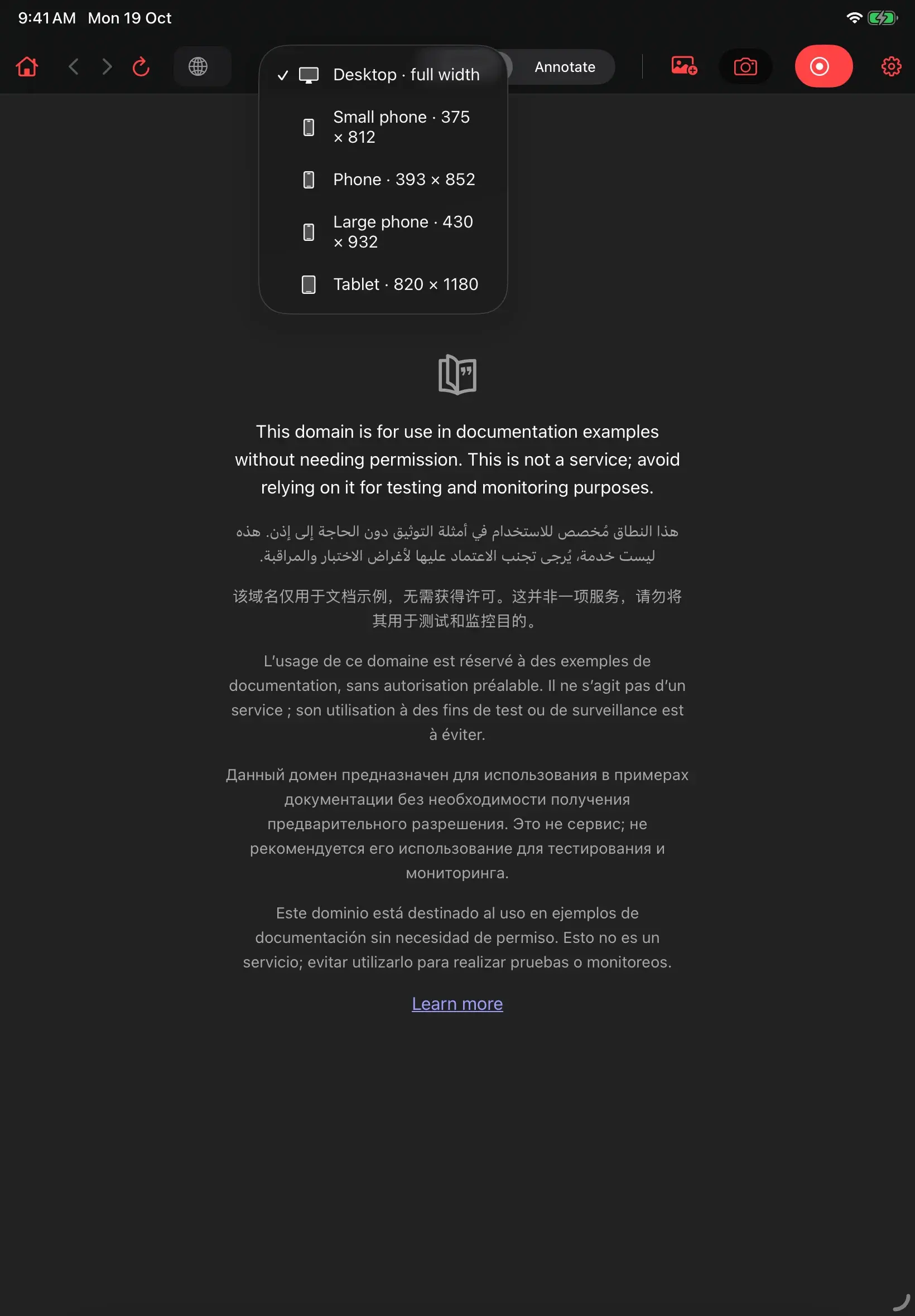
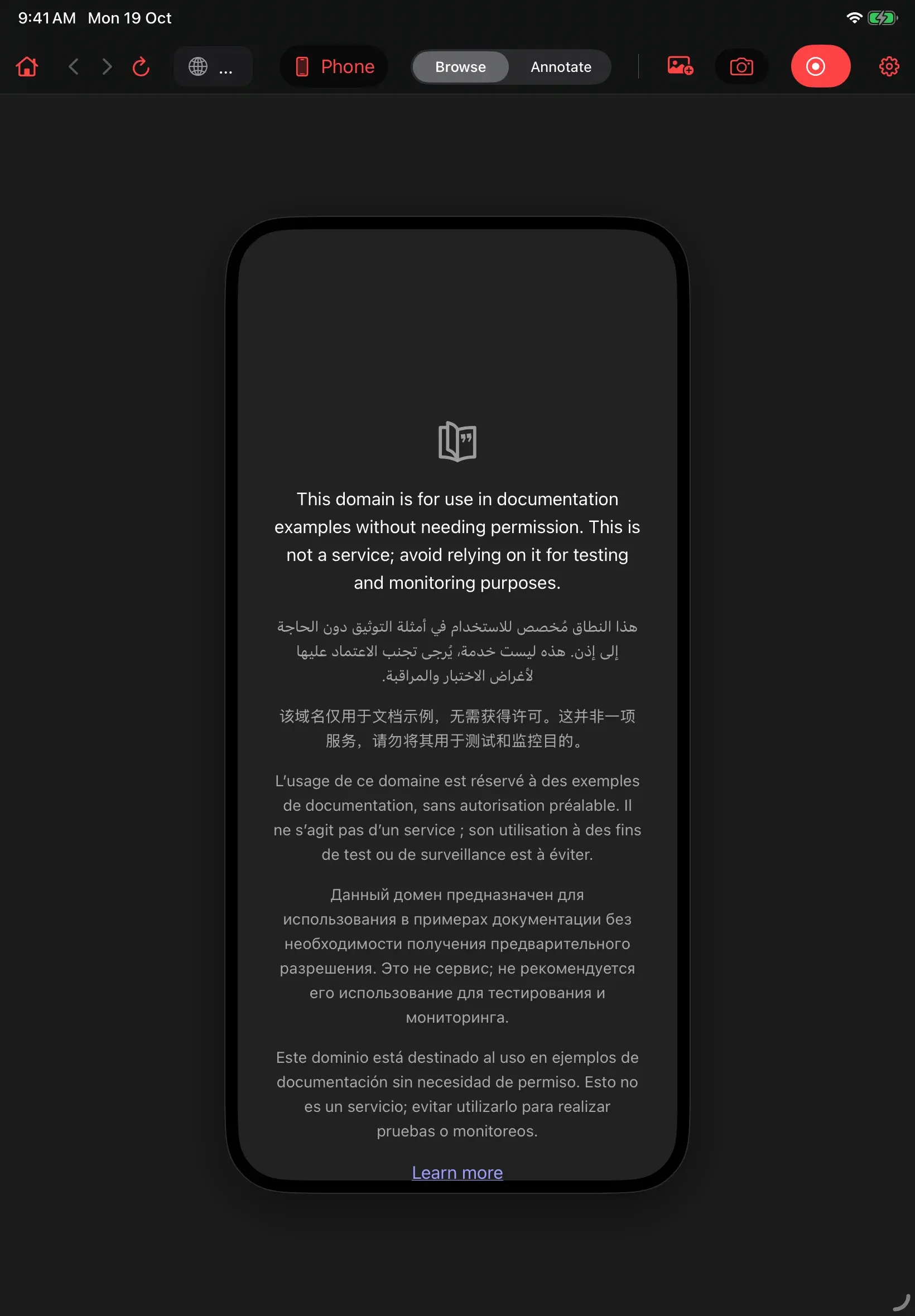
- Desktop uses the available stage width. Small phone is 375 × 812 points; Phone is 393 × 852; Large phone is 430 × 932; Tablet is 820 × 1180.
- Device presets request mobile content. Phone presets also send an iPhone user agent.
- If a preset is taller than the available stage, its visible height is clamped and the page scrolls inside it.
- Annotations can occupy the device area and surrounding margins. Snapshot captures the whole stage. These are viewport previews, not full hardware or browser emulation.
Design rationale: The margin becomes useful review space. A reviewer can point at a mobile layout without squeezing every comment into the small screen itself.
Web workspace / Annotate: Freeze the moment; explain the change
Apple Pencil starts a stroke and switches the web workspace into Annotate mode. The underlying frame freezes so that the page cannot move away from the ink.
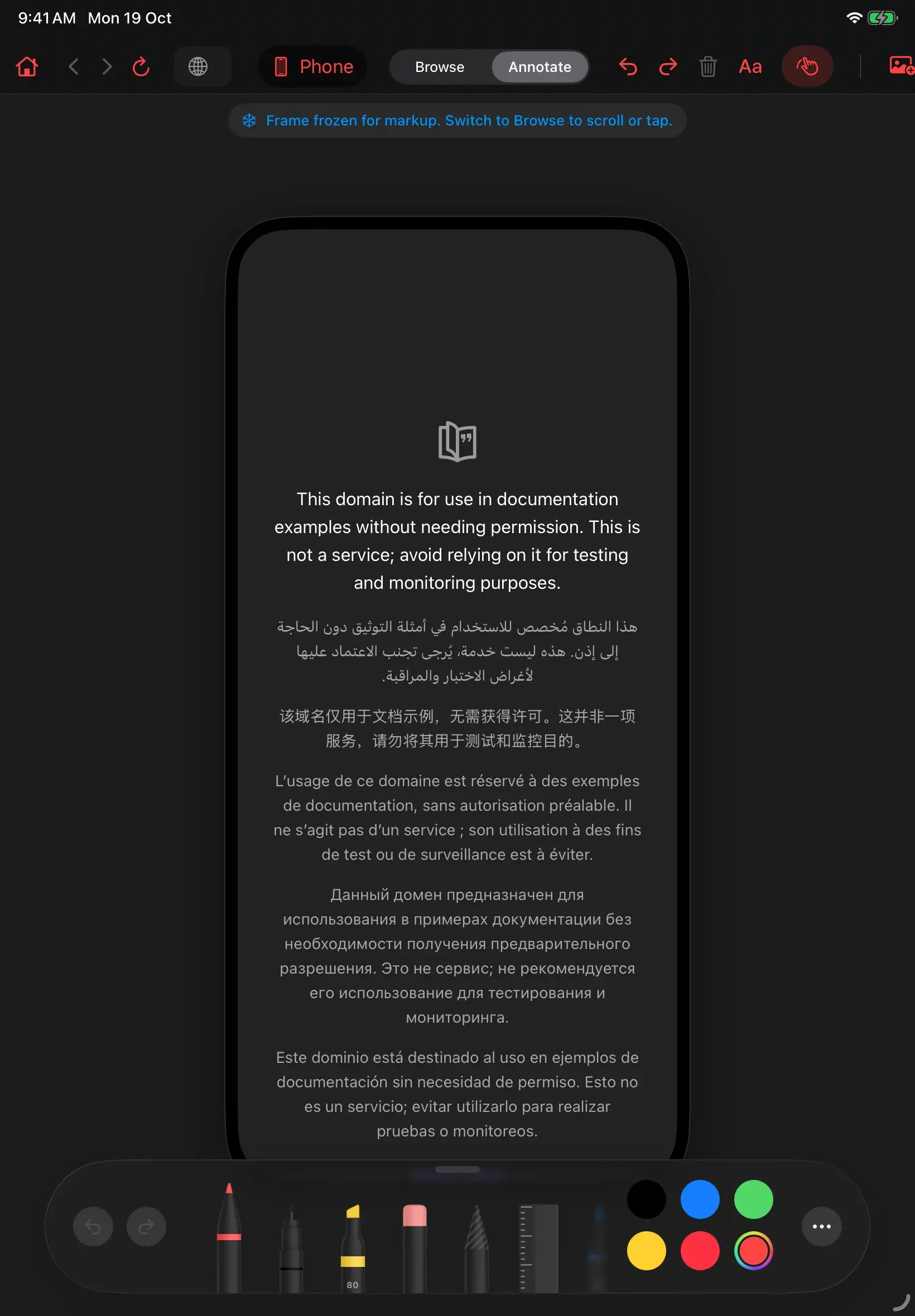
- Browse keeps finger input available to the website. Annotate holds the frame still while the reviewer draws. The segmented control also switches modes manually.
- The native PencilKit palette supplies drawing tools, colours, erasing and selection. The exact palette is provided by the installed OS.
- Undo and redo are available for drawing. Clear removes the current frame’s ink, images and notes together, with a combined undo action.
- Finger drawing can be enabled for use without Apple Pencil. Turn it off to arrange placed images with a finger.
- Ink is frame-based. It is not attached to webpage elements, and rotation can reflow the page without repositioning the annotation.
Design rationale: The input device carries intent: Pencil means mark up; a finger means navigate or arrange. Freezing the frame protects the spatial relationship between a comment and its subject.
Blank board: Give an idea room to develop
The board removes the website and makes drawing the primary activity. Its large, pannable canvas supports explanations that grow beyond one screen.
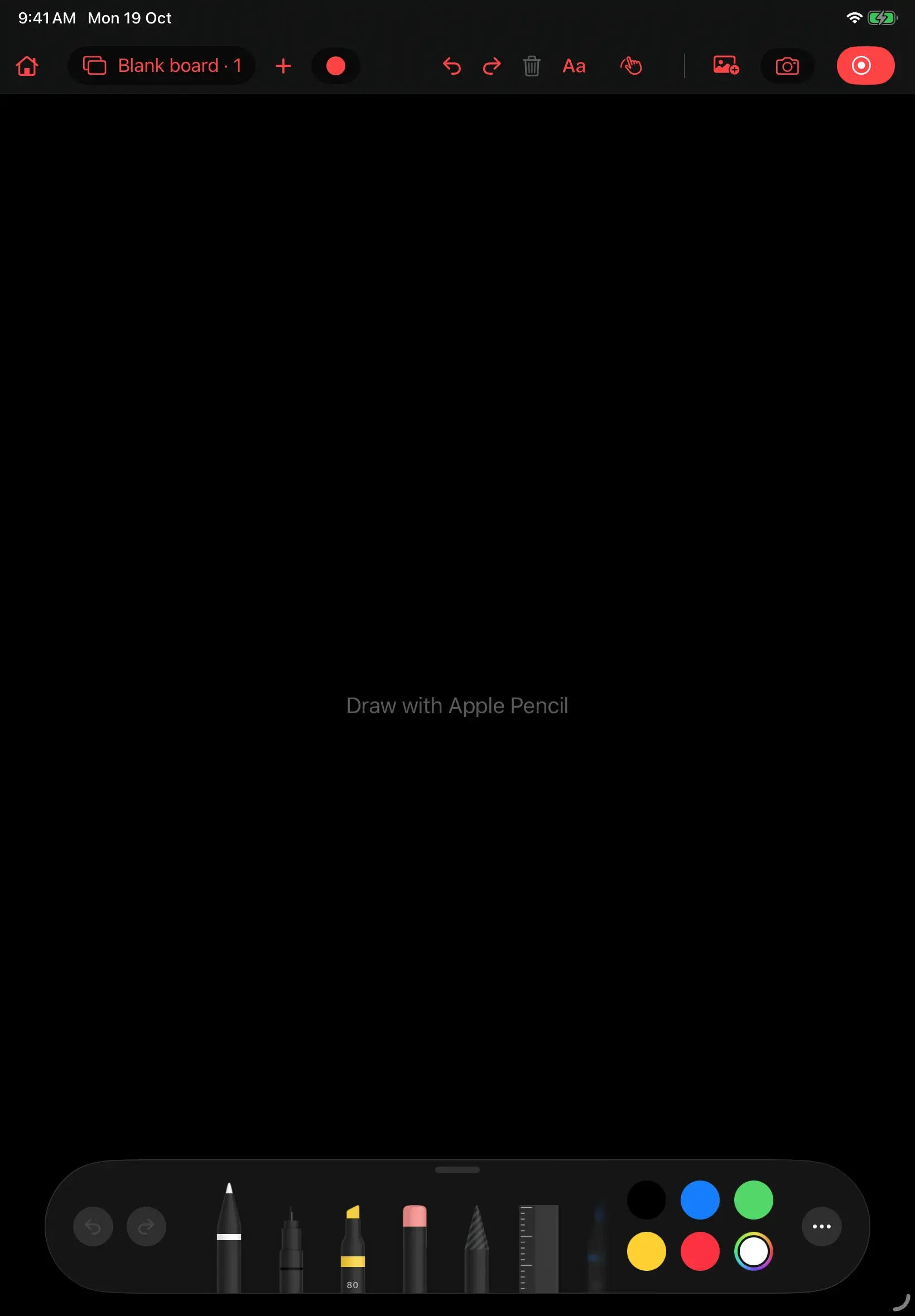
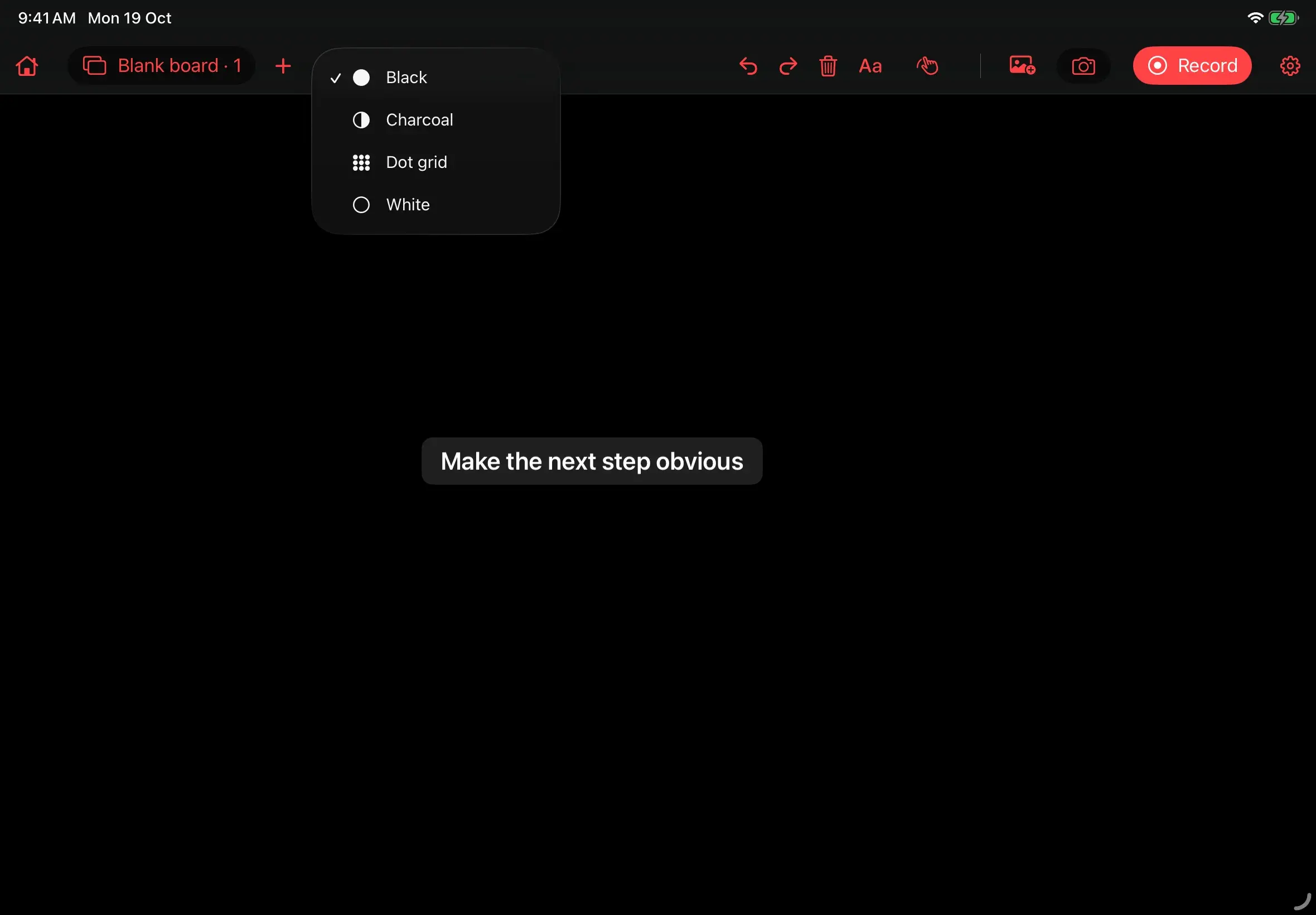
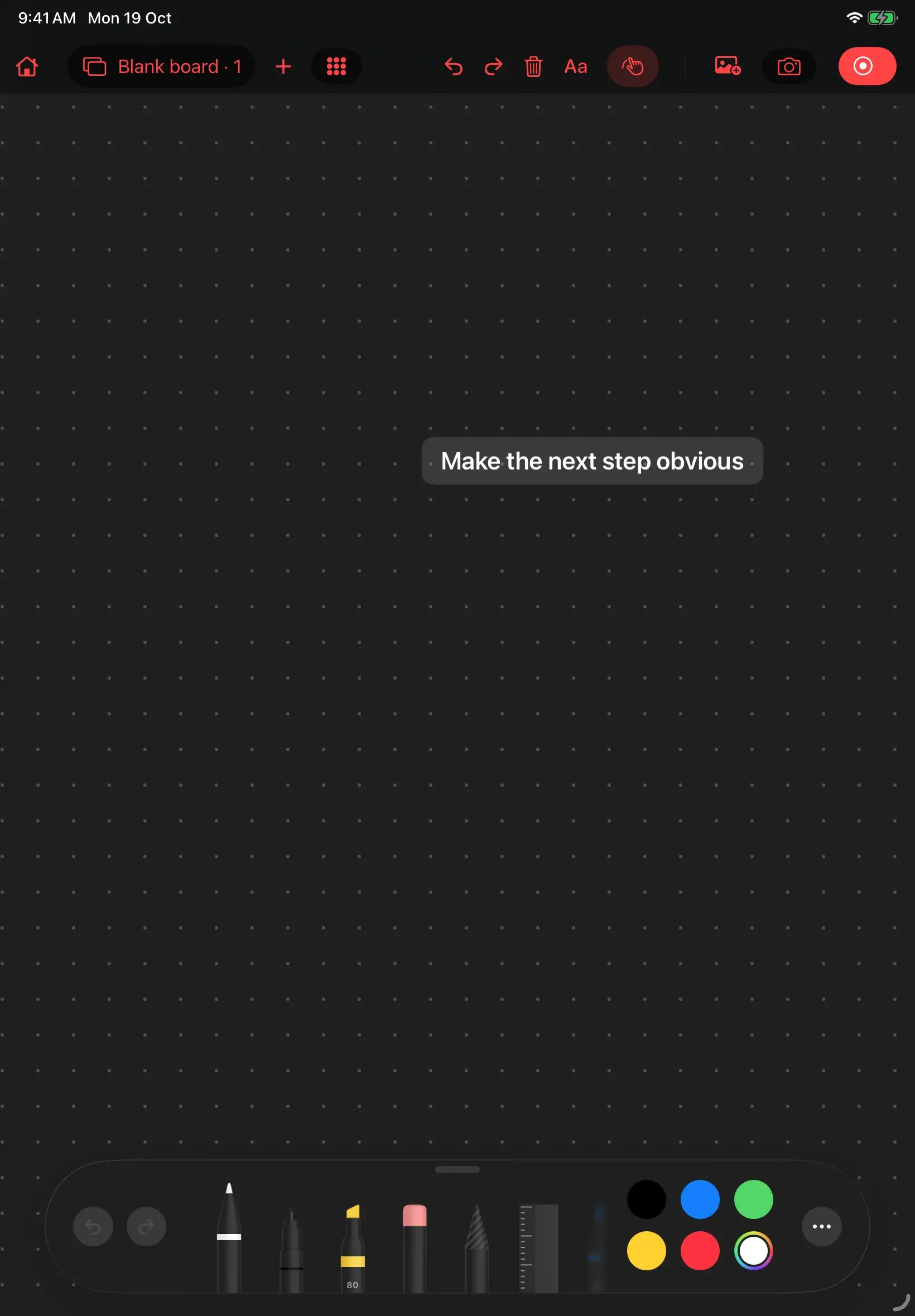
- Apple Pencil draws while one finger pans. With finger drawing enabled, panning uses two fingers.
- The board offers Black, Charcoal, Dot grid and White backgrounds. The default pen follows the background to remain visible.
- There is no canvas zoom. Images have their own scaling gesture, and strokes keep a consistent drawing scale.
- A Recentre action appears when content is sufficiently far away. Exported board frames fit the page’s content rather than simply cutting off everything beyond the viewport.
- The board title opens the page switcher. New page creates another page; each retains its own ink, notes and images while the app session remains alive. Pages are not yet persisted across launches.
Design rationale: The board supports spatial thinking without making navigation a drawing operation. Page switching gives a long explanation structure, while a large canvas avoids forcing premature pagination.
Annotation layers and image menu: Combine ink, text and reference images
Freehand marks are only one way to explain feedback. Text notes add precise wording, while placed images bring screenshots or references into the same review surface.
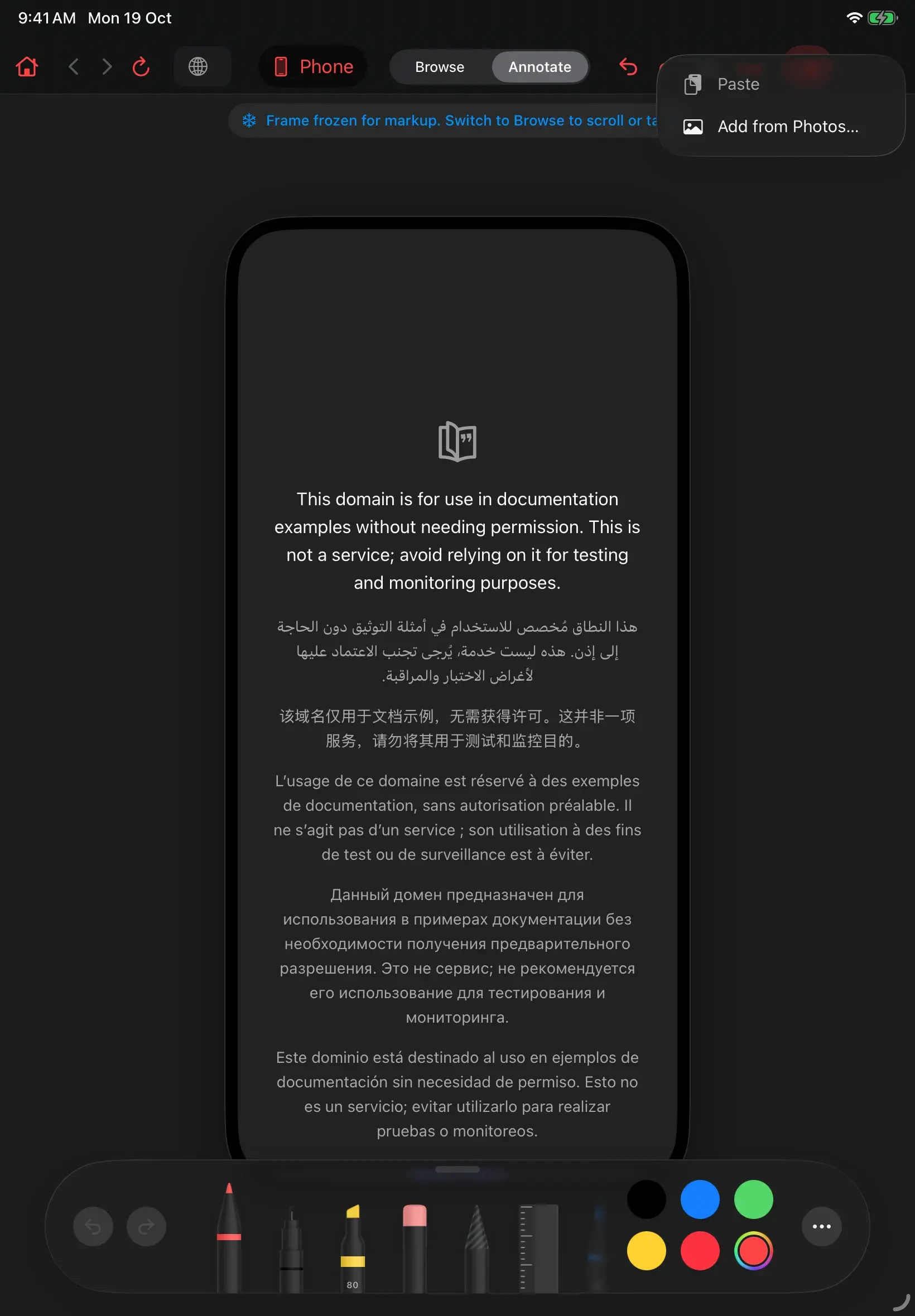
- Aa creates a movable text note in the selected colour. The note wraps as needed, uses a soft background chip, and finishes editing with Return.
- The image menu offers Paste from the clipboard and Add from Photos. Paste is unavailable when the clipboard has no image.
- Placed images can be dragged, pinched to scale, or resized from a corner handle while preserving their aspect ratio.
- Images sit beneath ink and notes. All three layers are composited into snapshots and saved frames.
- Individual text-note edits and moves do not yet have complete undo support. Clearing the entire frame is undoable.
Design rationale: The layers support different kinds of explanation: point with ink, specify with text, and compare with an image. The exported artifact carries them together.
Snapshot preview: Share a single clear frame
Snapshot turns the current composition into a still image. The preview gives the reviewer a chance to inspect exactly what will be handed over.
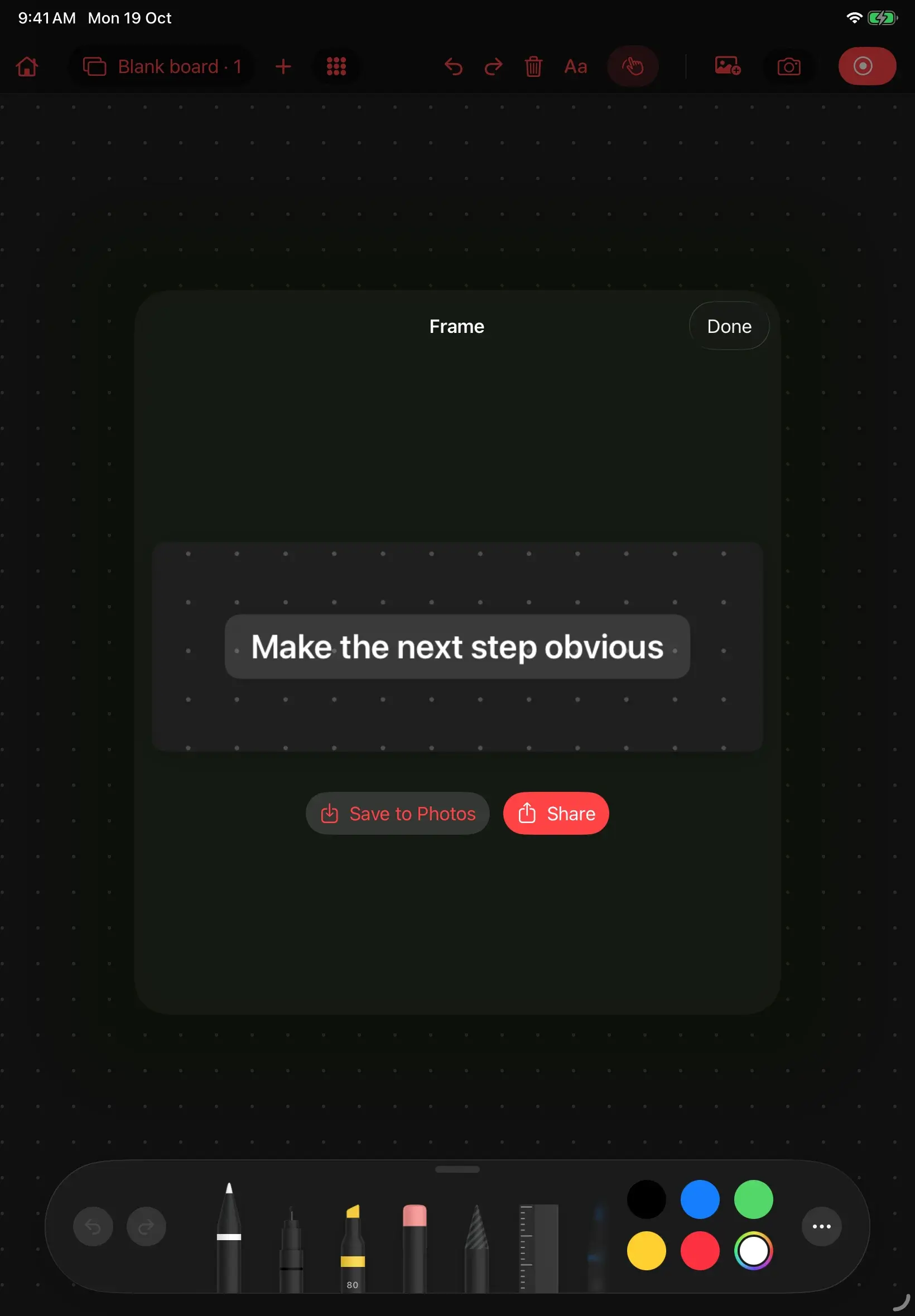
- The export combines the underlying page or board with ink, images and text.
- Web snapshots capture the review stage, including margins around a device preset. Board exports fit the page’s content with a margin, subject to a maximum export size.
- Save to Photos adds the image to the photo library; Share opens the system sharing interface.
- Done returns to the workspace. Snapshot is useful when a still frame communicates the issue without a recording.
Design rationale: The smallest useful deliverable is available without starting a recording. Previewing the composed image makes export a visible step rather than an invisible side effect.
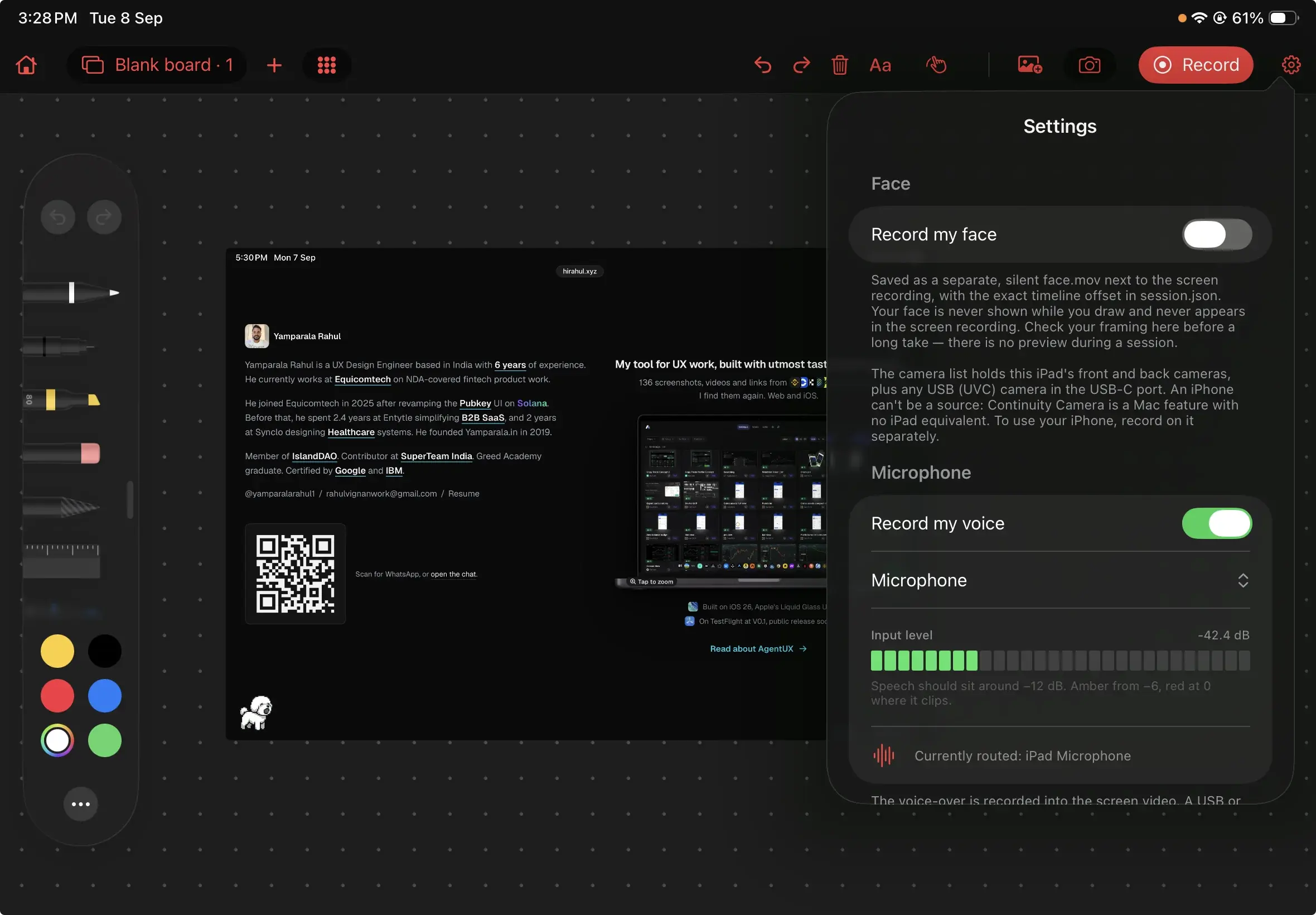
Settings / Face and Microphone: Prepare sound and camera before the take
Capture settings let the reviewer decide what belongs in the recording and check the inputs before spending time on an explanation.
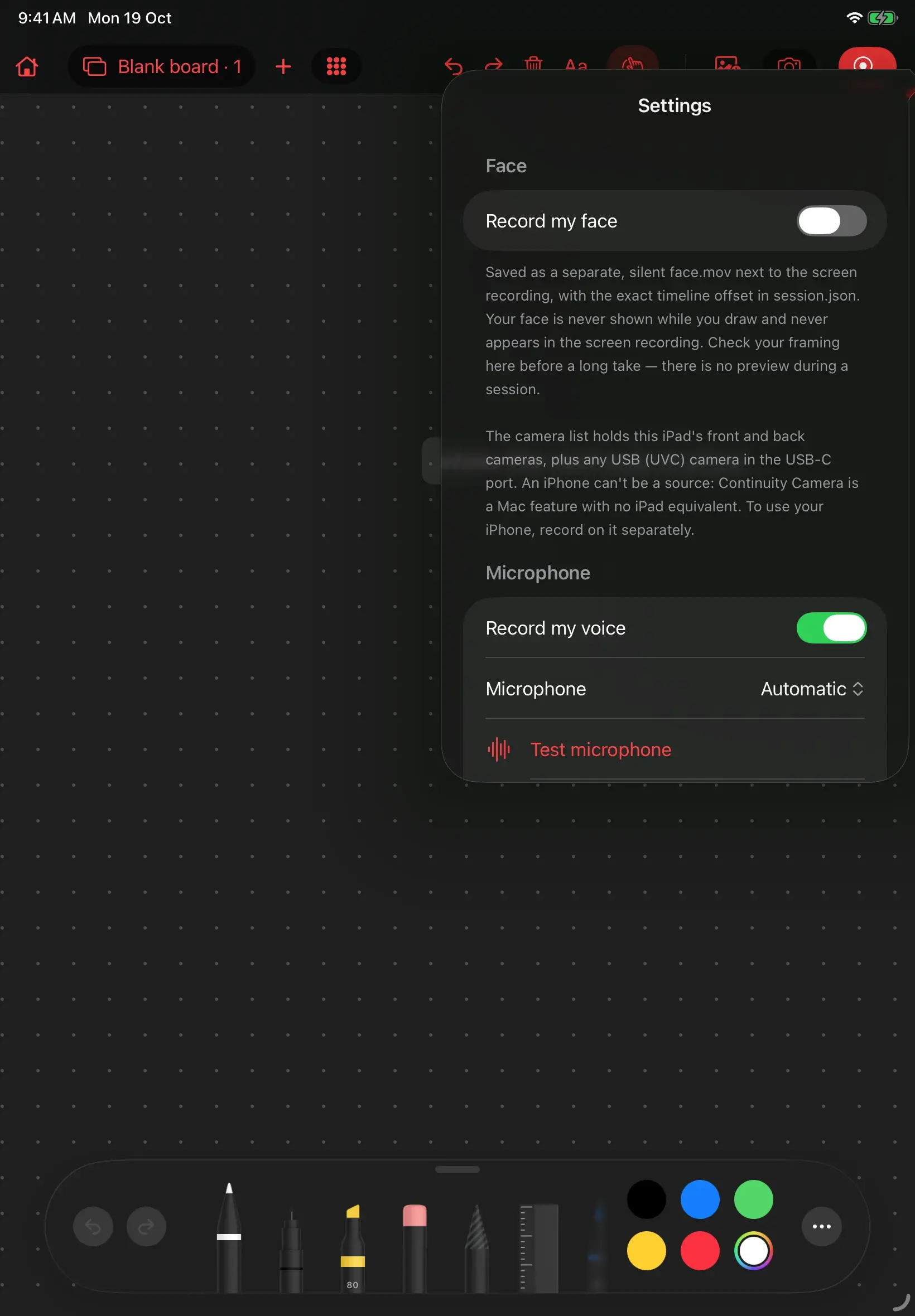
- Record my voice controls microphone capture. The microphone picker supports automatic routing and available inputs; the current route is shown.
- Test microphone requests access when needed and enables a live input meter. During a recording, the small meter is shown only when a level can actually be measured.
- Record my face enables a separate camera file. Camera selection and Check framing are available when enabled.
- The app supports available built-in cameras and compatible external UVC cameras exposed by iPadOS. An iPhone is not offered as a Continuity Camera source.
- The face recording is silent; narration stays in the screen video. The camera preview is used before recording, not overlaid on the drawing stage.
Design rationale: The design separates preparation from presentation. Input checks happen before the take, and the canvas stays clear of a face bubble during the explanation.
Settings / Storage and Appearance: Make the destination explicit
Session storage is visible and file-based. The user can keep everything on the iPad or choose a folder through Files.
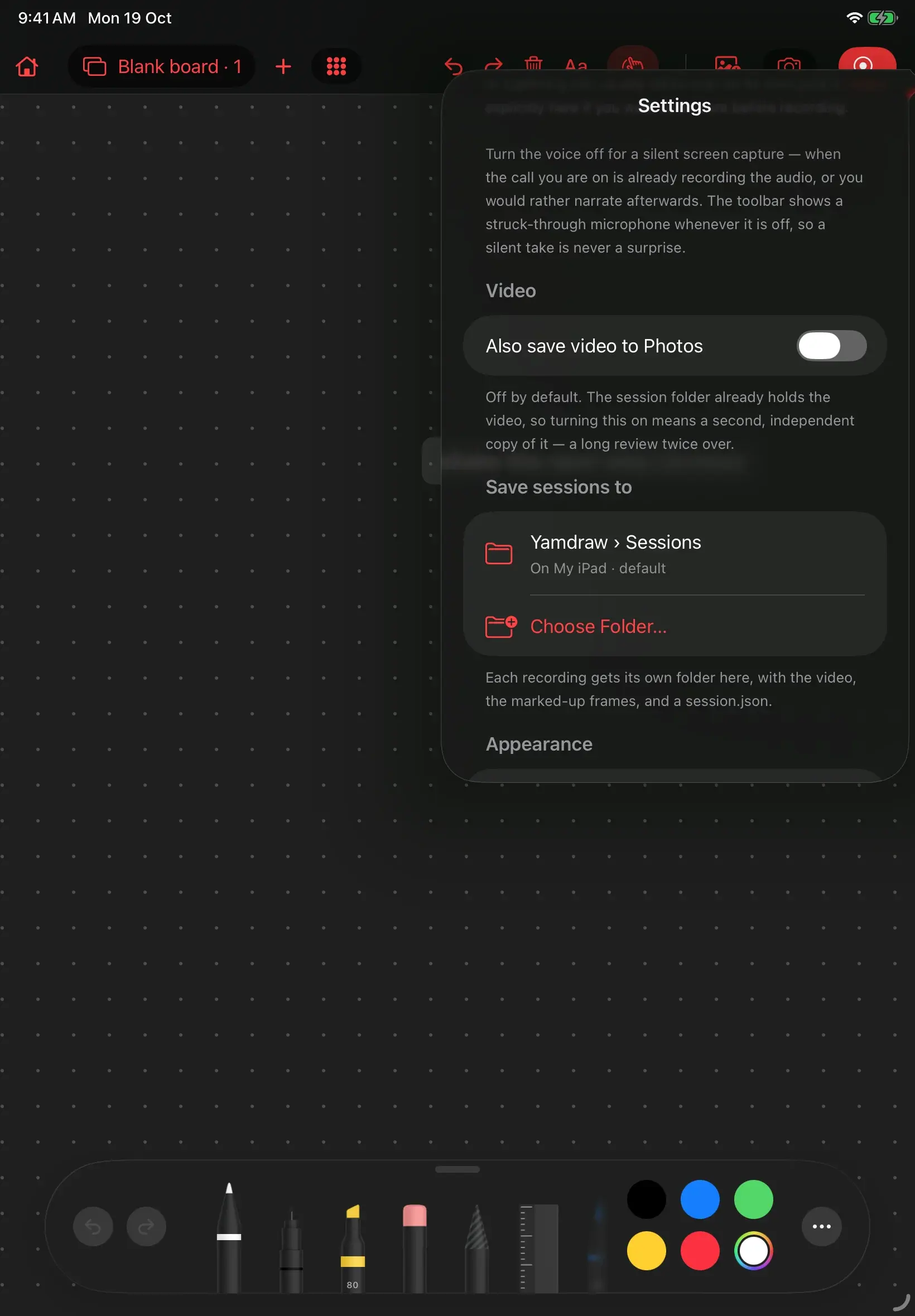
- The default destination is On My iPad › Yamdraw › Sessions. Choose Folder can select a writable location, including iCloud Drive.
- The app stores a bookmark to the chosen folder. If the destination cannot be reached or written during saving, the recorder attempts the default location and reports the fallback.
- Also save video to Photos is off by default, avoiding an automatic second video copy.
- Dark, Light and System appearance options change the interface. Ink colours are rendered literally rather than being inverted by appearance.
Design rationale: The recording folder is the primary handoff. Making duplicate storage optional gives users control over both organization and storage consumption.
Recording in progress: Explain while the app captures
Described from the app source; a runtime screenshot is not yet available.
Recording uses ReplayKit for the screen and microphone. The system consent decision governs what is actually captured, including the option to record without sound.
Record → system consent → timer → annotate → Stop
- The recording toolbar shows elapsed time, the working context and Stop. It preserves the stage height so starting a take does not move the content.
- In a web review, returning to Browse releases a marked-up frame: the composition is saved as a PNG and ink is cleared for the next moment. Stop also captures the current marked-up frame.
- On a board, New page saves the filled page during recording. Clear intentionally removes a mistake without saving it as a new frame.
- After recording, the screen video is cropped to the drawing stage. The tool palette can remain inside that stage. If cropping fails, the recorder retains the full-screen recording and reports the problem.
- Leaving the foreground stops recording. A stopped take still needs to be kept; unfinished staged data is not currently recoverable after a crash/relaunch.
Design rationale: The capture follows the review rather than asking the reviewer to curate files mid-sentence. A video preserves the explanation; PNG frames preserve the individual observations.
Review sheet: Decide what is worth keeping
Described from the app source; a runtime screenshot is not yet available.
When a take ends, Yamdraw presents a review sheet. The take is staged locally and has not yet been committed to the session destination.
Playback → inspect sound and frames → Keep or Discard
- The sheet provides video playback, duration and frame count, and indicates when a separate face video was captured.
- The finished video is checked for an audio track. A warning explains when no sound is present; this detects a missing audio track, not every kind of silent or poor-quality microphone recording.
- Keep commits the take. Discard asks for confirmation and removes the staged screen video, face video and frames.
- Swipe-to-dismiss is disabled for the pending review so an incidental gesture cannot decide the fate of the files.
- During saving, controls are disabled. A failed save keeps the decision unresolved rather than claiming success.
Design rationale: “Recorded” and “kept” are separate states. This makes it possible to reject a take before it becomes part of the user’s library.
Saved session confirmation: Hand over the whole explanation
Described from the app source; a runtime screenshot is not yet available.
After Keep succeeds, the same sheet becomes a saved-session confirmation with a location and explicit sharing options.
Saved location → Share all / Videos / Frames
- Share all includes the screen recording, optional face video, marked-up frames and session.json.
- Videos and Frames provide narrower exports when the recipient only needs part of the session.
- session.json records the starting URL, duration, per-frame context and timestamps, and the camera offset when present.
- The camera offset tells an editor where face.mov begins relative to recording.mp4. The face file remains separate and is not burned into the screen video.
Design rationale: The review leaves as an organized package. Keeping the metadata with the media reduces the chance of losing timing or context during an editing handoff.
Recent sessions and session detail: Return to previous reviews
Described from the app source; a runtime screenshot is not yet available.
The chooser becomes a lightweight library once sessions have been kept. Selecting a tile opens a detail screen for revisiting the explanation and its captured frames.
Recent thumbnail → playback and gallery → share / reopen / delete
- Recent shows up to twelve sessions, sorted newest first, with a complete-frame thumbnail, a duration badge when available, and date/frame information.
- The detail screen presents playback and a gallery named Pages for board sessions or Frames for web reviews. Larger layouts place the gallery beside the video.
- Selecting a frame opens a larger export preview. Share all, Videos and Pages/Frames reuse the same handoff model.
- Web sessions offer Open page to reopen their starting URL. Delete requires confirmation; independent copies in Photos remain.
- Current reliability gaps include silently skipped unreadable manifests and deletion errors that are not surfaced. These are backlog items, not completed improvements.
Design rationale: The session is the organizing unit: one review, its recording, and the visual observations that belong to it. The gallery makes the useful moments accessible without scrubbing the entire video.